
大家好,又见面了,我是你们的朋友全栈君。
我们知道Android系统应用程序一般是由多个Activity组成,而这些Activity以视图的形式展现在我们面前,视图都是由一个一个的组件构成的。组件就是我们常见的Button、TextEdit等等。那么我们平时看到的Android手机中那些漂亮的界面是怎么显示出来的呢?这就要用到Android的布局管理器了,网上有人比喻的很好:布局好比是建筑里的框架,组件按照布局的要求依次排列,就组成了用于看见的漂亮界面了。
在分析布局之前,我们首先看看控件:Android中任何可视化的控件都是从android.veiw.View继承而来的,系统提供了两种方法来设置视图:第一种也是我们最常用的的使用XML文件来配置View的相关属性,然后在程序启动时系统根据配置文件来创建相应的View视图。第二种是我们在代码中直接使用相应的类来创建视图。
如何使用XML文件定义视图:
每个Android项目的源码目录下都有个res/layout目录,这个目录就是用来存放布局文件的。布局文件一般以对应activity的名字命名,以 .xml 为后缀。在xml中为创建组件时,需要为组件指定id,如:android:id=”@+id/名字”系统会自动在gen目录下创建相应的R资源类变量。
如何在代码中使用视图:
在代码中创建每个Activity时,一般是在onCreate()方法中,调用setContentView()来加载指定的xml布局文件,然后就可以通过findViewById()来获得在布局文件中创建的相应id的控件了,如Button等。
如:
private Button btnSndMag;
public void onCreate(Bundle savedInstanceState) {
	super.onCreate(savedInstanceState);
	setContentView(R.layout.main);	// 加载main.xml布局文件
	btnSndMag = (Button)this.findViewById(R.id.btnSndMag); // 通过id找到对于的Button组件
	....
}
下面我们来介绍Android系统中为我们提供的五大布局:LinearLayout(线性布局)、FrameLayout(单帧布局)、AbsoluteLayout(绝对布局)、TablelLayout(表格布局)、RelativeLayout(相对布局)。其中最常用的的是LinearLayout、TablelLayout和RelativeLayout。这些布局都可以嵌套使用。
(1)LinearLayout 线性布局
线性布局是按照水平或垂直的顺序将子元素(可以是控件或布局)依次按照顺序排列,每一个元素都位于前面一个元素之后。线性布局分为两种:水平方向和垂直方向的布局。分别通过属性android:orientation=”vertical” 和 android:orientation=”horizontal”来设置。
android:layout_weight 表示子元素占据的空间大小的比例,有人说这个值大小和占据空间成正比,有人说反比。我在实际应用中设置和网上资料显示的刚好相反,这个问题后面会专门写一篇文章来分析。现在我们只需要按照正比例来设置就可以。
例如下面我们实现一个如图所示的简易计算器界面:

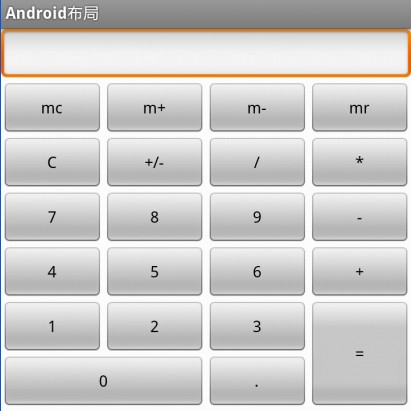
代码:
<LinearLayout xmlns:android="http://schemas.android.com/apk/res/android"
    xmlns:tools="http://schemas.android.com/tools"
    android:orientation="vertical"
    android:layout_width="match_parent"
    android:layout_height="match_parent"
    android:background="#FFFFFF"
    tools:context=".MainActivity" >

	// 这里第一行显示标签为一个水平布局
    <LinearLayout
        android:layout_width="match_parent"
        android:layout_height="wrap_content"
        android:orientation="horizontal" >
        <EditText
            android:id="@+id/msg"
            android:inputType="number"
            android:layout_width="match_parent"
            android:layout_height="wrap_content"
            android:text="">
        </EditText>
    </LinearLayout>

	// 第二行为 mc m+ m- mr 四个Button构成一个水平布局
    <LinearLayout
        android:layout_width="match_parent"
        android:layout_height="wrap_content"
        android:orientation="horizontal" >
     	<Button
     	    android:layout_width="match_parent"
     	    android:layout_height="wrap_content"
     	    android:text="mc" android:layout_weight="1">
     	</Button>
     	<Button
     	    android:layout_width="match_parent"
     	    android:layout_height="wrap_content"
     	    android:text="m+" android:layout_weight="1">
     	</Button>
     	<Button
     	    android:layout_width="match_parent"
     	    android:layout_height="wrap_content"
     	    android:text="m-" android:layout_weight="1">
     	</Button>
     	<Button
     	    android:layout_width="match_parent"
     	    android:layout_height="wrap_content"
     	    android:text="mr" android:layout_weight="1">
     	</Button>
	</LinearLayout>

	// 同上 C +/-  / * 四个Button构成一个水平布局
      <LinearLayout
          android:layout_width="match_parent"
          android:layout_height="wrap_content"
          android:orientation="horizontal" >
          <Button
              android:layout_width="match_parent"
              android:layout_height="wrap_content"
              android:layout_weight="1"
              android:text="C" >
          </Button>
          <Button
              android:layout_width="match_parent"
              android:layout_height="wrap_content"
              android:layout_weight="1"
              android:text="+/-" >
          </Button>
          <Button
              android:layout_width="match_parent"
              android:layout_height="wrap_content"
              android:layout_weight="1"
              android:text="/" >
          </Button>
          <Button
              android:layout_width="match_parent"
              android:layout_height="wrap_content"
              android:layout_weight="1"
              android:text="*" >
          </Button>
      </LinearLayout>

      <LinearLayout
        android:layout_width="match_parent"
        android:layout_height="wrap_content"
        android:orientation="horizontal" >
     	<Button
     	    android:layout_width="match_parent"
     	    android:layout_height="wrap_content"
     	    android:text="7" android:layout_weight="1">
     	</Button>
     	<Button
     	    android:layout_width="match_parent"
     	    android:layout_height="wrap_content"
     	    android:text="8" android:layout_weight="1">
     	</Button>
     	<Button
     	    android:layout_width="match_parent"
     	    android:layout_height="wrap_content"
     	    android:text="9" android:layout_weight="1">
     	</Button>
     	<Button
     	    android:layout_width="match_parent"
     	    android:layout_height="wrap_content"
     	    android:text="-" android:layout_weight="1">
     	</Button>
	</LinearLayout>

    <LinearLayout
        android:layout_width="match_parent"
        android:layout_height="wrap_content"
        android:orientation="horizontal" >
        <Button
            android:layout_width="match_parent"
            android:layout_height="wrap_content"
            android:layout_weight="1"
            android:text="4" >
        </Button>
        <Button
            android:layout_width="match_parent"
            android:layout_height="wrap_content"
            android:layout_weight="1"
            android:text="5" >
        </Button>
        <Button
            android:layout_width="match_parent"
            android:layout_height="wrap_content"
            android:layout_weight="1"
            android:text="6" >
        </Button>
        <Button
            android:layout_width="match_parent"
            android:layout_height="wrap_content"
            android:layout_weight="1"
            android:text="+" >
        </Button>
    </LinearLayout>

	// 最外层是一个水平布局,由左边上面一行1 2 3三个Button,下面一行的0 . 两个Button 和 右边的=构成
     <LinearLayout android:orientation="horizontal"
        android:layout_width="match_parent"
        android:layout_height="wrap_content">
		// 这里 1 2 3 和 下面的 0 . 构成一个垂直布局
        <LinearLayout android:orientation="vertical"
        	android:layout_weight="3"
        	android:layout_width="wrap_content"
        	android:layout_height="wrap_content">
			// 这里的 1 2 3 构成一个水平布局
     		<LinearLayout android:orientation="horizontal"
        		android:layout_width="match_parent"
        		android:layout_height="wrap_content">
        		<Button
        		    android:layout_width="wrap_content"
        		    android:layout_height="wrap_content"
        		    android:layout_weight="1"
        		    android:text="1"></Button>
        		<Button
        		    android:layout_width="wrap_content"
        		    android:layout_height="wrap_content"
        		    android:layout_weight="1"
        		    android:text="2"></Button>
        		<Button
        		    android:layout_width="wrap_content"
        		    android:layout_height="wrap_content"
        		    android:layout_weight="1"
        		    android:text="3"></Button>
     		</LinearLayout>
			// 这里的 0 和 . 构成一个水平布局,注意这里的android_weight参数设置
     		<LinearLayout android:orientation="horizontal"
        		android:layout_width="match_parent"
        		android:layout_height="wrap_content">
        		<Button
        		    android:layout_width="0px"
        		    android:layout_height="wrap_content"
        		    android:layout_weight="2"
        		    android:text="0"></Button>
        		<Button
        		    android:layout_width="0px"
        		    android:layout_height="wrap_content"
        		    android:layout_weight="1"
        		    android:text="."></Button>
        	</LinearLayout>
     	</LinearLayout>
		// 这里一个单独Button构成的垂直布局
		<LinearLayout android:orientation="vertical"
		    android:layout_weight="1"
        	android:layout_width="wrap_content"
        	android:layout_height="match_parent">
     		<Button
     		    android:layout_width="match_parent"
     		    android:layout_height="match_parent"
				android:text="="></Button>
	    </LinearLayout>
     </LinearLayout>

</LinearLayout>
(2)TableLayout 表格布局
表格布局,适用于多行多列的布局格式,每个TableLayout是由多个TableRow组成,一个TableRow就表示TableLayout中的每一行,这一行可以由多个子元素组成。实际上TableLayout和TableRow都是LineLayout线性布局的子类。但是TableRow的参数android:orientation属性值固定为horizontal,且android:layout_width=MATCH_PARENT,android:layout_height=WRAP_CONTENT。所以TableRow实际是一个横向的线性布局,且所以子元素宽度和高度一致。
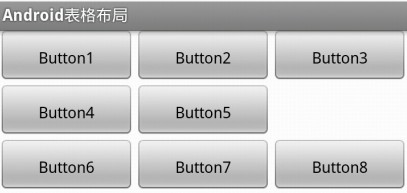
注意:在TableLayout中,单元格可以为空,但是不能跨列,意思是只能不能有相邻的单元格为空。
在TableLayout布局中,一列的宽度由该列中最宽的那个单元格指定,而该表格的宽度由父容器指定。可以为每一列设置以下属性:
Shrinkable 表示该列的宽度可以进行收缩,以使表格能够适应父容器的大小
Stretchable 表示该列的宽度可以进行拉伸,以使能够填满表格中的空闲空间
Collapsed 表示该列会被隐藏
TableLayout中的特有属性:
android:collapseColumns
android:shrinkColumns
android:stretchColumns = “0,1,2,3”// 表示产生4个可拉伸的列
Demo:我们想设计一个如下所以的一个三行三列的表格,但是第二行我们只想显示2个表格:
<?xml version="1.0" encoding="utf-8"?>
<TableLayout xmlns:android="http://schemas.android.com/apk/res/android"
    android:orientation="vertical"
    android:shrinkColumns="0,1,2"  // 设置三列都可以收缩
    android:stretchColumns="0,1,2" // 设置三列都可以拉伸 如果不设置这个,那个显示的表格将不能填慢整个屏幕
    android:layout_width="fill_parent"
    android:layout_height="fill_parent" >
    <TableRow android:layout_width="fill_parent"
        android:layout_height="wrap_content">
        <Button android:gravity="center"
            android:padding="10dp"
            android:text="Button1">
        </Button>

        <Button android:gravity="center"
            android:padding="10dp"
            android:text="Button2">
        </Button>
        <Button android:gravity="center"
            android:padding="10dp"
            android:text="Button3">
        </Button>
    </TableRow>
    <TableRow android:layout_width="fill_parent"
        android:layout_height="wrap_content">
        <Button android:gravity="center"
            android:padding="10dp"
            android:text="Button4">
        </Button>

        <Button android:gravity="center"
            android:padding="10dp"
            android:text="Button5">
        </Button>
    </TableRow>
    <TableRow android:layout_width="fill_parent"
        android:layout_height="wrap_content">
        <Button android:gravity="center"
            android:padding="10dp"
            android:text="Button6">
        </Button>
        <Button android:gravity="center"
            android:padding="10dp"
            android:text="Button7">
        </Button>
        <Button android:gravity="center"
            android:padding="10dp"
            android:text="Button8">
        </Button>
    </TableRow>
</TableLayout>
(3)RelativeLayout 相对布局
RelativeLayout继承于android.widget.ViewGroup,其按照子元素之间的位置关系完成布局的,作为Android系统五大布局中最灵活也是最常用的一种布局方式,非常适合于一些比较复杂的界面设计。
注意:在引用其他子元素之前,引用的ID必须已经存在,否则将出现异常。
常用的位置属性:
android:layout_toLeftOf 	 	该组件位于引用组件的左方
android:layout_toRightOf 		该组件位于引用组件的右方
android:layout_above 			该组件位于引用组件的上方
android:layout_below 		    	该组件位于引用组件的下方
android:layout_alignParentLeft  	该组件是否对齐父组件的左端
android:layout_alignParentRight 	该组件是否齐其父组件的右端
android:layout_alignParentTop   	该组件是否对齐父组件的顶部
android:layout_alignParentBottom  	该组件是否对齐父组件的底部
android:layout_centerInParent 	  	该组件是否相对于父组件居中
android:layout_centerHorizontal   	该组件是否横向居中
android:layout_centerVertical 	  	该组件是否垂直居中
Demo:利用相对布局设计一个如下图所示的界面:
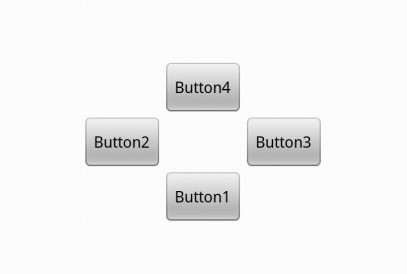
源码:
<?xml version="1.0" encoding="utf-8"?>
<RelativeLayout xmlns:android="http://schemas.android.com/apk/res/android"
    android:layout_width="fill_parent"
    android:layout_height="fill_parent" >
    <Button android:id="@+id/btn1"
        android:layout_width="wrap_content"
        android:layout_height="wrap_content"
        android:layout_centerInParent="true"
        android:layout_centerHorizontal="true"
        android:text="Button1"
        ></Button>
    <Button android:id="@+id/btn2"
        android:layout_width="wrap_content"
        android:layout_height="wrap_content"
        android:layout_toLeftOf="@id/btn1"
        android:layout_above="@id/btn1"
        android:text="Button2"
        ></Button>
    <Button android:id="@+id/btn3"
        android:layout_width="wrap_content"
        android:layout_height="wrap_content"
        android:layout_toRightOf="@id/btn1"
        android:layout_above="@id/btn1"
        android:text="Button3"
        ></Button>
    <Button android:id="@+id/btn4"
        android:layout_width="wrap_content"
        android:layout_height="wrap_content"
        android:layout_toRightOf="@id/btn2"
        android:layout_toLeftOf="@id/btn3"
        android:layout_above="@id/btn2"
        android:text="Button4"
        ></Button>
</RelativeLayout>
(4)FrameLayout 框架布局
将所有的子元素放在整个界面的左上角,后面的子元素直接覆盖前面的子元素,所以用的比较少。
(5) AbsoluteLayou 绝对布局
绝对布局中将所有的子元素通过设置android:layout_x 和 android:layout_y属性,将子元素的坐标位置固定下来,即坐标(android:layout_x, android:layout_y) ,layout_x用来表示横坐标,layout_y用来表示纵坐标。屏幕左上角为坐标(0,0),横向往右为正方,纵向往下为正方。实际应用中,这种布局用的比较少,因为Android终端一般机型比较多,各自的屏幕大小。分辨率等可能都不一样,如果用绝对布局,可能导致在有的终端上显示不全等。
除上面讲过之外常用的几个布局的属性:
(1)layout_margin
用于设置控件边缘相对于父控件的边距
android:layout_marginLeft
android:layout_marginRight
android:layout_marginTop
android:layout_marginBottom
(2) layout_padding
用于设置控件内容相对于控件边缘的边距
android:layout_paddingLeft
android:layout_paddingRight
android:layout_paddingTop
android:layout_paddingBottom
(3) layout_width/height
用于设置控件的高度和宽度
wrap_content 内容包裹,表示这个控件的里面文字大小填充
fill_parent 跟随父窗口
match_parent
(4) gravity
用于设置View组件里面内容的对齐方式
top bottom left right center等
(5) android:layout_gravity
用于设置Container组件的对齐方式
android:layout_alignTop 本元素的上边缘和某元素的的上边缘对齐
android:layout_alignLeft 本元素的左边缘和某元素的的左边缘对齐
android:layout_alignBottom 本元素的下边缘和某元素的的下边缘对齐
android:layout_alignRight 本元素的右边缘和某元素的的右边缘对齐
发布者:全栈程序员-站长,转载请注明出处:https://javaforall.net/143867.html原文链接:https://javaforall.net



