
大家好,又见面了,我是你们的朋友全栈君。
linux .deb 安装

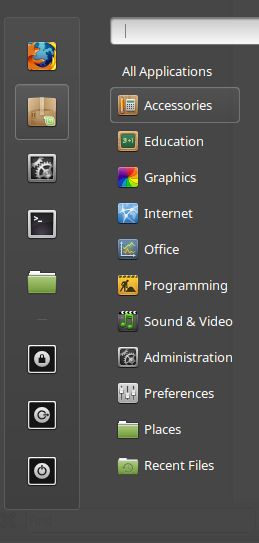
In this quick tutorial, I explain how to install programs in Linux using terminal commands. This particular tutorial uses Linux Mint 18 (Cinnamon 64-bit), but the commands provided below are universal to other versions of Linux, such as Ubuntu. For those of you who are new to Linux, chances are you’ll be familiar with the in-built Software Manager:
在本快速教程中,我将说明如何使用终端命令在Linux中安装程序。 这个特定的教程使用Linux Mint 18 (Cinnamon 64位),但是下面提供的命令对其他版本的Linux(例如Ubuntu)通用。 对于那些不熟悉Linux的人,您可能会熟悉内置的Software Manager :
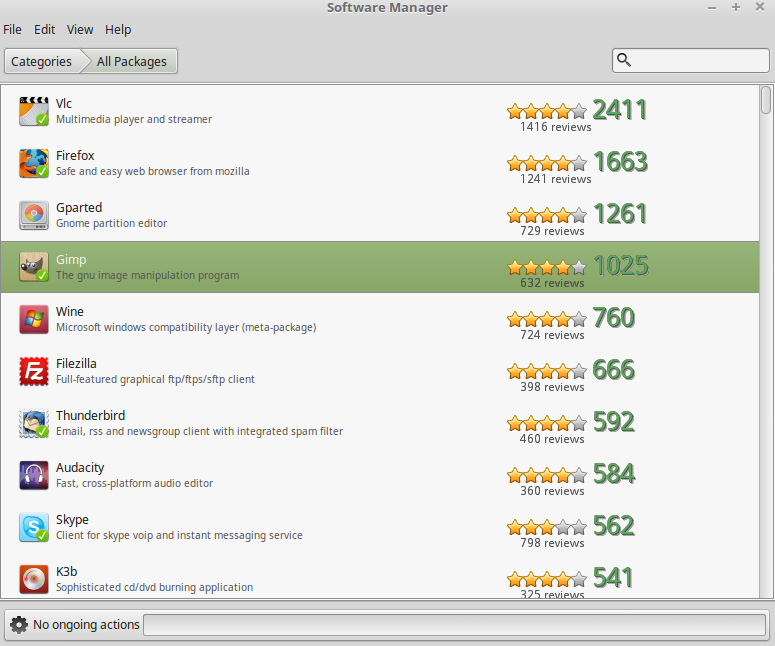
In a nutshell, the Software Manager allows for easier installation of a variety of programs by simply searching for the program available, and then installing it from the manager. For instance, if a user wanted to install GIMP through the Software Manager, it would simply be a matter of locating the program and installing:
简而言之,通过简单地搜索可用的程序,然后从管理器中进行安装,软件管理器可以简化各种程序的安装。 例如,如果用户想通过软件管理器安装GIMP,则只需查找程序并安装:
However, installations in Linux can regularly get more complicated than this, in that it’s often necessary to install programs directly from the source code. Here, I explain how to install two particular types of extensions that often give newbies to Linux quite a headache. (It certainly did for me when I was starting out!)
但是,Linux中的安装通常会比这复杂得多,因为通常有必要直接从源代码安装程序。 在这里,我解释了如何安装两种特定类型的扩展,这些扩展通常使刚接触Linux的新手感到头疼。 (当我刚开始的时候,这肯定对我有用!)
We’re going to look at the methods to install both Debian (deb) and Tarball (tar.gz) files through the terminal, and the two respective examples that will be used in this tutorial are Dropbox and VeraCrypt. The usual disclaimers apply: these two programs are only used for illustration purposes, and I’m not endorsing or promoting any particular products in this article.
我们将研究通过终端安装Debian(deb)和Tarball(tar.gz)文件的方法,本教程中将使用的两个示例分别是Dropbox和VeraCrypt 。 通常免责声明适用:这两个程序仅用于说明目的,在本文中我不认可或推广任何特定产品。
1.通过deb文件安装Dropbox (1. Installing Dropbox through deb file)
Installing deb files comes with varying degrees of difficulty. In other words, some programs that consist of deb files allow for direct installation, while those that contain many separate deb files typically must be installed through the terminal. Let’s look at the Dropbox example in installing the deb file.
安装deb文件有不同的难度。 换句话说,某些由deb文件组成的程序允许直接安装,而那些包含许多单独的deb文件的程序通常必须通过终端安装。 让我们看一下安装deb文件的Dropbox示例。
Firstly, we’re selecting the Ubuntu 64-bit version (or the appropriate one for your system):
首先,我们选择Ubuntu 64位版本(或适合您的系统的版本):
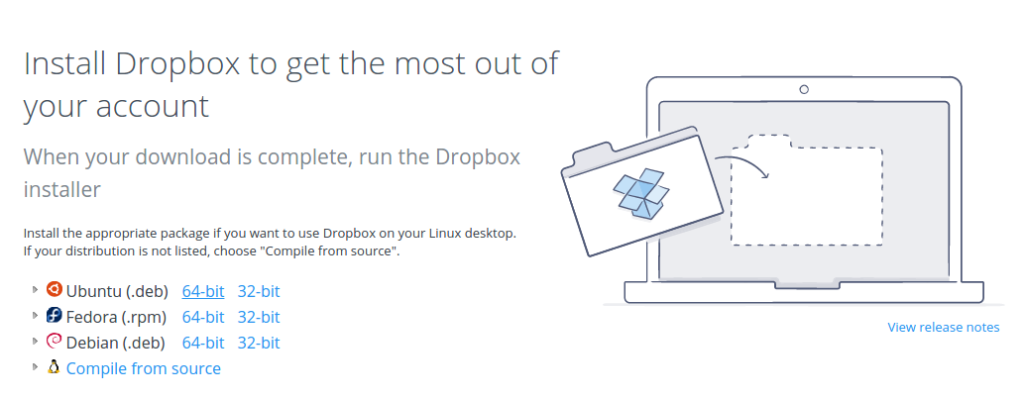
Next, we’re prompted to install the package directly:
接下来,提示我们直接安装该软件包:
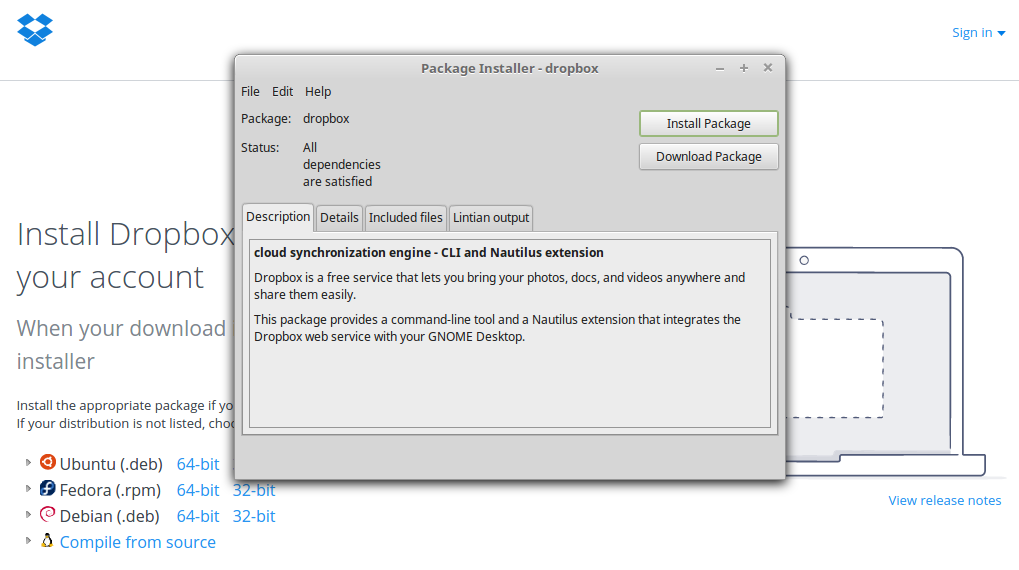
While this particular deb file was easy enough to install, there are situations where we have to install the deb file directly from the terminal. For instance, instead of installing directly, the program could have prompted us to extract deb files to a particular location and then install from there.
尽管这个特定的deb文件很容易安装,但是在某些情况下,我们必须直接从终端安装deb文件。 例如,该程序可能提示我们将deb文件提取到特定位置,然后从那里安装,而不是直接安装。
Using Dropbox as an example, suppose that we were hypothetically prompted to extract files and then install. For illustration purposes, let’s call this folder Dropbox_deb, which is stored in our Downloads folder. Under this scenario, we would:
以Dropbox为例,假设我们被提示提取文件然后安装。 出于说明目的,我们将此文件夹Dropbox_deb ,该文件夹存储在我们的Downloads文件夹中。 在这种情况下,我们将:
a. Set our directory to the Dropbox_deb folder in Downloads:
一个。 将我们的目录设置为Downloads中的Dropbox_deb文件夹:
cd ~/Desktop/Dropbox_debb. Install the .deb files using the following command:
b。 使用以下命令安装.deb文件:
sudo dpkg -i *.deb2.通过tar文件安装VeraCrypt (2. Installing VeraCrypt through tar file)
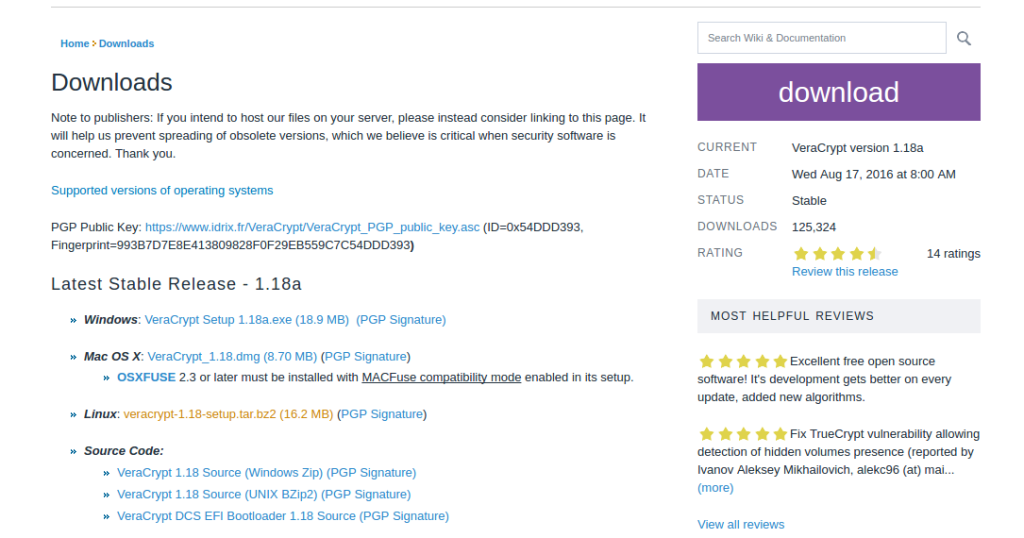
In some instances, a user has to install through a tar file, which is a standard source download in Linux. Here, we install VeraCrypt through a tar.bz2 file (highlighted in yellow text in the image below):
在某些情况下,用户必须通过tar文件安装,这是Linux中的标准源下载。 在这里,我们通过tar.bz2文件安装VeraCrypt(在下图中以黄色文本突出显示):
Once the download is complete, we’re then prompted to extract shell (sh) files, which we’ll extract to the desktop in this example:
下载完成后,系统会提示我们提取shell(sh)文件,在本示例中,我们将其提取到桌面:
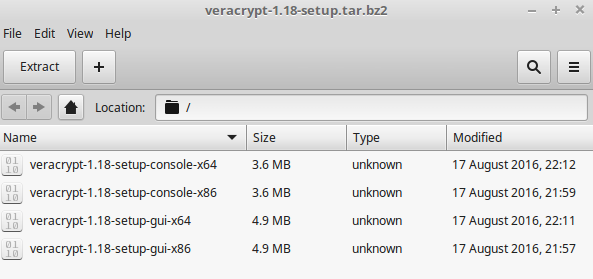
Once we’ve extracted the sh files, it’s then a matter of executing them using the appropriate terminal commands. We see that we have four separate sh files, we are going to execute the veracrypt-1.18-setup-console-x64 file. Note that this one does not have the .sh extension at the end: if it had, then we would need to add .sh at the end of the file in the terminal.
一旦提取了sh文件,就可以使用适当的终端命令执行它们了。 我们看到我们有四个单独的sh文件,我们将执行veracrypt-1.18-setup-console-x64文件。 请注意,该扩展名末尾没有.sh扩展名:如果有,则我们需要在终端文件的末尾添加.sh 。
We open up the terminal, setting the directory to Desktop (cd ~/Desktop), and run the commands as follows:
我们打开终端,将目录设置为Desktop (cd〜/ Desktop) ,然后运行以下命令:
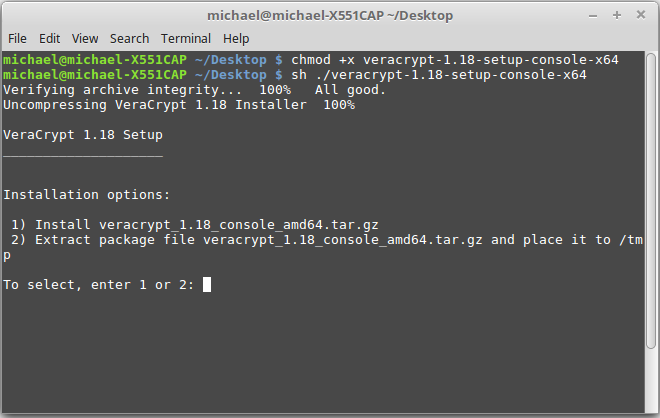
chmod +x veracrypt-1.18-setup-console-x64sh ./veracrypt-1.18-setup-console-x64Once we’ve done this, we see that the program prompts us to conduct a full installation inside the terminal:
完成此操作后,我们会看到该程序提示我们在终端内进行完整安装:
Note that, in order to uninstall a program through the terminal, it’s done through the sudo apt-get remove command. For example, if a user wishes to uninstall Dropbox, it’s done through entering this command:
请注意,为了通过终端卸载程序,它是通过sudo apt-get remove命令完成的。 例如,如果用户希望卸载Dropbox,可通过输入以下命令来完成:
sudo apt-get remove dropboxIf you’re new to Linux, it’s important to take some time to familiarize yourself with the new OS, and nowhere is this more true than when it comes to installing programs, as many of them are not automatically included with the Software Manager. Here, we’ve covered two of the most common file types that are typically installed on Linux, and the above commands are key ones to keep in mind when it comes to installing new programs on this platform.
如果您是Linux的新手,那么花一些时间来熟悉新的操作系统很重要,这比安装程序要正确得多,因为其中很多都不会自动包含在软件管理器中。 在这里,我们介绍了通常在Linux上安装的两种最常见的文件类型,上述命令是在此平台上安装新程序时要记住的关键命令。
翻译自: https://www.sitepoint.com/quick-tip-how-to-install-deb-and-tar-files-in-linux/
linux .deb 安装
发布者:全栈程序员-站长,转载请注明出处:https://javaforall.net/146215.html原文链接:https://javaforall.net


![Android下基于Iptables的一种app网络访问控制方案(一)[通俗易懂]](https://javaforall.net/wp-content/uploads/2020/11/2020110817443450-480x300.jpg)
