
大家好,又见面了,我是你们的朋友全栈君。
案例一 滑动样式
login.html
<!DOCTYPE html>
<html lang="en">
<head>
    <meta charset="UTF-8">
    <title>Login</title>
    <link rel="stylesheet" href="default.css">
</head>
<body>
<div class="page">

    <div class="panel">
        <div class="panel_visible">
            <!--注册表单-->
            <div class="panel_content">
                <h1 class="panel_title">  Sign Up </h1>
                <form class="form">
                    <label class="form_label" for="username">Username</label>
                    <input class="form_input" type="text" id="username" name="username">
                    <label class="form_label" for="password">Password</label>
                    <input class="form_input " type="password" id="password" name="password">
                    <label class="form_label" for="truename">True Name</label>
                    <input class="form_input" type="text" id="truename" name="fullname">
                    <button class="form_btn" type="button" value="Submit">Submit</button>
                    <button class="form_toggle js-formToggle" type="button">Or, Sign In</button>
                </form>
            </div>
            <!--登录表单-->
            <div class="panel_content panel_content-overlay js-panel_content ">
                <h1 class="panel_title">  Sign In </h1>
                <form class="form">
                    <label class="form_label" for="usernameIn">Username</label>
                    <input class="form_input" type="text" id="usernameIn" name="usernameIn">
                    <label class="form_label" for="passwordIn">Password</label>
                    <input class="form_input " type="password" id="passwordIn" name="passwordIn">
                    <button class="form_btn" type="button" value="Submit">Sign In</button>
                    <br>
                    <button class="form_toggle js-formToggle" type="button">Or, Sign Up</button>
                </form>
            </div>
        </div>
        <div class="panel_back js-imageAnimate">
            <img class="panel_img" src="login.jpg" style="width: 235px;height: 457px" />
        </div>
    </div>

</div>
<script src="main.js"></script>
</body>
</html>
main.js
var toggleBtns = document.querySelectorAll('.js-formToggle');
for(var i = 0; i < toggleBtns.length; i++){

    toggleBtns[i].addEventListener("click",toggleForm);
}


var firstClick = true;

function toggleForm(){


    if(!firstClick){

        document.querySelector('.js-imageAnimate').classList.toggle("animate");
        document.querySelector('.js-imageAnimate').classList.toggle("animateOut");


        document.querySelector('.js-panel_content').classList.toggle("animate");
        document.querySelector('.js-panel_content').classList.toggle("animateOut");
    }
    else{

        firstClick = false;
        document.querySelector('.js-imageAnimate').classList.add("animate");
        document.querySelector('.js-panel_content').classList.add("animate");

    }
}
背景图:
![HTML+CSS+JS 实现登录注册界面[通俗易懂]](https://img-blog.csdnimg.cn/20200808112520340.png)
![HTML+CSS+JS 实现登录注册界面[通俗易懂]](https://javaforall.net/wp-content/uploads/2020/11/2020110817443450.jpg)
default.css
body, html{

    font-family: Ariel, sans-serif;
    width:100%;
    height:100%;
    margin:0;
    padding:0;
    display:inline-block;
}
.page{

    display:flex;
    flex-flow:row;
    flex-wrap:nowrap;
    align-items:center;
    justify-content:center;
    width:100%;
    height:100%;
    background-color: #0f95b0;
}
.panel{


    display:inline-block;
    position:relative;
}

.panel_visible{

    position:relative;

    overflow: hidden;
}
.panel_title{

    margin-top: .5em;
    margin-bottom: 1.2em;
}


.panel_content{

    padding: 20px;
    background-color: white;
    z-index:10;
    position:relative;
}
.panel_content-overlay{

    position:absolute;
    top:0;
    left:100%;
    height:100%;
}

.panel_content.animate{


    animation: movePanel 2s forwards ;
}

@keyframes movePanel{


    0%, 30%{

        transform: translateX(0%);

    }
    35%, 100%{

        transform: translateX(-100%);

    }

}
.panel_content.animateOut{


    animation: movePanelOut 2s forwards ;
}
@keyframes movePanelOut{

    0%, 30%{

        transform: translateX(-100%);

    }
    35%, 100%{

        transform: translateX(0%);

    }
}
.panel_back{

    position:absolute;
    z-index:0;
    top:50%;
    left: 0;
    width:110%;
    transform: translate(70%,-50%);
}

.panel_back.animate{


    animation: move 2s forwards ;
}

@keyframes move{

0%{

    transform: translate(70%,-50%);
    z-index:0;
}
15%{

    transform: translate(140%,-50%);
    z-index:10;
}
75%{

    transform: translate(-120%,-50%);
    z-index:10;
}
100%{

    transform: translate(-50%,-50%);
    z-index:0;
}
}
.panel_back.animateOut{

    transform: translate(-50%,-50%);
    animation: moveOut 2s forwards ;
}
@keyframes moveOut{

0%{

    transform: translate(-50%,-50%);
    z-index:0;
}
15%{

    transform: translate(-120%,-50%);
    z-index:10;
}
75%{

    transform: translate(140%,-50%);
    z-index:10;
}
100%{

    transform: translate(70%,-50%);
    z-index:0;
}


}
.panel_img{

    width:100%;
    display:block;
}

/* Form */
.form{

    box-sizing:border-box;
}
.form_label{

    display:block;
    color: #3D3D3D;
    font-weight: 600;
    margin-bottom: 5px;
}
.form_input{

    border-radius: 3px;
    background-color: #f2f2f2 ;
    box-shadow: 0px 2px 2px #D6D6D6;
    border:none;
    padding: 2%;
    margin-bottom: 15px;
    width: 250px;
    box-sizing:border-box;
    position:relative;
}
.form_input:focus{

    box-shadow: none;
    outline-color: #0f95b0;
}

.form_input::after{

    /* TODO: make this after portion work */
    content: "?️";
    position:absolute;
    top: 0;
    left: 0;
    height: 50px;
    width: 50px;
    background-color: red;
}
.form_btn{

    margin-top: 1.2em;
    margin-bottom: 2em;
    display:block;
    width:100%;
    background-color: #0f95b0;
    color: white;
    border:none;
    padding: .6em;
    text-transform: uppercase;
    font-weight: 500;
    font-size: 1.1em;
    border-radius: 3px;
    cursor: pointer;
}

.form_toggle{

    background-color: transparent;
    border: none;
    padding: 0;
    margin:0;
    font-size: 1.1em;
    box-sizing: border-box;
    border-bottom: 1px solid transparent;
    cursor: pointer;
}
.form_toggle:hover{

    border-bottom: 1px solid #0f95b0;
}
.form_toggle:focus{

    outline: none;
    border-bottom: 1px solid #0f95b0;
}
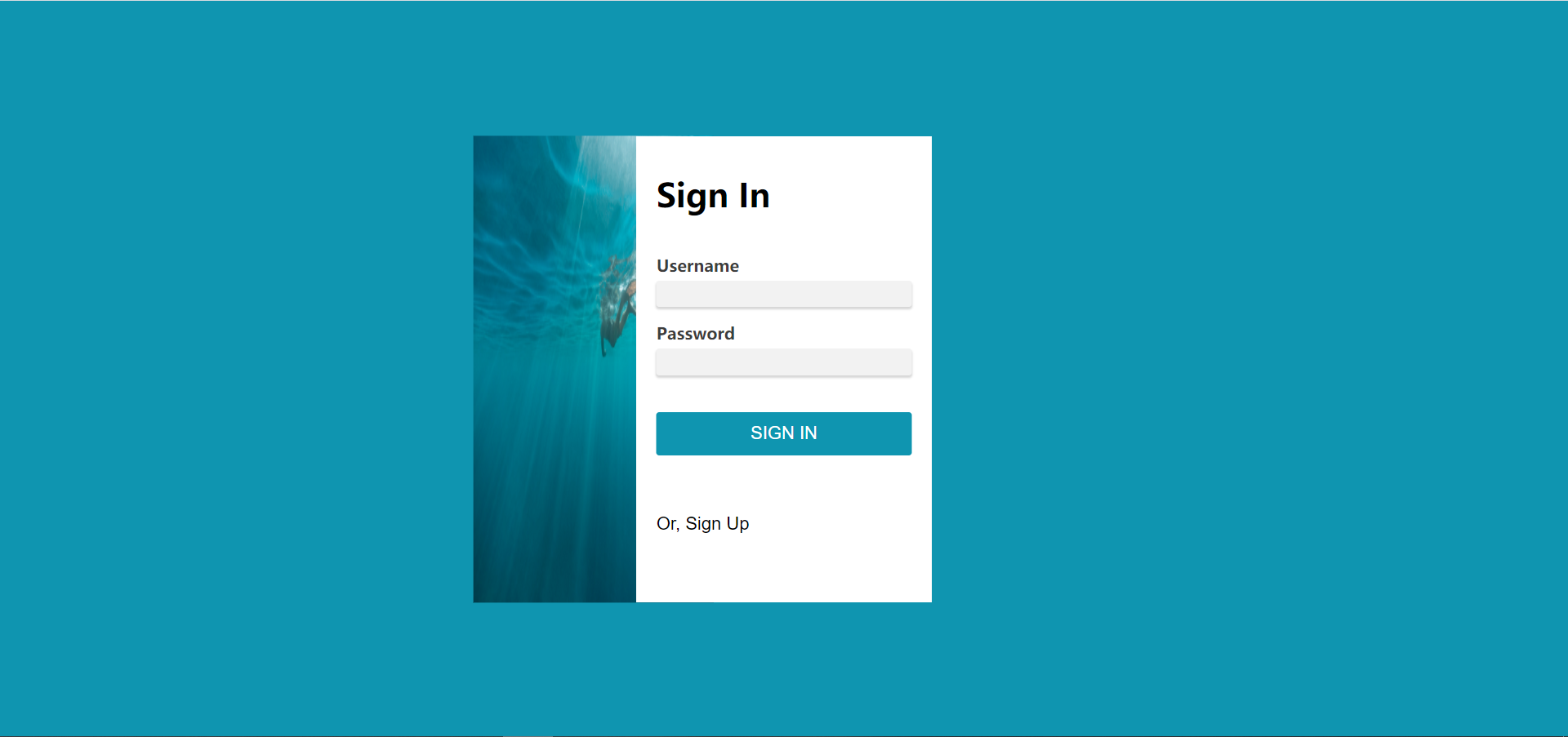
效果图:
案例二 滑动样式
style.css
*{

    padding: 0;
    margin:0;
    box-sizing: border-box;
    font-family: 'Poppins',sans-serif;
}

/* 设置整个表单参数 (父盒子)*/

section {

    position: relative;
    min-height: 100vh;
    background: lightblue;
    display: flex;
    justify-content: center;
    align-items: center;
    padding: 20px;
}

section .container {

    position: relative;
    width: 800px;
    height: 500px;
    background: #fff;
    box-shadow: 0 15px 50px rgba(0, 0, 0, 0.1);
    overflow: hidden;
}

section .container .user{

    position: absolute;
    top: 0;
    left: 0;
    width: 100%;
    height: 100%;
    display: flex;
}

/* 更改图片 (左侧)*/
section .container .imgBx{

    position: relative;
    width: 50%;
    height: 100%;
    /* background: #fff; */
    transition: .5s;
}

section .container .user .imgBx img{

    position: absolute;
    top: 0;
    left: 0;
    width: 100%;
    height: 100%;
    object-fit: cover;
}

/* 右侧表单盒子 */

section .container .user .formBx {

    position: relative;
    width: 50%;
    height: 100%;
    background: #fff;
    display: flex;
    justify-content: center;
    align-items: center;
    padding: 40px;
    transition: .5s;
}

/* h2 */

section .container .user .formBx form h2{

    font-size: 18px;
    font-weight: 600;
    text-transform: uppercase;/*大小*/
    letter-spacing: 2px;/* 间距*/
    text-align: center;
    width: 100%;
    margin-bottom: 10px;
    color: #555;
}

/* 表单文字属性 */

section .container .user .formBx form input{

    position: relative;
    width: 100%;
    padding: 10px;
    background: #f5f5f5;
    color: #333;
    border: none;
    outline:none;
    box-shadow:none;
    margin: 8px 0;
    font-size: 14px;
    letter-spacing:1px;
    font-weight: 300;
}

/* 为登录设置样式 */

section .container .user .formBx form input[type="submit"]{

    max-width: 100px;
    background: #677eff;
    color:#fff;
    cursor:pointer;
    font-size: 14px;
    font-weight: 500;
    letter-spacing: 1px;
    transition: .5s;
}

/* 没有账号时 */

section .container .user .formBx form .signup{

    position: relative;
    margin-top: 20px;
    font-size: 12px;
    letter-spacing: 1px;
    color: #555;
    text-transform: uppercase;
    font-weight: 300;
}

section .container .user .formBx form .signup a{

    font-weight: 600;
    text-decoration: none;
    color: #677eff;
}
section .container .singupBx {

    pointer-events: none;
}

section .container.active .singupBx {

    pointer-events: initial;
}

section .container .singupBx .formBx {

    left: 100%;
}

section .container.active .singupBx .formBx {

    left: 0;
}

section .container .singupBx .imgBx {

    left: -100%;
}

section .container.active .singupBx .imgBx {

    left: 0;
}


section .container .singinBx .formBx {

    left: 0;
}

section .container.active .singinBx .formBx {

    left: 100%;
}

section .container .singinBx .imgBx {

    left: 0;
}

section .container.active .singinBx .imgBx {

    left: 100%;
}

@media (max-width: 991px) {

    section .container {

        max-width: 400px;
    }

    section .container .imgBx {

        display: none;
    }

    section .container .user .formBx {

        width: none;
    }
}
First.html
<!DOCTYPE html>
<html lang="en">
<head>
    <meta charset="UTF-8">
    <meta name="viewport" content="width=device-width, initial-scale=1.0">
    <title>登录</title>
    <link rel="stylesheet" href="css/style.css">
    <link rel="shortcut icon" href="img/favicon.ico">
</head>
<body>
    <section>

        <!-- 登录 -->

        <div class="container">
            <div class="user singinBx">
                <div class="imgBx"><img src="img/1.jpg" alt=""></div>
                <div class="formBx">
                    <form action="">
                        <h2>登录</h2>
                        <input type="text" name="" placeholder="用户名">
                        <input type="password" name="" placeholder="密码">
                        <input type="submit" name="" value="登录">
                        <p class="signup">没有账号?<a href="#" onclick="topggleForm();">注册</a></p>
                    </form>
                </div>
            </div>

            <!-- 注册 -->

            <div class="user singupBx">
                <div class="formBx">
                    <form action="">
                        <h2>注册</h2>
                        <input type="text" name="" placeholder="用户名">
                        <input type="email" name="" placeholder="邮箱地址">
                        <input type="password" name="" placeholder="密码">
                        <input type="password" name="" placeholder="再次输入密码">
                        <input type="submit" name="" value="注册">
                        <p class="signup">已有账号?<a href="#" onclick="topggleForm();">登录</a></p>
                    </form>
                </div>
                <div class="imgBx"><img src="img/2.jpg" alt=""></div>
            </div>

        </div>
    </section>
    <script type="text/javascript"> function topggleForm(){
     var container = document.querySelector('.container'); container.classList.toggle('active'); } </script>
</body>
</html>
img图片:
favicon.ico

1.jpg

2.jpg

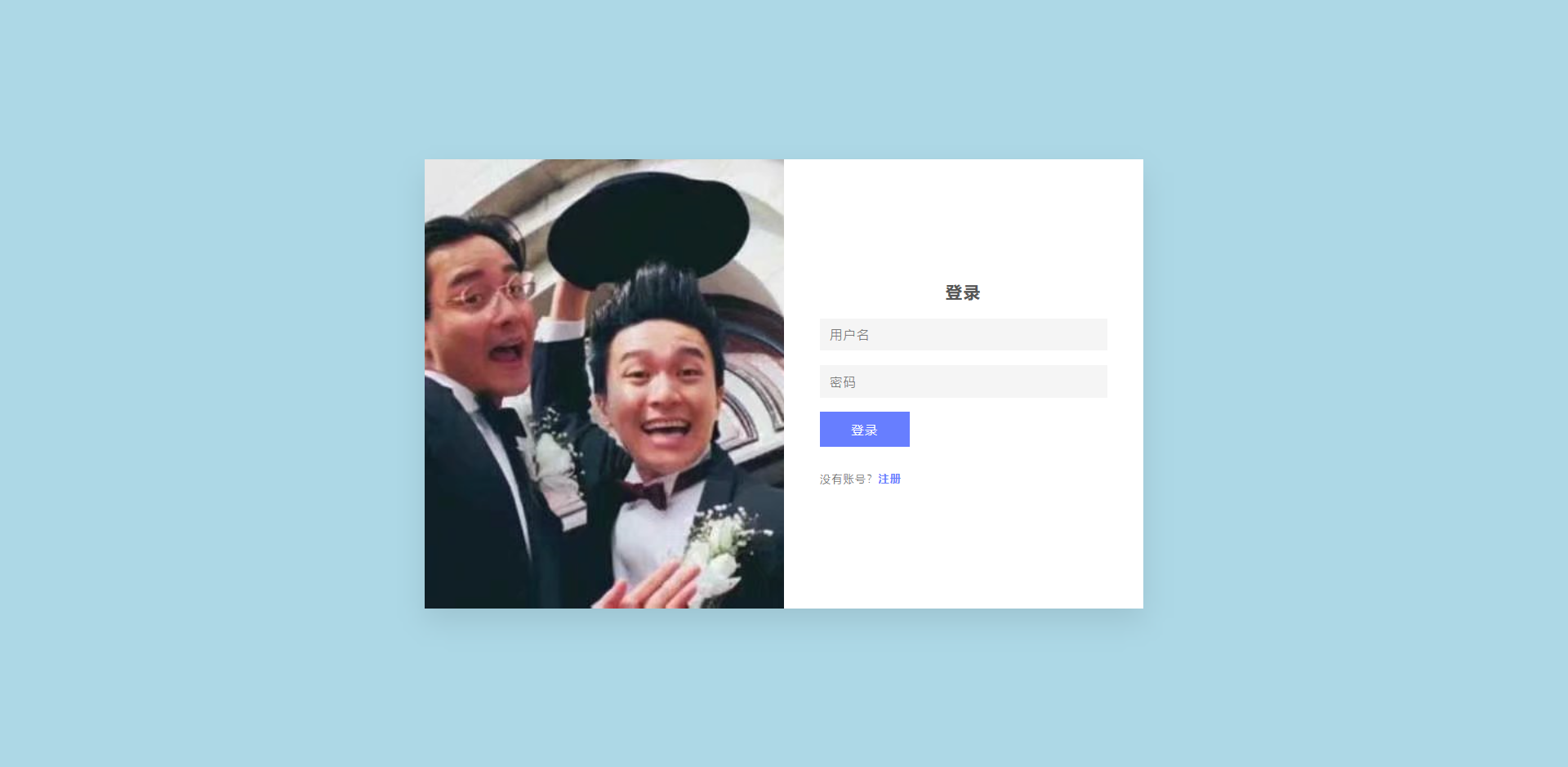
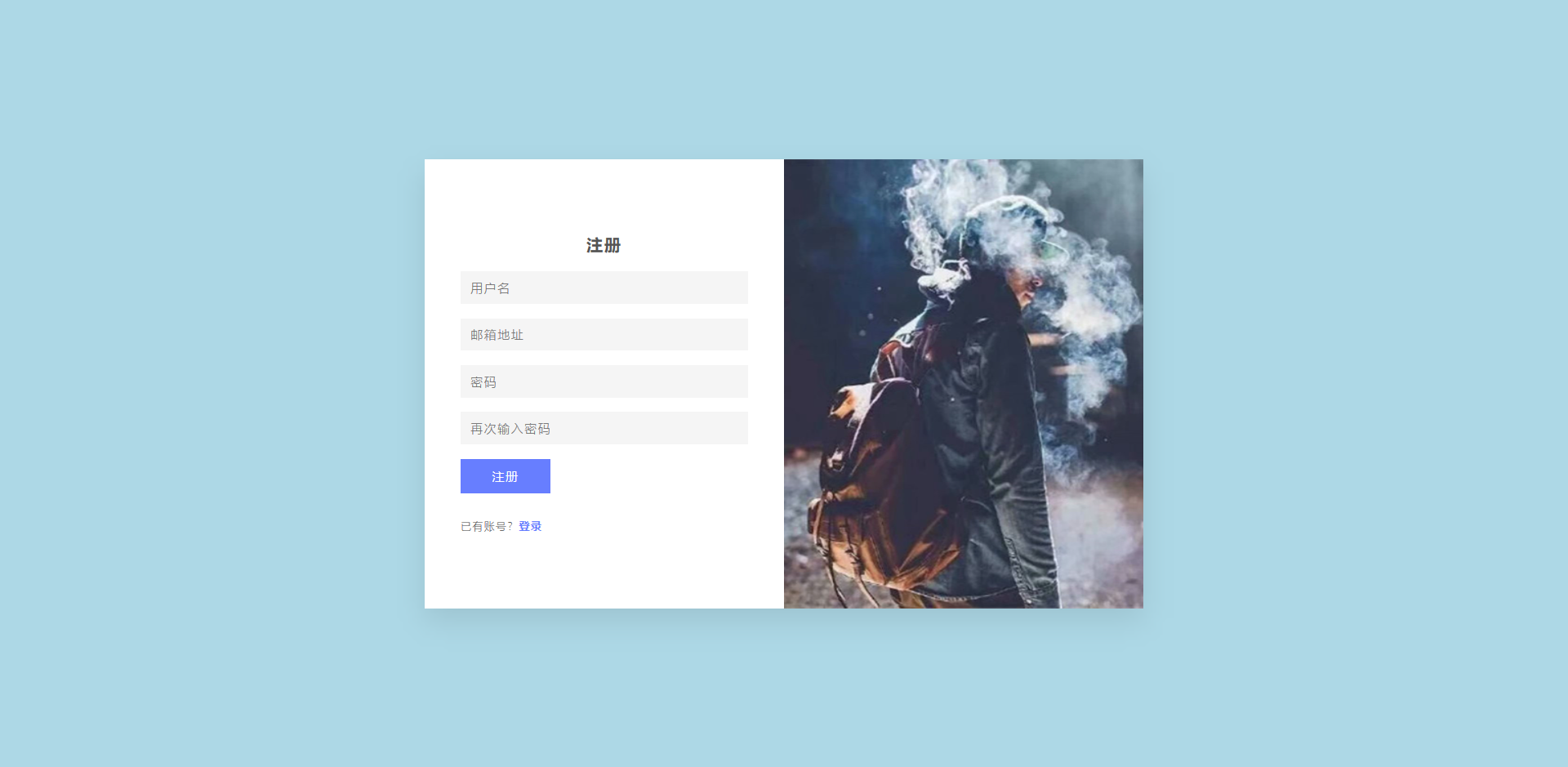
效果图:
案例三 动态样式
index.html
<!DOCTYPE html>
<html lang="en">

<head>
    <meta charset="UTF-8">
    <meta name="viewport" content="width=device-width, initial-scale=1.0">
    <meta http-equiv="X-UA-Compatible" content="ie=edge">
    <title>Document</title>
    <link rel="stylesheet" href="./style.css">
    <script src="https://cdn.staticfile.org/vue/2.6.9/vue.js"></script>
</head>

<body>
    <div id='app' class="container">
        <img src="./1.jpeg" />
        <div class="panel">
            <div class="content login">
                <div class="switch">
                    <span :class='{
    "active": active === "login"}' @click='go("login")'>登陆</span>
                    <span>/</span>
                    <span :class='{
    "active": active === "register"}' @click='go("register")'>注册</span>
                </div>
                <div class='form' id="fromLogin">
                    <template v-if='active === "register"'>
                        <div class="input"><input type="text" name="email" id='email' /><label for="email">邮箱</label></div>
                        <div class="input"><input type="text" name="Username" id="username" /><label for="username">用户名</label></div>
                        <div class="input"><input type="password" name="Password" id="Password" /><label for="Password">密码</label></div>
                        <div class="input"><input type="password" name="repeat" id="Passwordrepeat" /><label for="Passwordrepeat">重复密码</label></div>
                    </template>

                    <template v-if='active === "login"'>
                        <div class="input"><input type="text" name="Username" id="username" /><label for="username">用户名</label></div>
                        <div class="input"><input type="password" name="Password" id="Password" /><label for="Password">密码</label></div>
                    </template>

                    <span>忘记?</span>

                    <button type="submit">登陆</button>
                </div>
            </div>
        </div>
    </div>
</body>

<script> var vue = new Vue({
     el: '#app', data: {
     active: 'login' }, methods: {
     go (type) {
     this.active = type } }, beforeMount () {
     } }) </script>

</html>
style.css
* {

    margin: 0;
    padding: 0;
}

body {

    height: 100vh;
    display: flex;
    justify-content: center;
    align-items: center;
    font-family: miaowu;
    background: linear-gradient(45deg, rgb(80, 150, 250), rgb(245, 189, 253)) fixed;
}

.container {

    position: relative;
    width: 70rem;
}

.container img {

    width: 70rem;
}

.switch span {

    color: #ccc;
    font-size: 1.4rem;
    cursor: pointer;
}

.switch span.active {

    color: rgb(181, 154, 254);
}

.panel {

    width: 30%;
    margin: 10rem 0 0;
    position: absolute;
    right: 0;
    top: 0;

    display: flex;
    justify-content: center;
}

.form {

    width: 12rem;
    margin: 3rem 0 0;
}

.form .input {

    position: relative;
    opacity: 1;
    height: 2rem;
    width: 100%;
    margin: 2rem 0;
    transition: .4s;
}

.input input {

    outline: none;
    width: 100%;
    border: none;
    border-bottom: .1rem solid rgb(181, 154, 254);
    position: relative;
    line-height: 35px;
    background: transparent;
    z-index: 1;
}

.input label {

    position: absolute;
    left: 0;
    top: 20%;
    font-size: 1.2rem;
    color: rgb(129, 101, 207);
    transition: .3s;
}

.input input:focus ~ label {

    top: -50%;
    font-size: .9rem;
}


.form span {

    display: block;
    color: rgb(110, 89, 167);
    font-size: .8rem;
    cursor: pointer;
}

.form button {

    border: none;
    outline: none;
    margin: 2.5rem 0 0;
    width: 100%;
    height: 3rem;
    border-radius: 3rem;
    background: linear-gradient(90deg, rgb(181, 154, 254), rgb(245, 189, 253));
    box-shadow: 0 0 8px rgb(181, 154, 254);
    cursor: pointer;
    color: white;
    font-family: miaowu;
}

#live2dcanvas {

    border: 0 !important;
}
背景图:

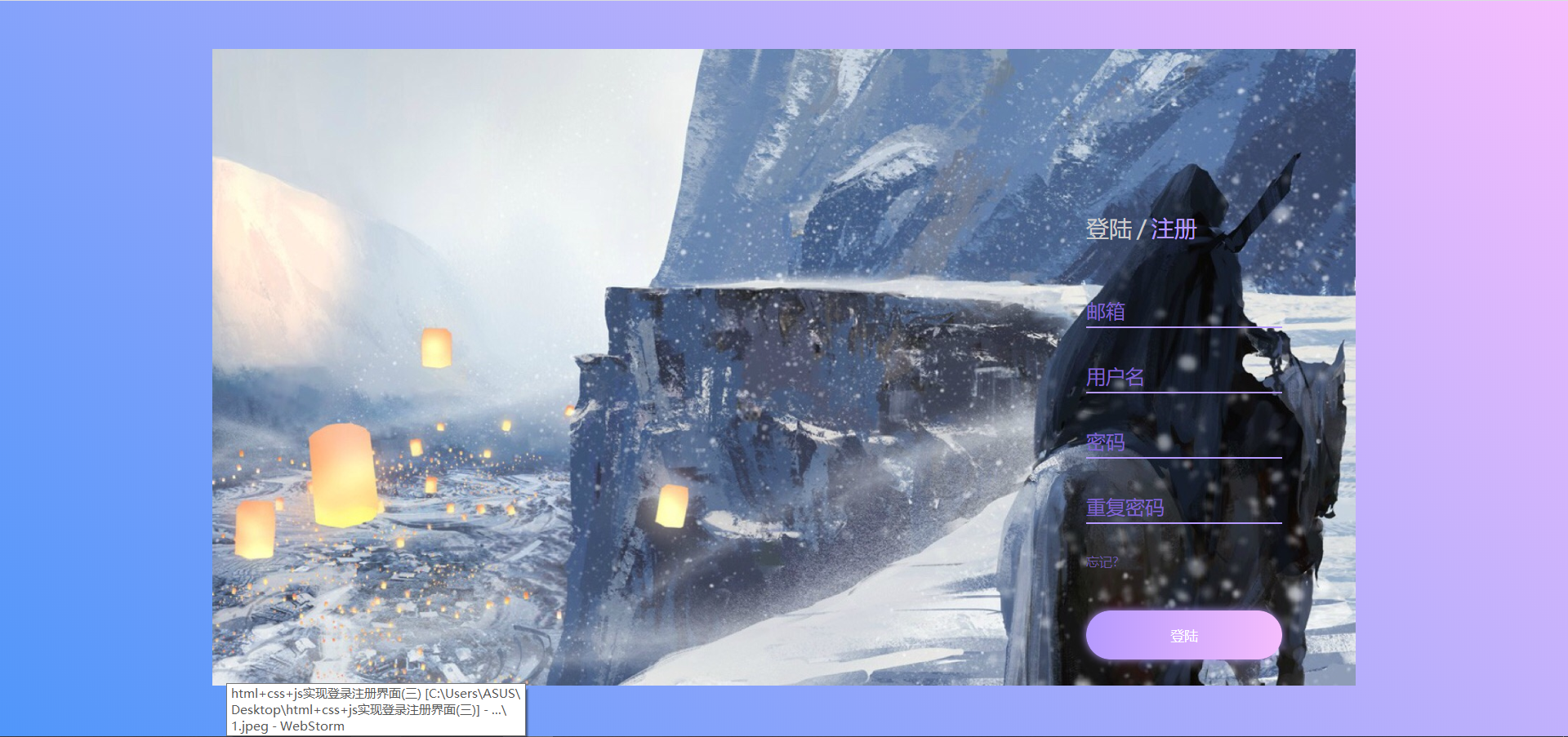
效果图:

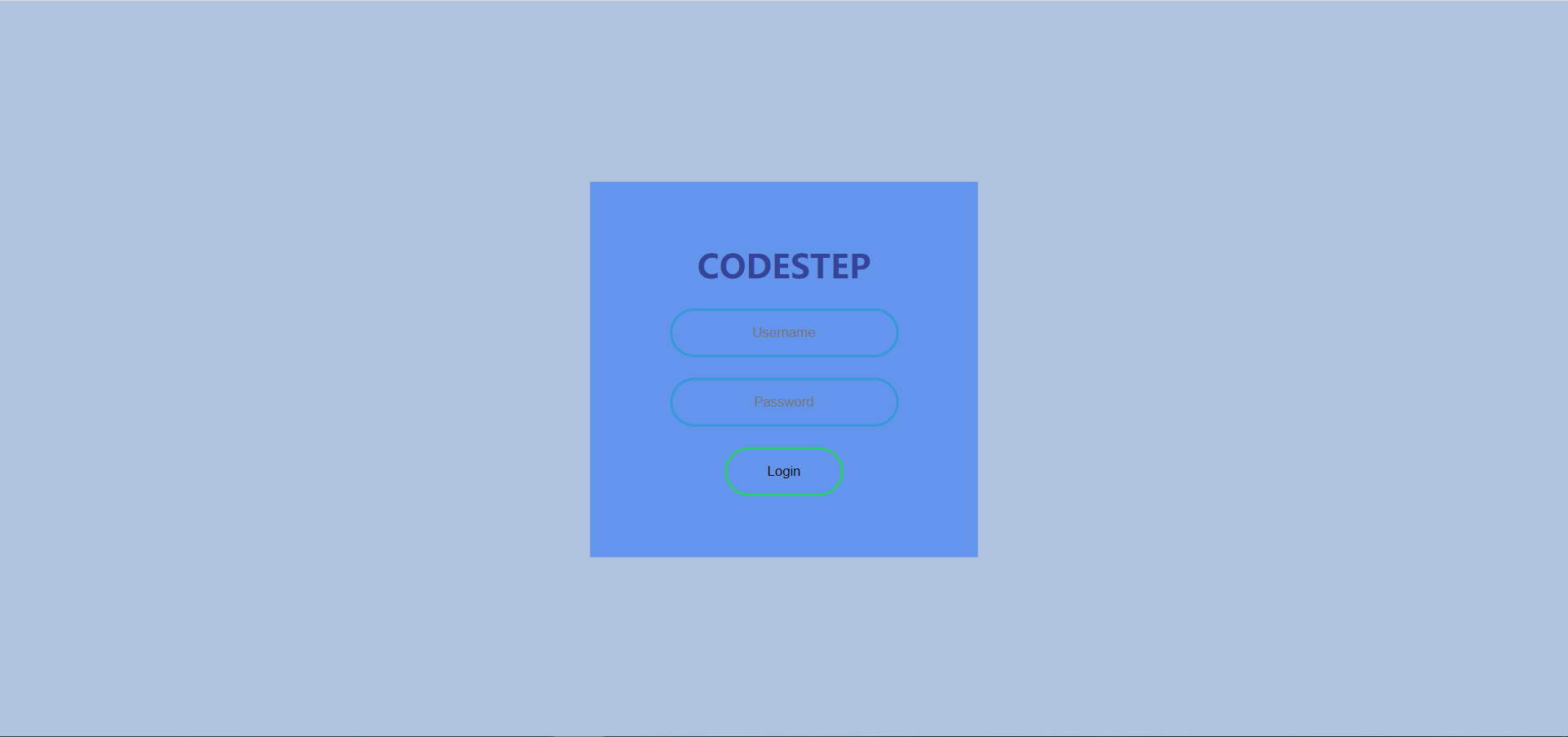
案例四 普通样式
<!DOCTYPE html>
<html lang="en">
<head>
    <meta charset="UTF-8">
    <meta name="viewport" content="width=device-width, initial-scale=1.0">
    <title>login</title>
    <style> body {
     /* 设置边距,可以设置四个方向,分别是 上 右 下 左 */ margin: 0; /* 填充 也是可以设置四个方向,同上 */ padding: 0; /* 设置字体风格 */ font-family: sans-serif; /* 设置背景颜色 */ background: lightsteelblue; } .box {
     width: 300px; padding: 40px; /* 绝对定位,通过这个可以使元素放在页面的任何一个位置上 */ position: absolute; /* 以下三行代码实现了块元素在百分比下居中 可以参考: https://www.cnblogs.com/knuzy/p/9993181.html */ top: 50%; left: 50%; transform: translate(-50% , -50%); /* 设置登陆界面的背景颜色 */ background-color: cornflowerblue; /* 规定标签中元素属性为 text 的居中 */ text-align: center; } .box h1 {
     color: #349; /* 控制文本大小写 */ text-transform: uppercase; font-size: 500; } /* 选中输入账号密码的框框 */ .box input[type="text"], .box input[type="password"] {
     border: 0; background: none; display: block; /* 第一个参数定上下 20px 第二个auto自动适配 */ margin: 20px auto; /* 文本居中 */ text-align: center; /* 设置边框大小和颜色 */ border: 2px solid #3498db; /* 两个参数分别对应 高 和 宽 */ padding: 14px 10px; /* 设置边框为宽 */ width: 200px; /* 边框对应的属性分别有三个 https://www.w3school.com.cn/cssref/pr_outline.asp */ outline: none; color: white; /* 边框的半径 更圆润*/ border-radius: 24px; /* 设置动画的过渡时间 */ transition: 0.25s; } /* 设置变化后的界面 */ .box input[type="text"]:focus, .box input[type="password"]:focus {
     width: 280px; border-color: #2ecc71; } .box input[type="submit"] {
     border: 0; background: none; display: block; margin: 20px auto; text-align: center; border: 2px solid #2ecc71; padding: 14px 40px; outline: none; color: black; border-radius: 24px; transition: 0.25s; } .box input[type="submit"]:hover {
     background: #2ecc71; } </style>
</head>
<body>
    <!-- 表格元素 相关属性可参考: https://developer.mozilla.org/zh-CN/docs/Web/HTML/Element/form -->
    <from class="box" action = "login.html" method="post">
        <h1 >codestep</h1>
        <input type = "text" name = "" placeholder="Username" >
        <input type = "password" name = "" placeholder="Password">
        <input type="submit" value = "Login">
    </from>
</body>
</html>
效果图:
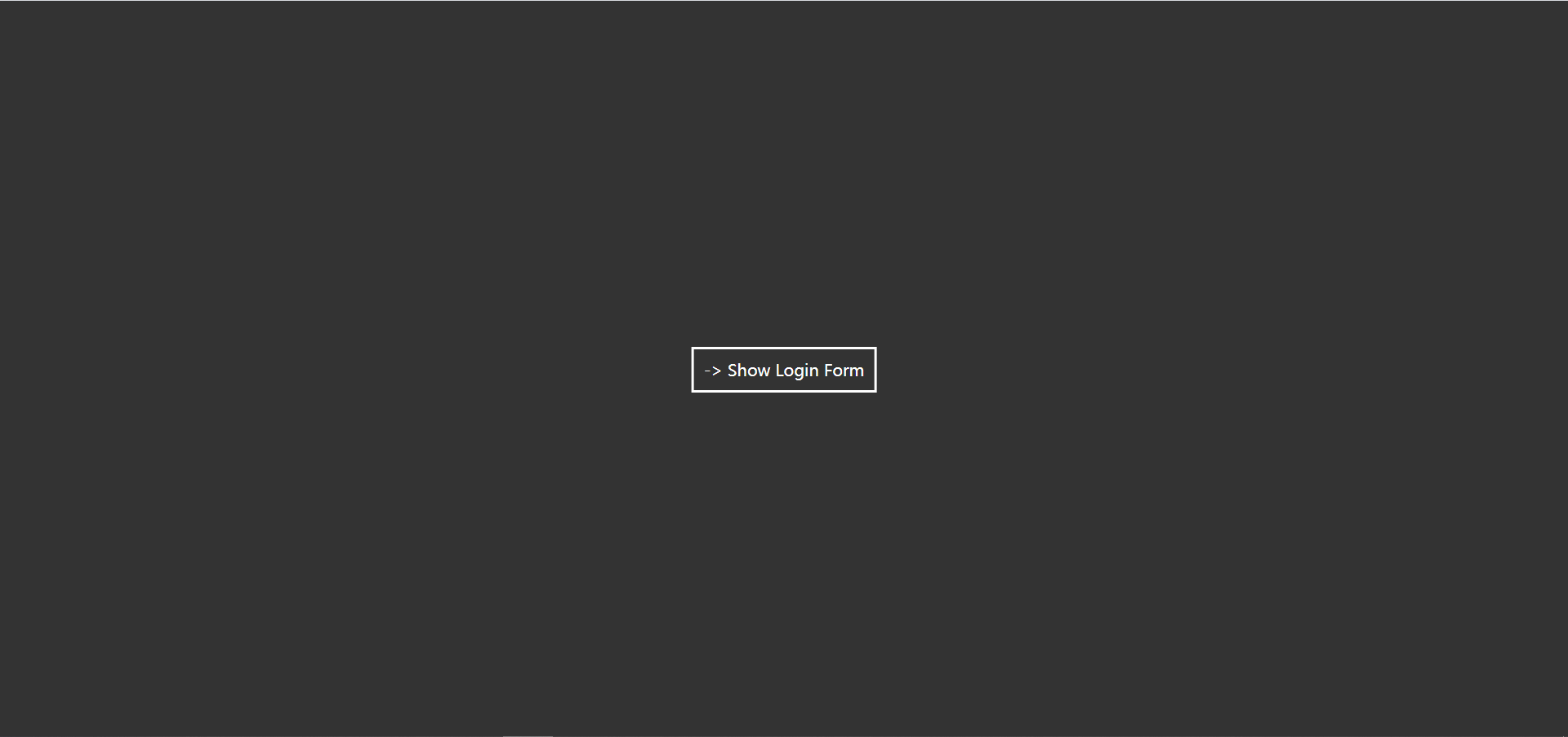
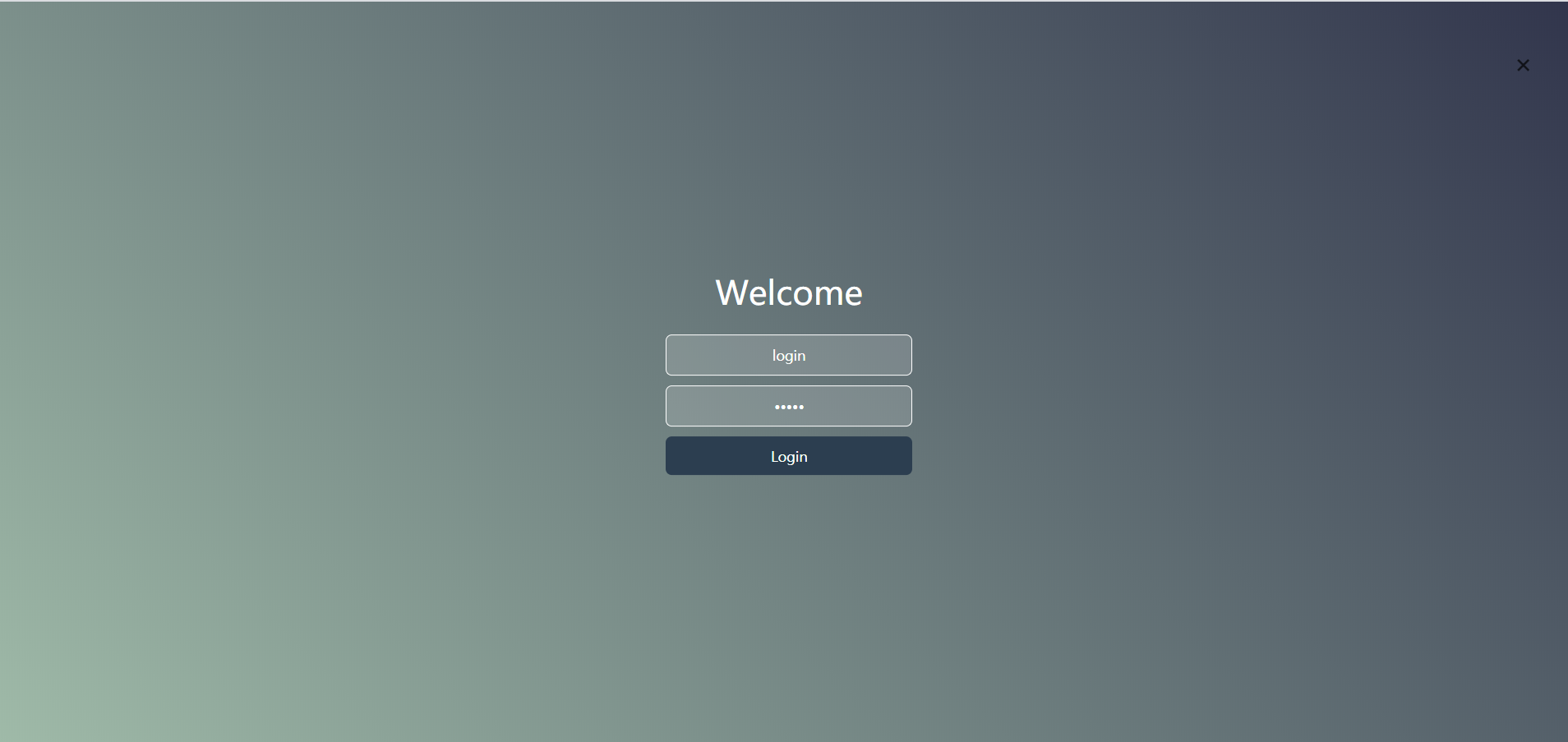
案例五 滑动样式
<!DOCTYPE html>
<html lang="en">
<head>
    <meta charset="UTF-8" />
    <meta name="viewport" content="width=device-width, initial-scale=1.0" />
    <meta http-equiv="X-UA-Compatible" content="ie=edge" />
    <title>Login</title>
    <style> * {
     font-family: 'montserrat', sans-serif; } body {
     margin: 0; padding: 0; background: #333; } .login-box {
     position: absolute; top: 0; left: -100%; width: 100%; height: 100vh; /* vh 视口高度 viewport height 百分比单位*/ background-image: linear-gradient( 45deg, #9fbaa8, #31354c ); /*设置颜色渐变 方向(0deg垂直向上) 起点颜色 终点颜色*/ transition: 0.4s; /*过度效果 property duration timing-function delay 默认属性:all 0 ease 0*/ } .login-form {
     position: absolute; top: 50%; left: 50%; transform: translate(-50%, -50%); /*定义 2D 转换8 */ color: white; text-align: center; } .login-form h1 {
     font-weight: 400; margin-top: 0; } .txtb {
     display: block; box-sizing: border-box; width: 240px; background: #ffffff28; border: 1px solid white; padding: 10px 20px; color: white; outline: none; margin: 10px 0; border-radius: 6px; text-align: center; } .login-btn {
     width: 240px; background: #2c3e50; border: 0; color: white; padding: 10px; border-radius: 6px; cursor: pointer; } .hide-login-btn {
     color: #000; position: absolute; top: 40px; right: 40px; cursor: pointer; font-size: 30px; opacity: 0.7; transform: rotate(45deg); /*定义 2D 转换8 */ } .show-login-btn {
     position: absolute; top: 50%; left: 50%; transform: translate(-50%, -50%); color: white; border: 2px solid; padding: 10px; cursor: pointer; } .showed {
     left: 0; } </style>
</head>
<body>
<div class="show-login-btn">
    -> Show Login Form
</div>

<div class="login-box">
    <div class="hide-login-btn">
        +
    </div>
    <form action="index.html" method="POST" class="login-form">
        <h1>Welcome</h1>
        <input class="txtb" type="text" name="" placeholder="Username" />
        <input class="txtb" type="password" name="" placeholder="Password" />
        <input class="login-btn" type="submit" name="" value="Login" disabled />
    </form>
</div>
<script type="text/javascript"> function hasClass(element, clssname) {
     return element.className.match(new RegExp('(\\s|^)' + clssname + '(\\s|$)')) } function addClass(element, clssname) {
     if (!this.hasClass(element, clssname)) element.className += ' ' + clssname } function removeClass(element, clssname) {
     if (hasClass(element, clssname)) {
     var reg = new RegExp('(\\s|^)' + clssname + '(\\s|$)') element.className = element.className.replace(reg, ' ') } } function toggleClass(element, clssname) {
     if (hasClass(element, clssname)) {
     removeClass(element, clssname) } else {
     addClass(element, clssname) } } var loginBox = document.getElementsByClassName('login-box') var showBtn = document.getElementsByClassName('show-login-btn') var hideBtn = document.getElementsByClassName('hide-login-btn') showBtn[0].addEventListener('click', function() {
     toggleClass(loginBox[0], 'showed') }) hideBtn[0].addEventListener('click', function() {
     toggleClass(loginBox[0], 'showed') }) </script>
</body>
</html>
效果图:
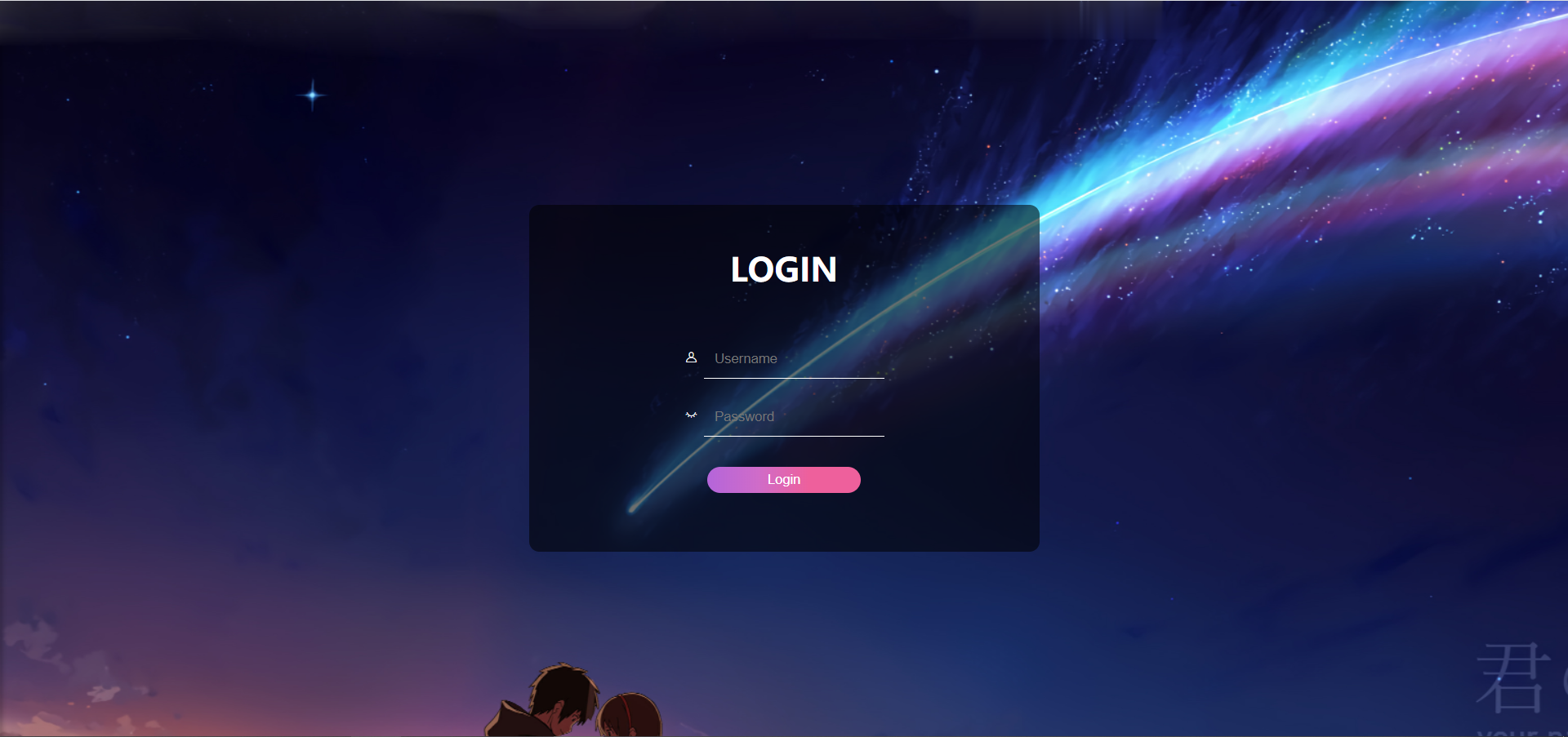
案例六 普通样式
login.html
<!DOCTYPE html>
<html>
	<head>
		<meta charset="utf-8">
		<link rel="stylesheet" href="css/style.css" />
		<link rel="stylesheet" href="css/iconfont.css" />
		<title>登录界面</title>
	</head>
	<body>
		<div id="bigBox">
			<h1>LOGIN</h1>
			<div class="inputBox">
				<div class="inputText">
					<span class="iconfont icon-nickname"></span>
					<input type="text" placeholder="Username" />
				</div>
				<div class="inputText">
					<span class="iconfont icon-visible"></span>
					<input type="password" placeholder="Password" />
				</div>
			</div>
			<input class="loginButton" type="button" value="Login" />
		</div>
	</body>
</html>
style.css
body
{

	margin: 0;
	padding: 0;
	background-image: url(../img/bglogin.png);	/* 背景图片 */
	background-repeat: no-repeat;	/* 背景图片不重复 */
}

#bigBox
{

	margin: 0 auto;	/* login框剧中 */
	margin-top: 200px; /* login框与顶部的距离 */
	padding: 20px 50px;	/* login框内部的距离(内部与输入框和按钮的距离) */
	background-color: #00000090;	/* login框背景颜色和透明度 */
	width: 400px;
	height: 300px;
	border-radius: 10px;	/* 圆角边 */
	text-align: center;	/* 框内所有内容剧中 */
}

#bigBox h1
{

	color: white;	/* LOGIN字体颜色 */
}

#bigBox .inputBox
{

	margin-top: 50px;	/* 输入框顶部与LOGIN标题的间距 */
}

#bigBox .inputBox .inputText
{

	margin-top: 20px;	/* 输入框之间的距离 */
}

#bigBox .inputBox .inputText span
{

	color: white;	/* icon颜色 */
}

#bigBox .inputBox .inputText input
{

	border: 0;	/* 删除输入框边框 */
	padding: 10px 10px;	/* 输入框内的间距 */
	border-bottom: 1px solid white;	/* 输入框白色下划线 */
	background-color: #00000000;	/* 输入框透明 */
	color: white;	/* 输入字体的颜色 */
}

#bigBox .loginButton
{

	margin-top: 30px;	/* 按钮顶部与输入框的距离 */
	width: 150px;
	height: 25px;
	color: white;	/* 按钮字体颜色 */
	border: 0; /* 删除按钮边框 */
	border-radius: 20px;	/* 按钮圆角边 */
	background-image: linear-gradient(to right, #b8cbb8 0%, #b8cbb8 0%, #b465da 0%, #cf6cc9 33%, #ee609c 66%, #ee609c 100%);	/* 按钮颜色 */
}
iconfont.css
@font-face {
   font-family: "iconfont";
  src: url('iconfont.eot?t=1591106386397'); /* IE9 */
  src: url('iconfont.eot?t=1591106386397#iefix') format('embedded-opentype'), /* IE6-IE8 */
  url('data:application/x-font-woff2;charset=utf-8;base64,d09GMgABAAAAAAPkAAsAAAAACCgAAAOVAAEAAAAAAAAAAAAAAAAAAAAAAAAAAAAAHEIGVgCDBgqEDIM4ATYCJAMMCwgABCAFhG0HPBsEB1GUDUqS7IckiWBsgSKJ5iIQA3MI4geKAwAAlgIQD19j7f3dvUMtQRJNHn26aJJEYoiEToIQxUIheSdEpnsms/x+7VRC3R1ElWSaNOmT7YvvDbzSSY3SaIQIoTG0rs5YPKzkCKMdmFhnZl8Ihekb28ETv33fz7o4nDbF5zc4pzmmRl2AcUABjb0swQJKkHuIV7u0w15PoF6fKeXl/dOLUktBuwXiMPBUqZVSKTXZoVaolowt4kxdbTpJfpz6349fEyEhqWS078rBni1tfpx/3fAd/w7XLgJ7PAP4SWSMKynEbqlpRzUMjauqV0W1+uSqIqSxvP//+CxNUDX/8EiCqKKZjWCYCNNJsW1WLL5Bzlmzb65zFXW4U/ImqTtRmqq8rTVL84YCiXK964MkBwBChhC37GSmaAaSZCIxivE4l2FIEkKCE4+PJJNjXMSMJhepAICiEKKrGWaMhIBoAYhLZOh2Bu7SzZGtAqIe0SYcGUlQiUgCUTVo/TnJjVvc95HI5Yi3TFFIQg4HkA28Mz+KSzM0xiMcdSST3vj0UzjDecQXy46LKNurEblFc0L3gGbB7yd2/6rYfSSsEoO2lVGueUc76Qd5FBr4XjBRXGr52LLO3SgfmellnsiUfeLOjkZD4cMQHi4vxEFvmweWxo5OZvix0VJYMQTybB2X8TbsGqooxPqHm3j4sdDQ2N6Fh17hMYUVnLuDgqKukpbs4WGWHRlWt5QUdhL9OpNfZny4NlGbb7prFux5BkrDntnR4Yvm72lYnjz7vL23GnzeXB3LWuqPt09ct8c9GsyblVq+Zb7y8lN/4+H2amVv2PFX2y3g/ef9DBVFu3RqJVqzfyG7ZUnRuFSdi8KyWYY7O/KbDAlkCDr/xNbur7+lSyk2hFqBjZDU6IWsVj+yYMehosEUVNWag3pjDiY36MCqotRh1AdAaPUFSbNXyFr9IAv2Fyq6/UNVa/Ch3lbo52wwGJudLkYlaEG/QGCylCytdILsM/QeYsVJro+7QnaBF+Zn5rLRA0yRxxjgHr0FEQLiLIF92AzjOIOcsxCNzPgi+cbsLJW9aMZkSaljCUOKQBbQXoCAkUmRW1l0cp8/gzwPYgrXFFXpryDmBLWDeTPmWiAPRGmromu5xHnkWSAEAYRlEmAfDCg2QxmQl7cKIUPM8HsEchtmSTlqK5qZX5I83yqoR4/JkSJHUXMcuEDH2NoLTJSqBEslAAAA') format('woff2'),
  url('iconfont.woff?t=1591106386397') format('woff'),
  url('iconfont.ttf?t=1591106386397') format('truetype'), /* chrome, firefox, opera, Safari, Android, iOS 4.2+ */
  url('iconfont.svg?t=1591106386397#iconfont') format('svg'); /* iOS 4.1- */
}

.iconfont {

  font-family: "iconfont" !important;
  font-size: 16px;
  font-style: normal;
  -webkit-font-smoothing: antialiased;
  -moz-osx-font-smoothing: grayscale;
}

.icon-visible:before {

  content: "\e6a2";
}

.icon-nickname:before {

  content: "\e6a0";
}
效果图:
具体怎么获取呢?
鉴于小伙伴们没有csdn积分,我把代码压缩成了一个压缩包,放在了gitee上面,需要的请点击下载
点击下载
版权声明:本文内容由互联网用户自发贡献,该文观点仅代表作者本人。本站仅提供信息存储空间服务,不拥有所有权,不承担相关法律责任。如发现本站有涉嫌侵权/违法违规的内容, 请联系我们举报,一经查实,本站将立刻删除。
发布者:全栈程序员-站长,转载请注明出处:https://javaforall.net/162713.html原文链接:https://javaforall.net



