
大家好,又见面了,我是你们的朋友全栈君。
文章目录
前言
咕咕了好久啦,今天使用原生HTML+CSS+JS做一个很简单的个人定制的导航主页吧!
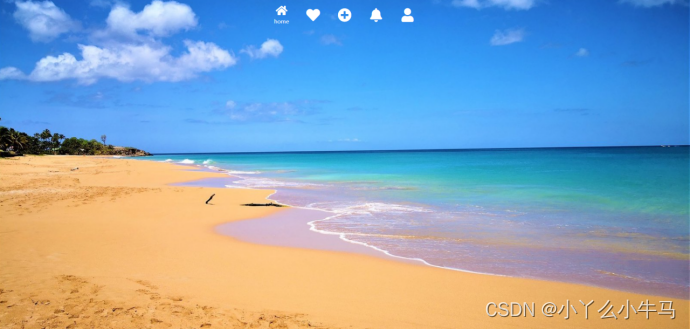
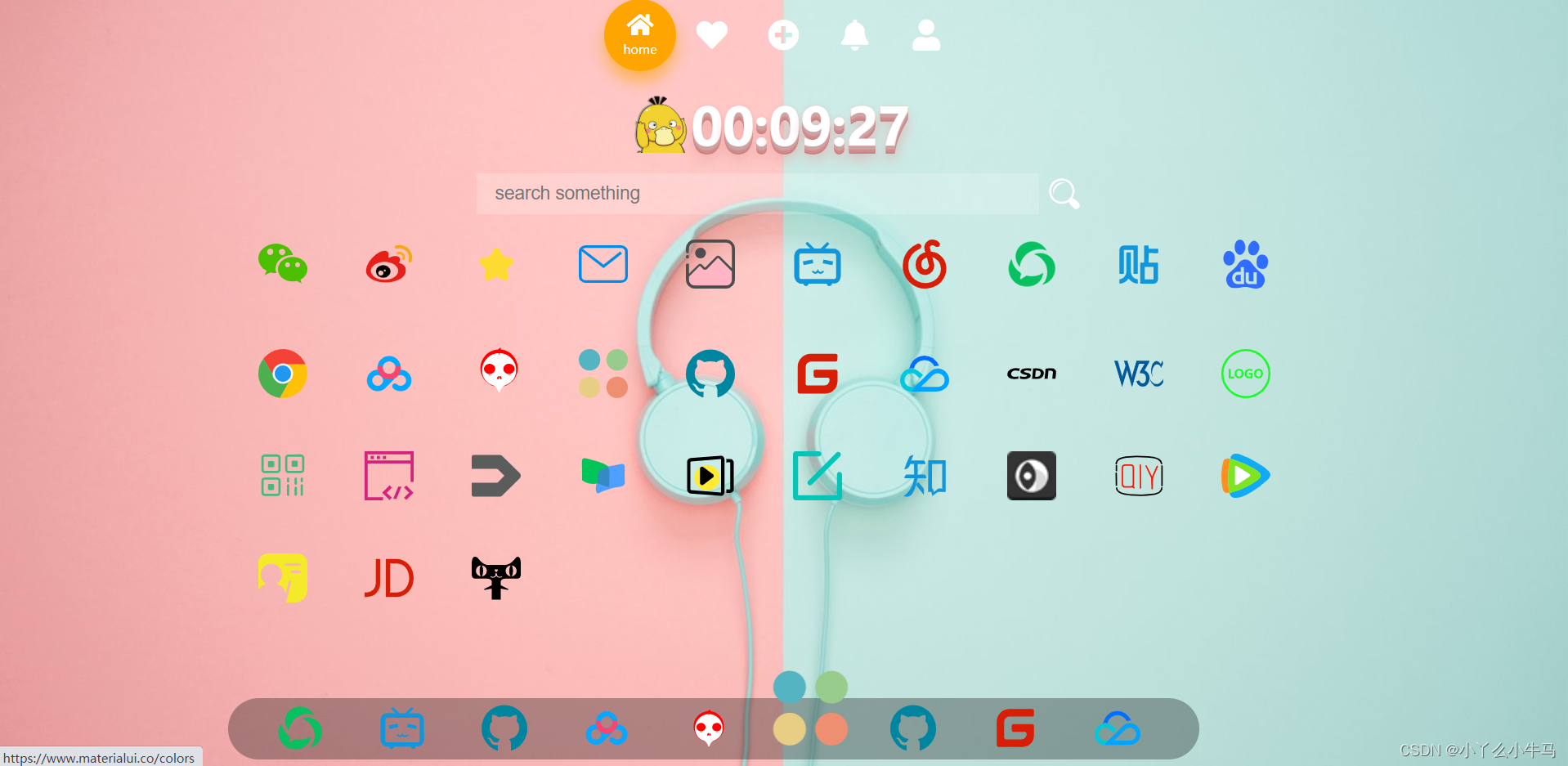
先看下完整的效果图吧!
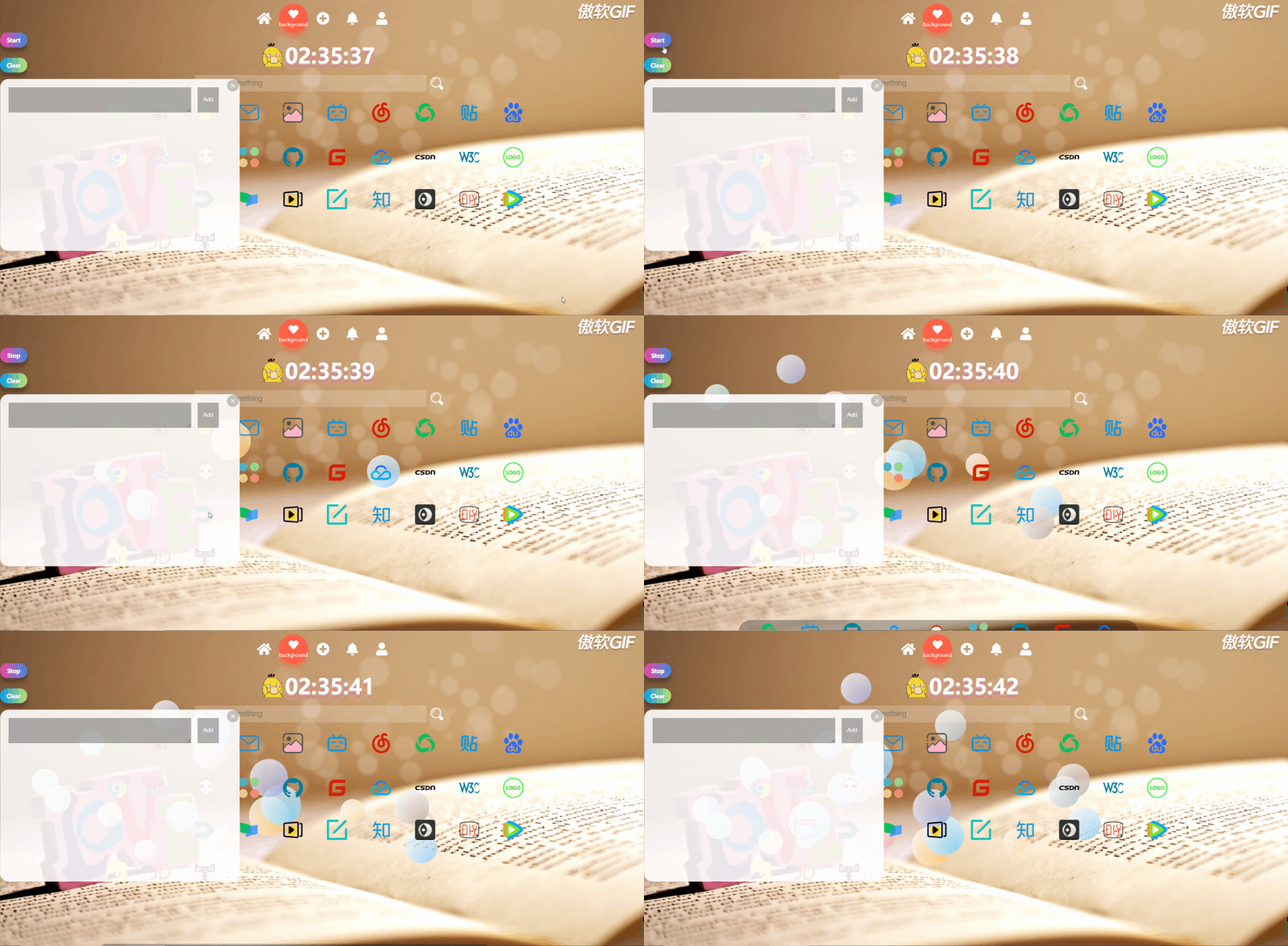

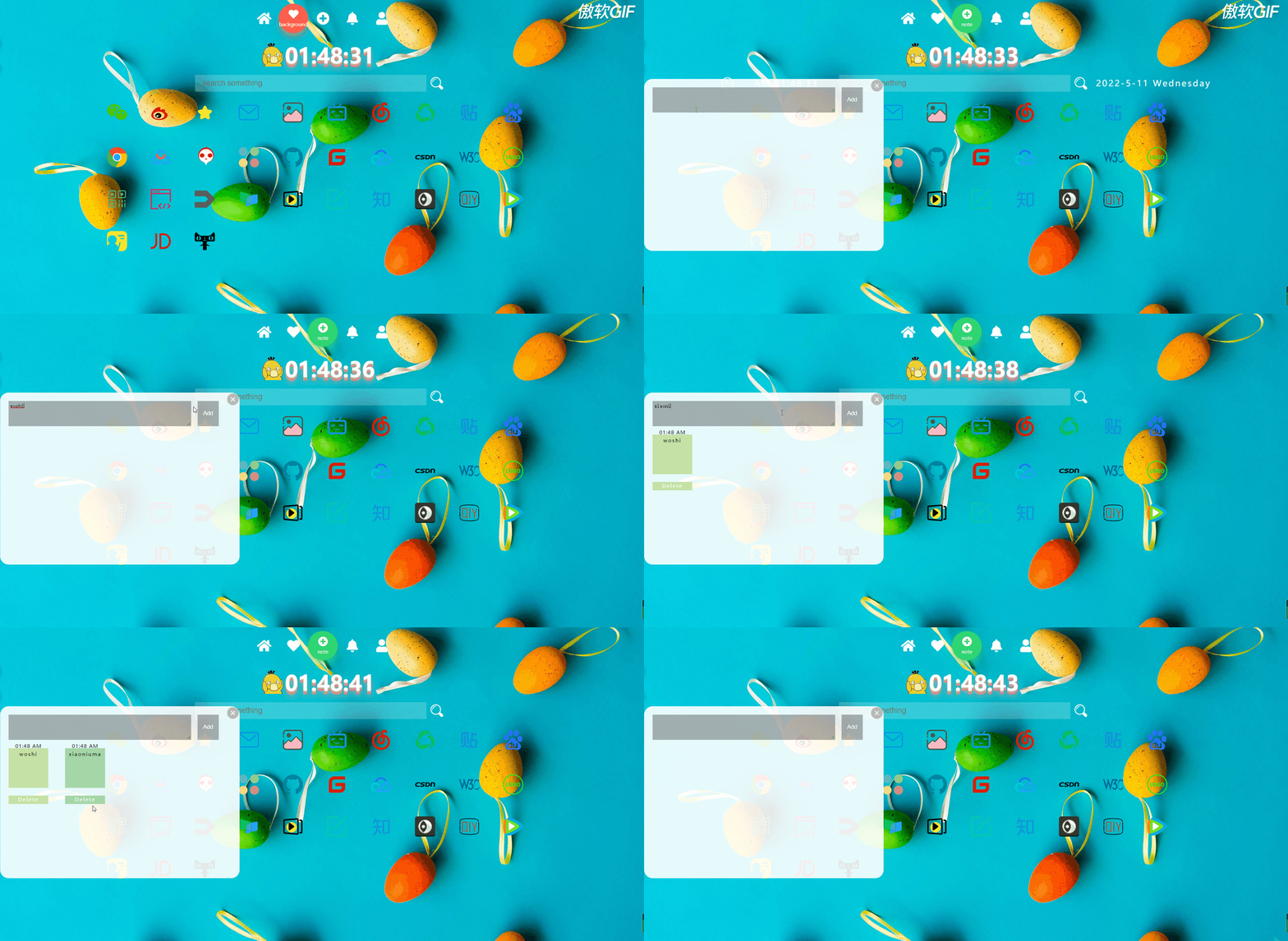
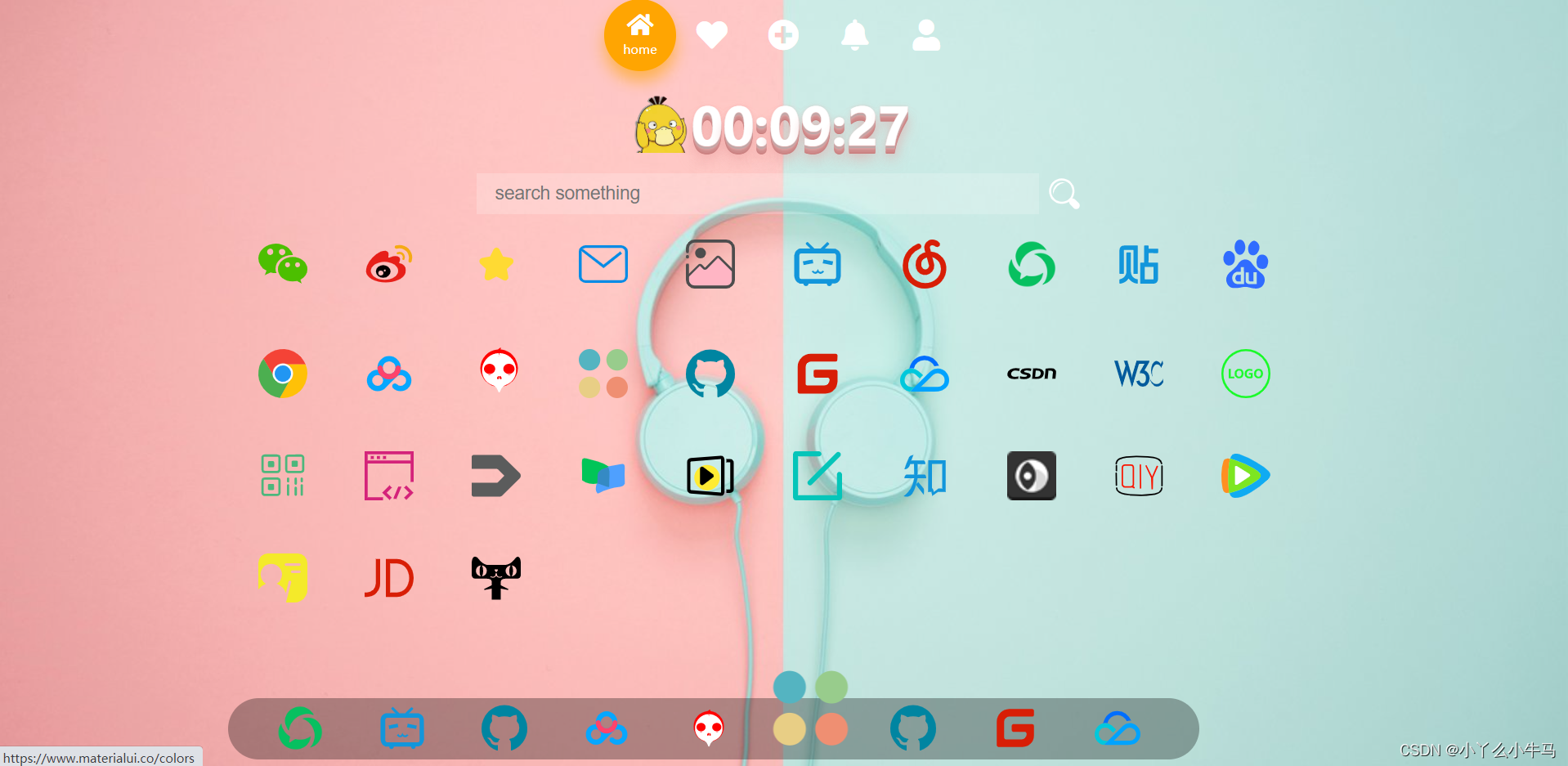
接下来的文章将逐步带领大家制作,现在太晚了,就精简了下,删除了部分动画效果,项目整体非常简单!
项目地址:
链接:https://pan.baidu.com/s/1Cue-H_7zufiBryD-FaKxzA
提取码:LDL6
2022/5/13
今天把动画以及小便签功能也加上了,本文第五,第六节,谢谢支持!
加入动画及便签的代码
链接:https://pan.baidu.com/s/1AwWiisnRQD5siLfTDwxdxw
提取码:LDL6
2022/6/15
之前的链接失效了
补上新的
链接:https://pan.baidu.com/s/1AOQ6o9fKDJgA2Wj0CBoBHA
提取码:LDL6
一、插入背景
首先设置我们的背景。
在body中插入背景即可。
- index.html
<!doctype html>
<html lang="en">
<head>
    <meta charset="UTF-8">
    <meta name="Designer" content="LiSuyan">
    <meta name="Description" content="HomePage">
    <link rel="stylesheet" href="css/style.css" type="text/css">
    <link rel="stylesheet" href="https://cdnjs.cloudflare.com/ajax/libs/font-awesome/5.15.4/css/all.min.css">
    <title>HomePage</title>
</head>
<body id="bgid" onload="changeBg()">
<script src="js/index.js"></script>
</body>
</html>
- style.css
/*重置浏览器样式*/
*{

    margin: 0;
    padding: 0;
}


html, body {

    height:100%;
    overflow:auto; /*使内容如果溢出,浏览器会显示滚动条以便查看其余的内容。*/
}

body{

    /*no-repeat:不平铺 center:使图片居中于body的中心部分 fixed:设置背景图像为固定(不滚动)*/
    background: no-repeat center fixed;
    /*保持图像的纵横比并将图像缩放成将完全覆盖背景定位区域的最小大小。*/
    -webkit-background-size:cover;
    background-size:cover;
    /*1s完成更换背景图片效果*/
    transition:background-image 1s;
    font-family: Sans-serif;
}
- index.js
//创建数组存放背景url
var bgs = new Array('url("images/bg01.jpg")','url("images/bg02.jpg")','url("images/bg04.jpg")','url("images/bg05.jpg")','url("images/bg08.jpg")','url("images/bg25.jpg")','url("images/bg09.jpg")','url("images/bg10.jpg")','url("images/bg12.jpg")','url("images/bg13.jpg")','url("images/bg25.jpg")','url("images/bg15.jpg")','url("images/bg17.jpg")','url("images/bg19.jpg")','url("images/bg20.jpg")','url("images/bg21.jpg")','url("images/bg22.jpg")','url("images/bg23.jpg")','url("images/bg25.jpg")');
}
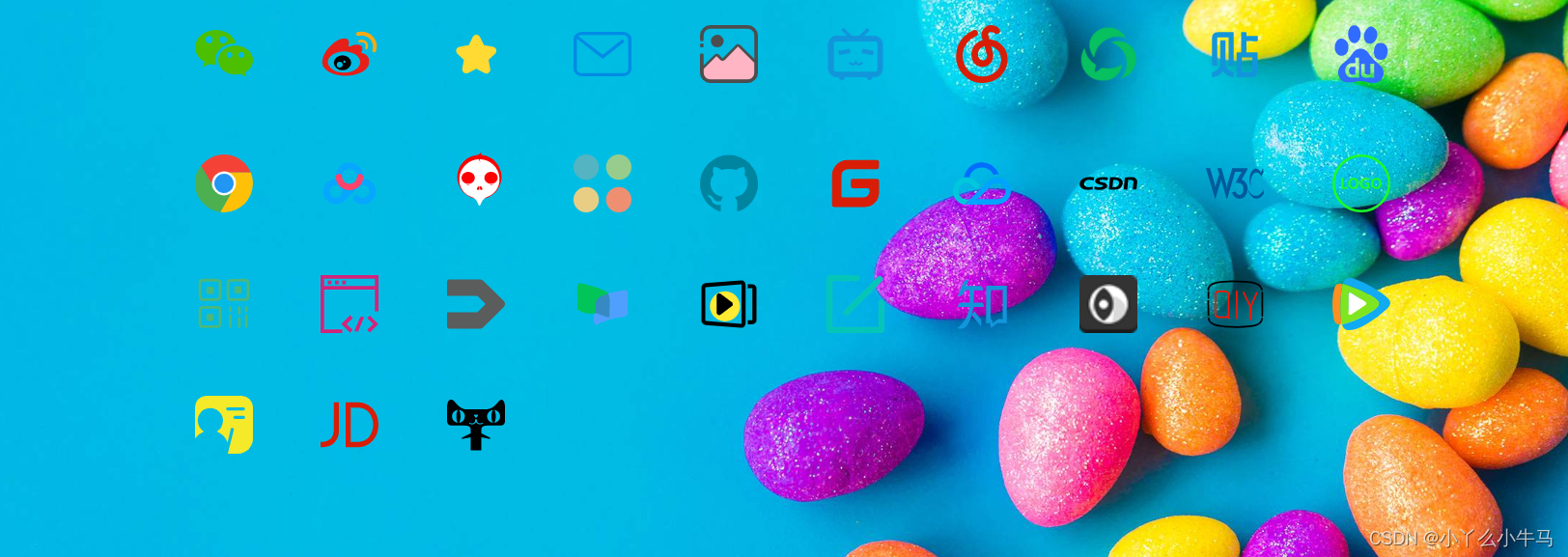
界面主要由三部分组成:
-
头部:导航栏,时间,搜索框

-
主体:各站图标
-
底部:鼠标悬浮时出现的图标

二、头部
Header部分由导航栏,时间,以及搜索框组成。
图标使用的是font-awesome库里的图。
1.导航栏
首先添加导航栏中的元素
index.html:
<header>
<div class="tabbar">
 <ul>
    <li class="item active">
       <a href="#">
                   <span class="icon">
                       <i class="fas fa-home" aria-hidden="true"></i>
                   </span>
          <span class="text">home</span>
       </a>
    </li>
    <li class="item">
       <a onclick="changeBg()" >
                   <span class="icon">
                       <i class="fas fa-heart" aria-hidden="true"></i>
                   </span>
          <span class="text">background</span>
       </a>
    </li>
    <li class="item">
       <a onclick="addFocus()">
                   <span class="icon">
                       <i class="fas fa-plus-circle" aria-hidden="true"></i>
                   </span>
          <span class="text">note</span>
       </a>
    </li>
    <li class="item">
       <a onclick="ballBtn()">

                   <span class="icon">
                       <i class="fas fa-bell" aria-hidden="true"></i>
                   </span>
          <span class="text">ball</span>
       </a>
    </li>
    <li class="item">
       <a href="#">
                   <span class="icon">
                       <i class="fas fa-user" aria-hidden="true"></i>
                   </span>
          <span class="text">about</span>
       </a>
    </li>
 </ul>
</div>
给当导航栏图标设置样式
style.css:
/*导航栏样式*/
.tabbar{

    height: 100vh;
    /* 弹性布局 水平+垂直居中 */
    display: flex;
    justify-content: center;
    align-items: center;
    /* 相对定位 */
    position: relative;
    width: 350px;
    height: 70px;
    margin: 0 auto;
}

.tabbar ul{

    /* 让li横向排列 */
    display: flex;
}
.tabbar ul li{

    list-style: none;
    width: 70px;
    height: 70px;
    position: relative;
    z-index: 1;
}
.tabbar ul li a{

    /* 弹性布局 居中 */
    display: flex;
    justify-content: center;
    align-items: center;
    /* 垂直排列 */
    flex-direction: column;
    color: #fff;
    text-align: center;
}
.tabbar ul li a .icon{

    line-height: 70px;
    font-size: 30px;
    /* 设置过渡 */
    transition: 0.5s;
}
.tabbar ul li a .text{

    /* 绝对定位 */
    position: absolute;
    font-size: 12px;
    bottom: 13px;
    /* 设置过渡 */
    transition: 0.5s;
    /* 默认隐藏 */
    transform: scale(0);
}
.tabbar ul li.active a .icon{

    font-size: 23px;
    /* 图标上移 */
    transform: translateY(-10px);
}
.tabbar ul li.active a .text{

    /* 选中,文字显示 */
    transform: scale(1);
}
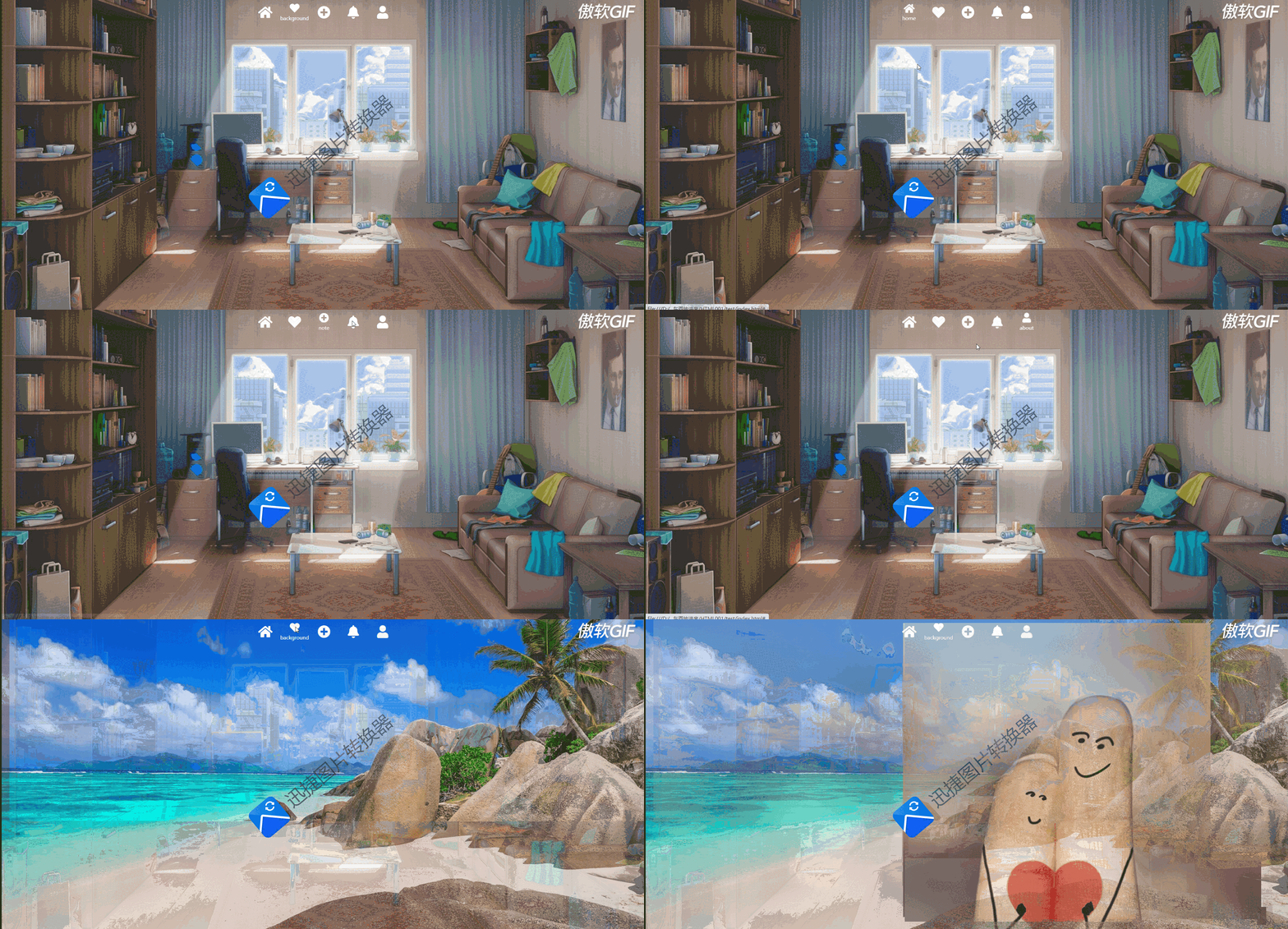
设置导航栏图标的点击事件
当鼠标点击元素时,添加或移除active样式即可。
index.js:
//设置导航栏图标的点击时间
//点击更改背景
function changeBg(){

    document.getElementById('bgid').style.backgroundImage = bgs[Math.round(Math.random()* (bgs.length-1))];
}

// 获取所有.item元素
let items=document.querySelectorAll(".item");
// 设置当前选中项样式的方法
function setActive(){

    // 遍历所有.item元素,移除active样式
    items.forEach((item)=>{

        item.classList.remove("active");
    })
    // 为当前选中项添加active样式
    this.classList.add("active");
}
// 遍历所有.item元素,分别为其设置点击事件
items.forEach((item)=>{

    item.addEventListener("click",setActive);
})
现在打开浏览器页面就可以看到下图中的效果啦!(有免费的制作图片的软件嘛QAQ)
2. 优化导航栏
接下来给导航栏再添加一个点击时的背景,显得更好看一些
我们在header部分中的<ul>列表内添加一个<div>用于存放该背景
<div class="active-bg"></div>
完整代码如下,index.html:
<header>
<div class="tabbar">
 <ul>
    <li class="item active">
       <a href="#">
                   <span class="icon">
                       <i class="fas fa-home" aria-hidden="true"></i>
                   </span>
          <span class="text">home</span>
       </a>
    </li>
    <li class="item">
       <a onclick="changeBg()" >
                   <span class="icon">
                       <i class="fas fa-heart" aria-hidden="true"></i>
                   </span>
          <span class="text">background</span>
       </a>
    </li>
    <li class="item">
       <a onclick="addFocus()">
                   <span class="icon">
                       <i class="fas fa-plus-circle" aria-hidden="true"></i>
                   </span>
          <span class="text">note</span>
       </a>
    </li>
    <li class="item">
       <a onclick="ballBtn()">

                   <span class="icon">
                       <i class="fas fa-bell" aria-hidden="true"></i>
                   </span>
          <span class="text">ball</span>
       </a>
    </li>
    <li class="item">
       <a href="#">
                   <span class="icon">
                       <i class="fas fa-user" aria-hidden="true"></i>
                   </span>
          <span class="text">about</span>
       </a>
    </li>
 </ul>
    <div class="active-bg"></div>

</div>
设置添加的导航栏背景样式。
.active-bg{

    position: absolute;
    left: 0;
    top: 0;
    width: 70px;
    height: 70px;
    border-radius: 50%;
    /* --c,--cc为CSS中的自定义属性,通过var函数可对其调用 */
    background-color: var(--c);
    box-shadow: 0 10px 15px var(--cc);
    transition: 0.5s;
}
/* 分别为每一个.active-bg设置颜色,阴影,位移 */
.tabbar ul li:nth-child(1).active ~ .active-bg{

    --c:#ffa502;
    --cc:#ffa50299;
    left: 0;
}
.tabbar ul li:nth-child(2).active ~ .active-bg{

    --c:#ff6348;
    --cc:#ff634899;
    left: calc(1 * 70px);
}
.tabbar ul li:nth-child(3).active ~ .active-bg{

    --c:#2ed573;
    --cc:#2ed57399;
    left: calc(2 * 70px);
}
.tabbar ul li:nth-child(4).active ~ .active-bg{

    --c:#1e90ff;
    --cc:#1e90ff99;
    left: calc(3 * 70px);
}
.tabbar ul li:nth-child(5).active ~ .active-bg{

    --c:#ff6b81;
    --cc:#ff6b8199;
    left: calc(4 * 70px);
}
现在打开浏览器,就可以看到下图中的效果啦!

3 时间
接下来 添加时间以及小鸭鸭(也可以添加自己喜欢的图片或者不添加)
首先添加元素
index.html:
<div class="img">
    <img src="images/头像.png" >
    <div class="clock">
        <p id="1">0</p>
        <p id="2">0</p>
        <p id="3">:</p>
        <p id="4">0</p>
        <p id="5">0</p>
        <p id="6">:</p>
        <p id="7">0</p>
        <p id="8">0</p>
    </div>
</div>
运行效果:
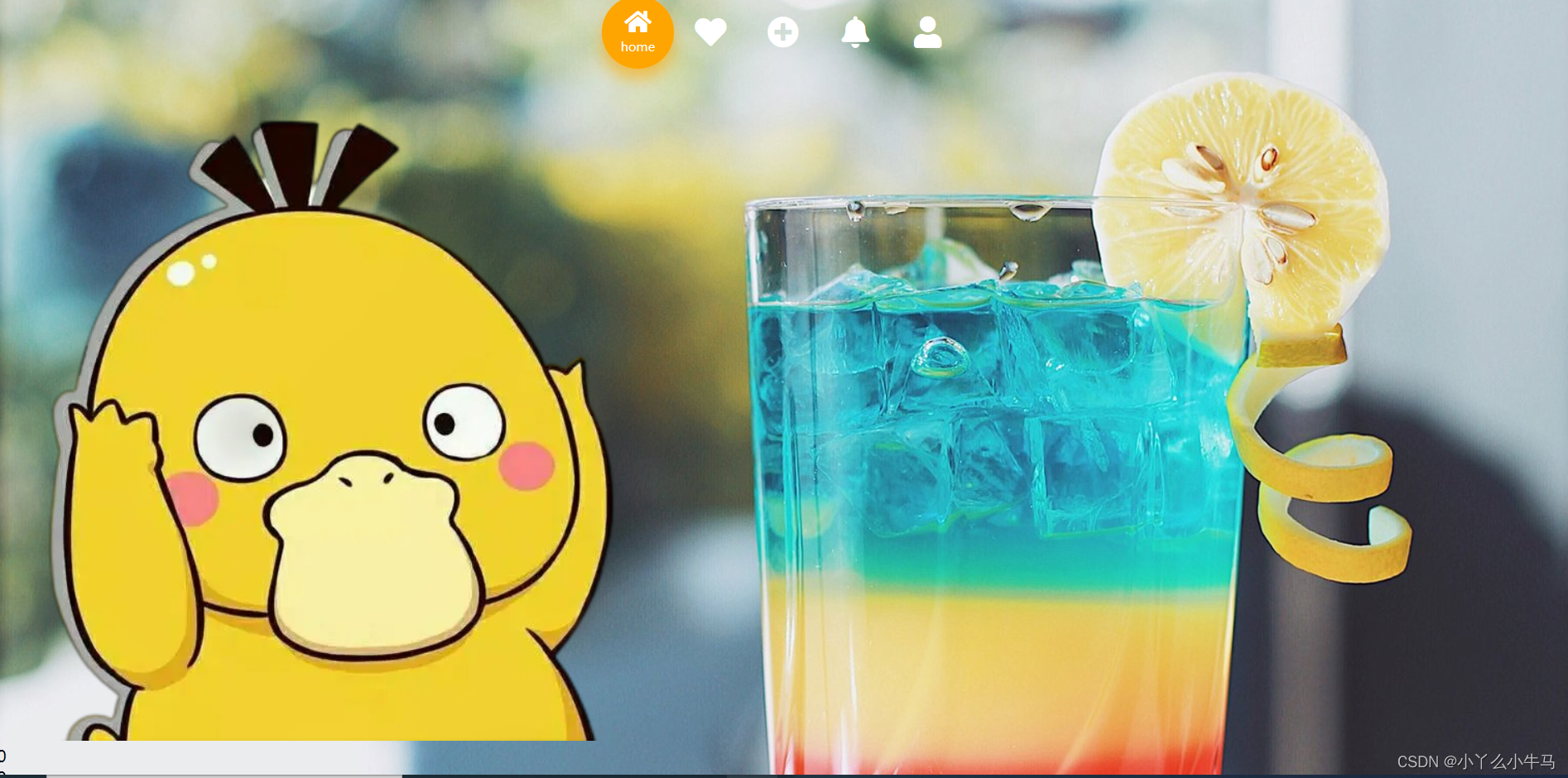
设置图片的样式
style.css:
.img{

    width:1200px;
    height:100px;
    position: relative;
    margin: 0 auto;
}

.img img{

    width:60px;
    height:60px;
    position: absolute;
    top:50%;
    left:40%;
    margin-top:-30px ;
    margin-left:-30px ;
}
设置时间的样式
style.css:
.img .clock{

    width:60px;
    height:60px;
    position: absolute;
    top:50%;
    left:45%;
    margin-top:-30px ;
    margin-left:-30px ;
}

.clock{

    display: flex;
}
.clock p{

    /*width: 1000px;*/
    font-size: 50px;
    color: #fff;
    text-align: center;
    /* 设置字体 */
    font-family: "Kanit";
    font-weight: 900;
    /* 文字阴影 实现3D效果 */
    text-shadow: 0 1px 0 #deafaf,
    0 2px 0 #bda8a8,
    0 3px 0 #d8a1a1,
    0 4px 0 #d59999,
    0 5px 0 #d29292,
    0 6px 0 #cf8b8b,
    0 7px 0 #cc8484,
    0 8px 0 #c97d7d,
    0 0 5px rgba(231,156,156,0.05),
    0 -1px 3px rgba(231,156,156,0.2),
    0 9px 9px rgba(231,156,156,0.3),
    0 12px 12px rgba(231,156,156,0.3),
    0 15px 15px rgba(231,156,156,0.3);
}
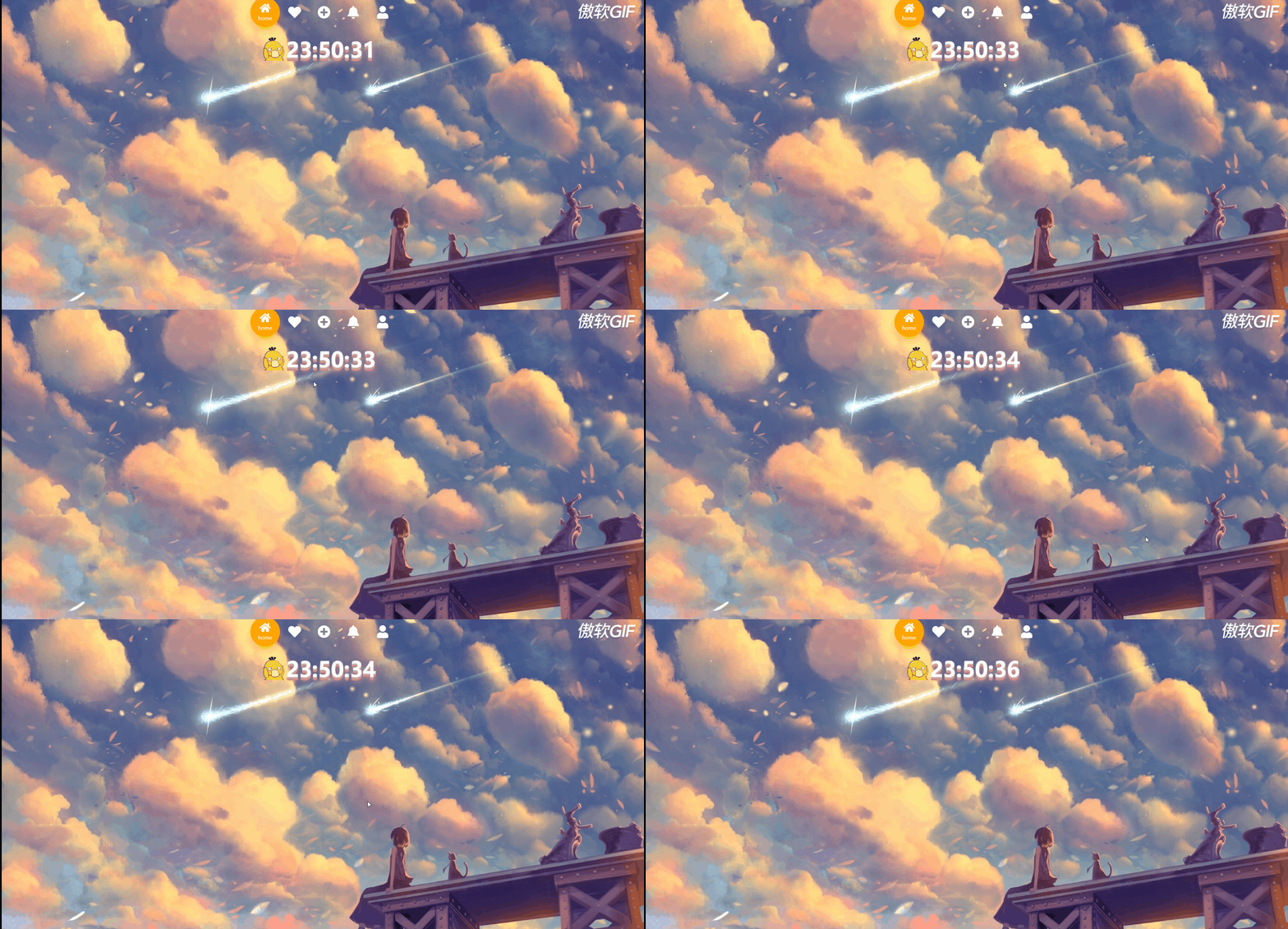
运行效果: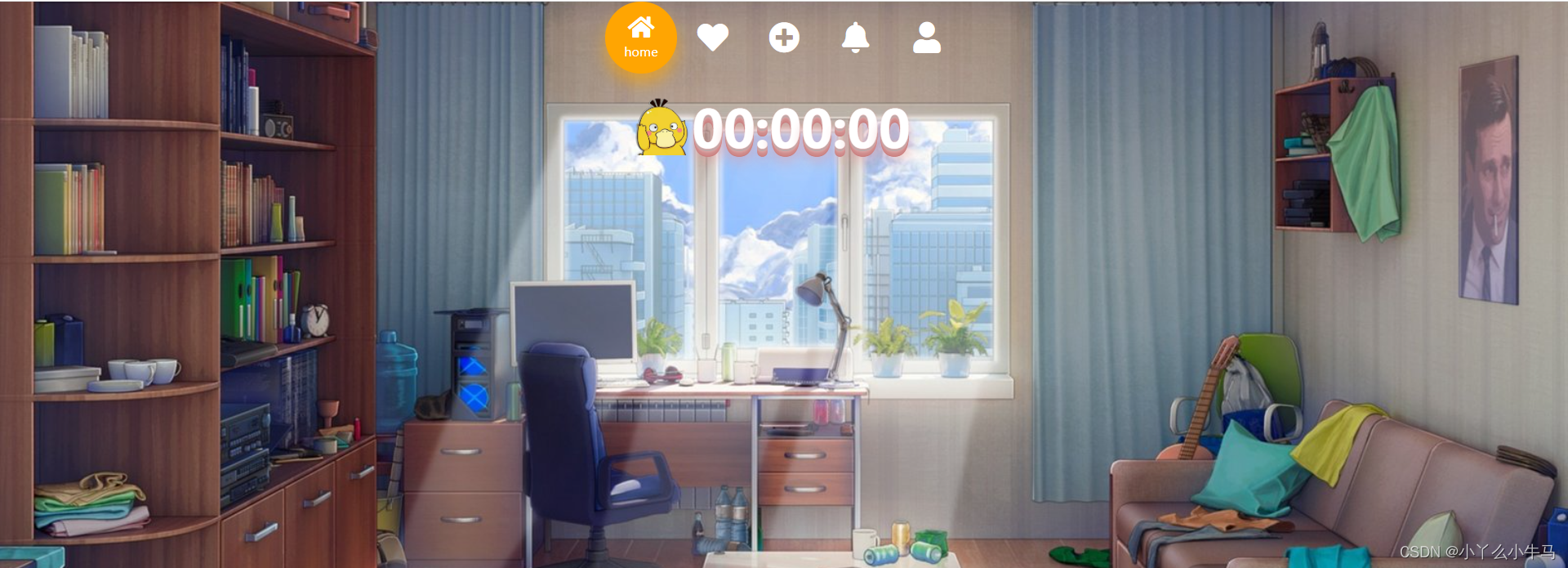
获取当前时间
index.js:
function myTime(){

    let time=new Date();
    let hh=time.getHours();  //时
    let mm=time.getMinutes();  //分
    let ss=time.getSeconds();  //秒
    // Math.floor() 向下取整
    document.getElementById("1").innerText=Math.floor(hh/10);
    document.getElementById("2").innerText=hh%10;
    document.getElementById("4").innerText=Math.floor(mm/10);
    document.getElementById("5").innerText=mm%10;
    document.getElementById("7").innerText=Math.floor(ss/10);
    document.getElementById("8").innerText=ss%10;
}
// 一秒执行一次
setInterval(myTime,1000);
运行效果:
4. 搜索框
接下来加入我们的搜索框
<div class="midbox">
   <form action="http://www.baidu.com/s" method="get" target="_blank">
      <input type="search" name="wd" id="seaid" placeholder="search something" autofocus="autofocus" autocomplete="off">
      <input type="submit" id="subid" value="">
   </form>
</div>
设置搜索框样式
.midbox{

    float: left;
    display: inline-block;
    background:transparent;
    width: 100%;
    height: 40px;
}
.midbox form{

    width: 600px;
    height:40px;
    margin:0 auto;
}
#seaid{

    float:left;
    width: 550px;
    height: 40px;
    outline: none;
    border:none;
    font-size: 18px;
    text-indent: 1em;
    background:rgba(255,255,255,.2);
}
#subid{

    float:left;
    width: 50px;
    height: 36px;
    outline: none;
    background:transparent;
    border:0;
    font-size: 18px;
    background: url("../images/search.svg") no-repeat center;
    background-position-y: 4px;
    cursor:pointer;

}
运行效果:
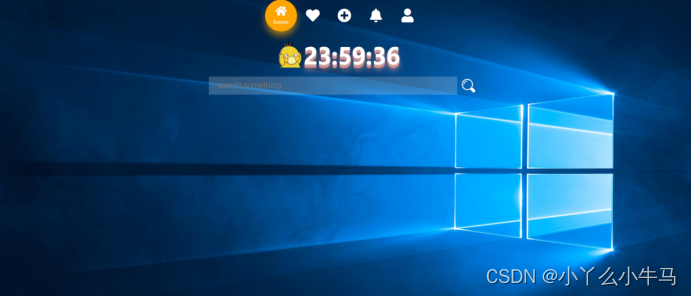
至此我们的头部就完成啦!
三、主体
主体和footer也都很简单,基本上都是一些图标和样式设置。
添加元素
index.html:
<div class="container">
    <ul>
        <li><a href="https://wx.qq.com/" target="_blank"><img src="images/微信.svg" alt=""></a></li>
        <li><a href="https://s.weibo.com/top/summary?Refer=top_hot&topnav=1&wvr=6" target="_blank"><img src="images/微博.svg" alt=""></a></li>
        <li><a href="#" target="_blank"><img src="images/collect.svg" alt=""></a></li>
        <li><a href="https://email.163.com/" target="_blank"><img src="images/邮箱.svg" alt=""></a></li>
        <li><a href="#" target="_blank"><img src="images/相册.svg" alt=""></a></li>
        <li><a href="https://www.bilibili.com/" target="_blank"><img src="images/哔哩哔哩.svg" alt=""></a></li>
        <li><a href="https://music.163.com/" target="_blank"><img src="images/网易云.svg" alt=""></a></li>
        <li><a href="https://mp.weixin.qq.com" target="_blank"><img src="images/公众号.ico" alt=""></a></li>
        <li><a href="https://tieba.baidu.com" target="_blank"><img src="images/贴吧.svg" alt=""></a></li>
        <li><a href="http://www.baidu.com" target="_blank"><img src="images/百度.svg" alt=""></a></li>
        <li><a href="http://www.google.com" target="_blank"><img src="images/chrome.svg" alt=""></a></li>
        <li><a href="https://pan.baidu.com" target="_blank"><img src="images/百度网盘.svg" alt=""></a></li>
        <li><a href="https://www.iconfont.cn/" target="_blank"><img style="width:55px;height:55px;" src="images/iconfont.svg" alt=""></a></li>
        <li><a href="https://www.materialui.co/colors" target="_blank"><img src="images/颜色.svg" alt=""></a></li>
        <li><a href="https://github.com/" target="_blank"><img src="images/github.svg" alt=""></a></li>
        <li><a href="https://gitee.com/" target="_blank"><img src="images/码云.svg" alt=""></a></li>
        <li><a href="https://cloud.tencent.com" target="_blank"><img src="images/腾讯云.svg" alt=""></a></li>
        <li><a href="https://www.csdn.net/" target="_blank"><img src="images/csdn.svg" alt=""></a></li>
        <li><a href="https://www.w3school.com.cn/index.html" target="_blank"><img src="images/w3c.svg" alt=""></a></li>
        <li><a href="http://www.logofree.cn/" target="_blank"><img src="images/LOGO.svg" alt=""></a></li>
        <li><a href="https://cli.im/" target="_blank"><img src="images/草料.svg" alt=""></a></li>
        <li><a href="https://www.freecodecamp.org/" target="_blank"><img src="images/codecamp.svg" alt=""></a></li>
        <li><a href="https://www.v2ex.com/" target="_blank"><img src="images/v2ex.svg" alt=""></a></li>
        <li><a href="https://www.icourse163.org/" target="_blank"><img src="images/慕课.svg" alt=""></a></li>
        <li><a href="https://open.163.com/" target="_blank"><img src="images/公开课.svg" alt=""></a></li>
        <li><a href="https://www.canva.cn/" target="_blank"><img src="images/canvas.svg" alt=""></a></li>
        <li><a href="https://www.zhihu.com/hot" target="_blank"><img src="images/知乎.svg" alt=""></a></li>
        <li><a href="https://icomoon.io/" target="_blank"><img src="images/iconmoon.ico" alt=""></a></li>
        <li><a href="https://www.iqiyi.com/home2020" target="_blank"><img src="images/爱奇艺.svg" alt=""></a></li>
        <li><a href="https://v.qq.com/" target="_blank"><img src="images/腾讯视频.svg" alt=""></a></li>
        <li><a href="https://www.runoob.com/" target="_blank"><img src="images/菜鸟.svg" alt=""></a></li>
        <li><a href="https://www.jd.com" target="_blank"><img src="images/京东.svg" alt=""></a></li>
        <li><a href="https://www.tmall.com" target="_blank"><img src="images/天猫.svg" alt=""></a></li>
    </ul>
</div>
设置样式:
style.css
li{

    list-style: none;
    display: inline-block;
}
.container{

    width: 1080px;
    margin: 0 auto;
    margin-top:40px;

}
.container ul {

    width: 100%;
    height: 100%;
}
.container ul li{

    margin:20px;
    width: 60px;
    height: 60px;
    background-color: rgba(0,0,0,0);
    border-radius: 5px;

    text-align: center;
}
.container ul li:hover{

    transform:translateY(-3px);
    transition:all 0.2s;
}
.container ul li a img{

    margin:5px;
    width: 48px;
    height: 48px;
    opacity: 1;
}
完成后的效果:

四、底部
与主题部分相似,多了一个鼠标悬浮于底部的hover效果,都是较为基础的。
index.html:
<footer>
    <ul>
        <li><a href="https://mp.weixin.qq.com" target="_blank"><img src="images/公众号.ico" alt=""></a></li>
        <li><a href="https://www.bilibili.com/" target="_blank"><img src="images/哔哩哔哩.svg" alt=""></a></li>
        <li><a href="https://github.com/" target="_blank"><img src="images/github.svg" alt=""></a></li>
        <li><a href="https://pan.baidu.com" target="_blank"><img src="images/百度网盘.svg" alt=""></a></li>
        <li><a href="https://www.iconfont.cn/" target="_blank"><img src="images/iconfont.svg" alt=""></a></li>
        <li><a href="https://www.materialui.co/colors" target="_blank"><img src="images/颜色.svg" alt=""></a></li>
        <li><a href="https://github.com/" target="_blank"><img src="images/github.svg" alt=""></a></li>
        <li><a href="https://gitee.com/" target="_blank"><img src="images/码云.svg" alt=""></a></li>
        <li><a href="https://cloud.tencent.com" target="_blank"><img src="images/腾讯云.svg" ></a></li>
    </ul>
</footer>
style.css
footer{

    position:fixed;
    width: 100%;
    height: 100px;
    bottom: -90px;
    text-align: center;
    z-index:98;
}
footer ul{

    position:absolute;
    height: 60px;
    width: 950px;
    top: -60px;
    left: 225px;
    list-style: none;
    background-color: rgba(0,0,0,.3);
    border-radius:30px;
    transform:translateY(70px);
    transition:all .3s;

}
footer:hover ul{

    transform:translateY(0px);
    transition:all .3s;
}
footer ul li{

    float: left;
    width: 60px;
    height: 60px;
    margin-top: 2px;
    margin-left: 40px;
    border-radius:50%;
    cursor:pointer;

}
footer ul li img{

    width: 45px;
    height: 45px;
    margin:5px;

}
footer ul li:hover{

    transform:scale(1.6);
    transform-origin:50% 100%;
    transition:all .1s;
}
至此我们的个人定制导航主页就完成啦!
—- – – – – – – – – – – – – – – 这是一条分割线呀– – – – – – – – – – – – – –
五、背景泡沫球特效
添加元素
添加位置如下,最后会再放上全部代码哒!
- 三个元素分别是用来容纳球球的div,以及用来启动/暂停/清除球球的按钮
index.html:
	<div class="ballbox"></div>
	<div class="ballBtns" id="btns">
		<input type="button" onclick="autoBtn()" class="auto_btn " value="Start">
		<input type="button" onclick="clearBalls()" class="clear_btn" value="Clear">
	</div>
设置球球的样式,以及按钮的样式
可以新建一个css文件,使结构清晰点,当然写在原来的style.css里也是没有问题的。
ball.css
 .ballbox{

      position:absolute;
      width:1180px;
      height:500px;
	  top:60px;
	  left:65px;
	  z-index:-100;
	  transition:all .3s;
	  }
	  .ballBtns{

		position:absolute;
		width: 65px;
		height: 100px;
		top: 80px;
		left: -65px;
		z-index:9999;
		transition:all .3s;
	  }
 .ball{

      position:absolute;
      border-radius:50%;
	  opacity:.8;

    }
 .clear_btn,.auto_btn{

      position:absolute;
      width:65px;
      height:35px;
      top:60px;
      left:0px;
	 border-radius: 24px;
	 color: #fff;
	 font-family: "Kanit";
	 font-weight: 900;
	 /* 文字阴影 实现3D效果 */
	 text-shadow: 0 1px 0 #deafaf;
	  border:none;
	 box-shadow: 0 10px 10px rgba(0,0,0,.3);
	 outline:none;
	 cursor: pointer;
 }

 .auto_btn{

		top:0px;
	 background-image: linear-gradient(to right, #f441a0, #09a8f4, #ffeb3b,#03a9f4);
	 /* 背景渐变色大小 */
	 background-size: 400%;
 }
 .clear_btn{

	 background-image: linear-gradient(to right, #09a8f4, #ffeb3b, #f441a0,#03a9f4);
	 /* 背景渐变色大小 */
	 background-size: 400%;
 }
设置泡沫球的添加、清除、停止添加,球的移动以及按钮的弹出
index.js:
//获取元素
var ballbox =document.querySelector('.ballbox');
var clearBtn =document.querySelector('.clear_btn');
var auto =document.querySelector('.auto_btn');
var colors=['#ef9a9a','#F48FB1','#CE93D8','#B39DDB','#9FA8DA','#90CAF9','#81D4FA','#80DEEA','#80CBC4','#A5D6A7','#C5E1A5','#FFCC80','#FFAB91','#BCAAA4','#B0BEC5'];
var flag = true;
var balls = null;
var count = 0;
//自动添加 停止添加
function autoBtn(){

    if(flag){

        timer = setInterval(addBall,150);
        auto.value ='Stop';
        auto.style.backgroundColor ='red';
        flag = false;

    }else{

        clearInterval(timer);
        auto.style.backgroundColor ='#00ACC1';
        auto.value ='Start';
        flag = true;
    }
}
//创建新的
function addBall(){

    var ball = document.createElement('div');
    ball.setAttribute('class','ball');
    ball.style.background= "radial-gradient(circle at 75px 75px, "+colors[parseInt(Math.random()*colors.length)]+",#fff)";
    ballbox.appendChild(ball);
    count += 1;

    //控制球移动
    var top = parseInt(Math.random()*400);
    var left =  parseInt(Math.random()*900);
    ball.style.width = parseInt(Math.random()*50+50) +'px';
    ball.style.height = ball.style.width;
    ball.style.top = top +'px';
    ball.style.left = left +'px';
    var x = 5;
    var y = 8;

    running = setInterval(function clearBalls(){

        top += y ;
        left += x;
        if(top < 0  || top> (ballbox.offsetHeight - ball.offsetHeight)){

            y = -y ;
        }
        if(left< 0 || left> (ballbox.offsetWidth - ball.offsetWidth)){

            x = -x;
        }

        ball.style.top = top +'px';
        ball.style.left = left +'px';
    },100)

}
//清除球
// clearBtn.onclick =
function clearBalls(){

    var balls = document.getElementsByClassName('ball');
    clearInterval(timer);
    auto.style.backgroundColor ='#00ACC1';
    auto.value ='Start';
    flag = true;
    while(balls.length != 0){

        balls.length-- ;
        ballbox.removeChild(ballbox.children[0]);
    }
}

//弹出操作按钮
var btns =document.getElementById('btns');
var flag2 = true;
function ballBtn(){

    if(!flag2){

        btns.style.transform = 'translateX(0px)';
        flag2 = true;

    }else{

        btns.style.transform = 'translateX(65px)';

        flag2 = false;
    }
}
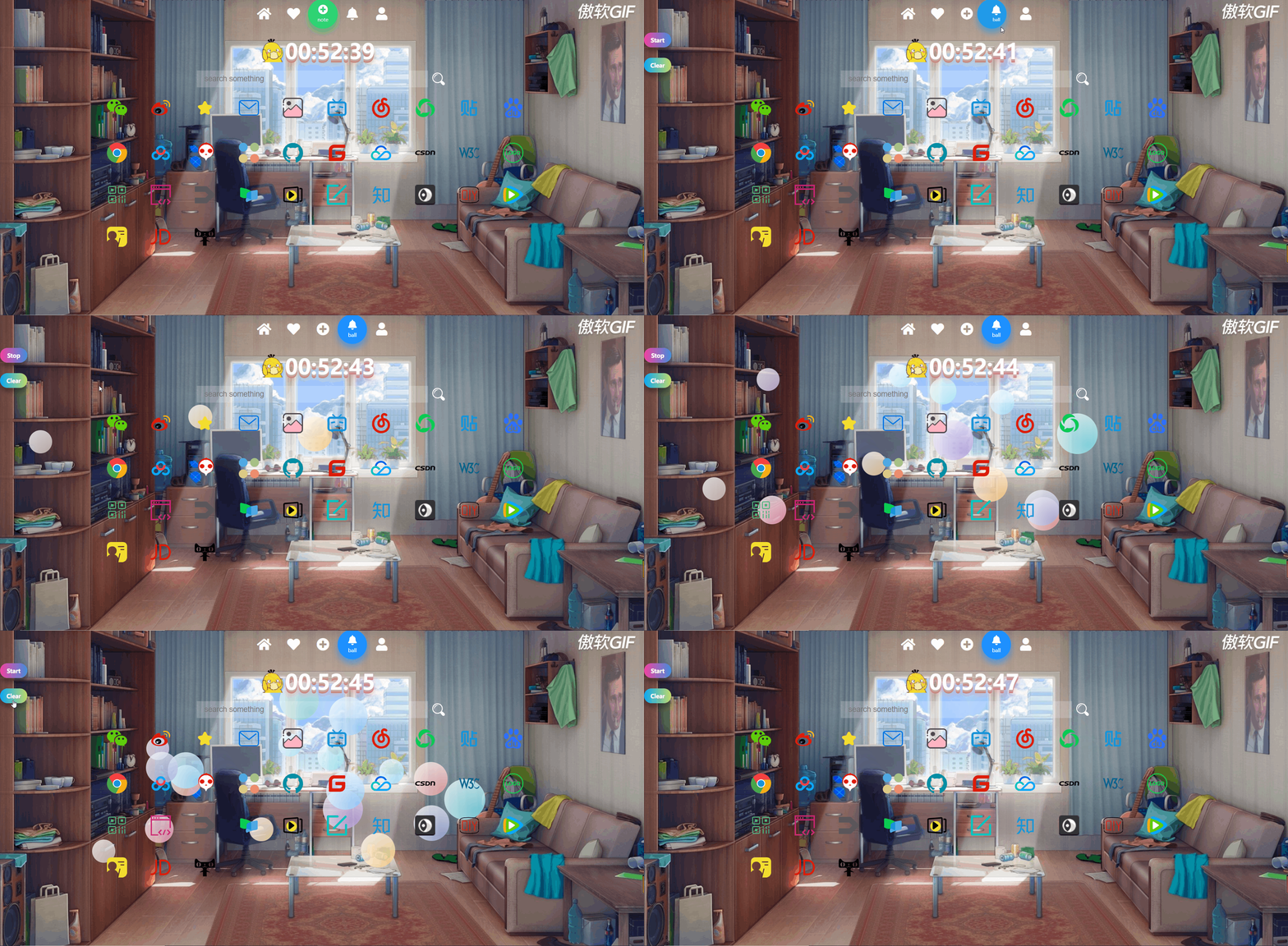
完成这一步,就可以看到我们的泡沫球动画啦!
效果如下:
六、note小便签
添加元素
第一步当然还是将便签元素添加进来啦!
分别是文本域、添加便签按钮、关闭便签栏按钮、删除便签按钮。
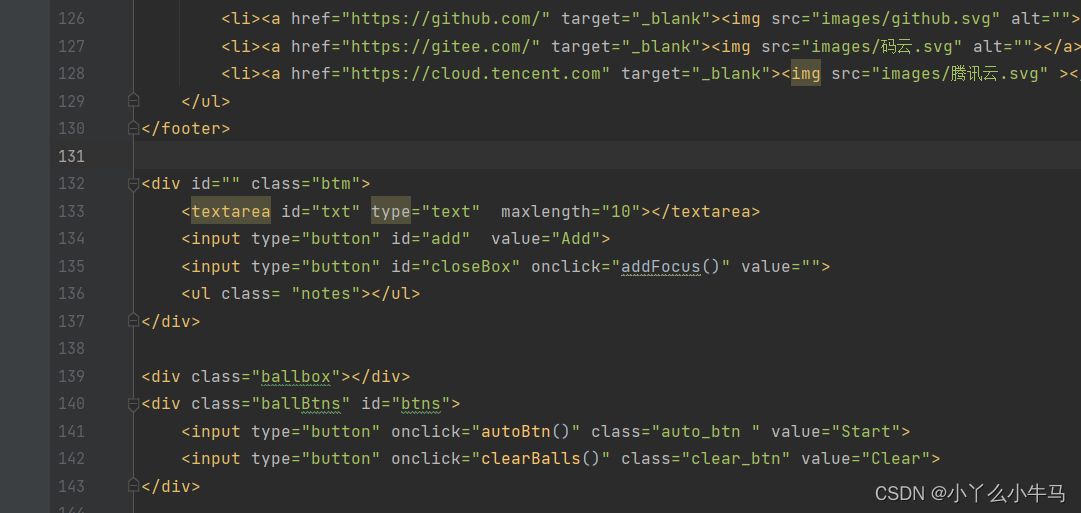
代码如下:
	<div id="" class="btm">
		<textarea id="txt" type="text" maxlength="10"></textarea>
		<input type="button" id="add" value="Add">
		<input type="button" id="closeBox" onclick="addFocus()" value="">
		<ul class= "notes"></ul>
	</div>
设置样式
大家按照自己喜好,设置合适的样式就好啦。
style.css:
.btm{

	border-radius: 20px;
	position: absolute;
	width:570px;
	height: 410px;
	top:90px;
	left:-570px;
	margin-top: 100px;
	background-color: rgba(255,255,255,.9);
	transition:all .3s;
	z-index:99;
	}
#txt{

	float: left;
	width: 425px;
	height: 50px;
	padding: 5px;
	border:0;
	margin:20px;
	margin-bottom: 0px;
	color:black;
	font-size: 6px;
	background-color:#ccc;
	outline: none;
	background-color: rgba(0,0,0,.3);
}
#txt::-webkit-input-placeholder, #txt textarea::-webkit-input-placeholder {

  color: black;
  font-size: 10px;
}
.btm #add{

	float: left;
	width: 50px;
	height: 60px;
	margin-top: 20px;
	margin-left: -5px;
	outline: none;
	border:0;
	color:#fff;
	cursor: pointer;
	background-color: rgba(0,0,0,.3);
}

#closeBox{

	float: right;
	width: 32px;
	height: 32px;
	margin-top: 0;
	margin-right: 0;
	outline: none;
	border:0;
	color:#fff;
	cursor: pointer;
	background:url('../images/close.png') no-repeat;
	background-color: rgba(0,0,0,0);
	border-radius:50%;
}
.notes li{

	position: relative;
	float: left;
	width: 85px;
	height: 85px;
	border:0;
	margin:20px;
	margin-bottom: 25px;
	padding: 5px;
	color:#000;
	font-size:10px;
	line-height: 18px;
	text-align: center;
	letter-spacing:2px;
	background-color:#ccc;
	outline: none;
	background-color: rgba(0,0,0,.3);
}
.notes li a{

	position: absolute;
	width: 95px;
	height: 20px;
	top:113px;
	left:0;
	outline: none;
	border:0;
	color:#fff;
	text-align: center;
	cursor: pointer;
	background-color: rgba(0,0,0,.3);

}
.notes li a:hover{

	color:red!important;
}
.notes li p{

	position: absolute;
	width: 95px;
	height: 20px;
	left: 0;
	top:-14px;
	text-align: center;
	font-size:6px;
	letter-spacing:1px;

}

.btm #add:hover,.notes li a:hover{

	background-color: rgba(0,0,0,.5)!important;
}
添加子节点
由于是便签嘛,所以想着应该需要记录写下便签的时间,所以我们首先,获取时间,然后添加便签的操作使用.append添加子节点就好啦。代码有注释,不懂得可以留言!
index.js
//创建计时器
function Note(){

    var time = new Date();
    y = time.getFullYear();
    mon = time.getMonth()+1;
    d = time.getDate();
    var  h = time.getHours();
    var ampm = h < 12 ? 'AM' : 'PM';
    if(h < 10){

        h = '0' + h;
    }
    else if(h >= 12 && h < 22){

        h = '0' + (h % 12)
    }else if(h >= 22){

        h = h % 12;
    }
    else{

        h = h;
    }

    var  m = time.getMinutes();
    m = m < 10 ? '0'+ m : m;

    var s = time.getUTCSeconds();
    s = s < 10 ? '0'+ s : s;


    var wArr = ["Sunday","Monday","Tuesday","Wednesday","Thursday","Friday","Saturday"];
    w = wArr[time.getDay()];

    //获取元素
    var txt = document.querySelector('#txt');
    var btn = document.querySelector('#add');
    var ul = document.querySelector('.notes');
    var colors =['#ef9a9a','#F48FB1','#CE93D8','#B39DDB','#9FA8DA','#90CAF9','#81D4FA','#80DEEA','#80CBC4','#A5D6A7','#C5E1A5','#FFCC80','#FFAB91','#BCAAA4','#B0BEC5'];
    //注册事件
    btn.onclick = function(){

        txt.focus();
        if(ul.children.length < 8 && txt.value !='' ){


            //创建元素
            var li = document.createElement('li');

            li.style.backgroundColor = colors[parseInt(Math.random()*(colors.length-1))];
            //添加元素
            ul.appendChild(li);
            li.innerHTML = txt.value + "<p>"+h +":"+ m +" "+ampm+"</p>" + "<a href='javascript:;' style='background:"+ li.style.backgroundColor +"' >Delete</a>";
            txt.value = '';
            txt.focus();
            //删除元素
            var as = document.querySelectorAll('a');
            for(var i = 0; i < as.length; i++){

                as[i].onclick = function (){

                    ul.removeChild(this.parentNode);
                    txt.focus();
                }
            }

        }else if(ul.children.length == 8){

            txt.value ='';
            txt.setAttribute('placeholder','只能添加8个便签哦!');
            txt.focus();

        }
        else if(txt.value ==''){

            txt.setAttribute('placeholder','请输入内容...');
            txt.focus();
        }
    }
}
//递归调用 每秒调用一次
setInterval("Note()",1000);

var btnn = document.querySelector('#note');
var div = document.querySelector('.btm');
var flag1 = true;
function addFocus(){

    if(!flag1){

        div.style.transform = 'translateX(0px)';
        flag1 = true;
        txt.blur();
    }else{

        div.style.transform = 'translateX(570px)';
        txt.focus();
        flag1 = false;
    }
}
btnn.onclick = function() {

    addFocus();
}
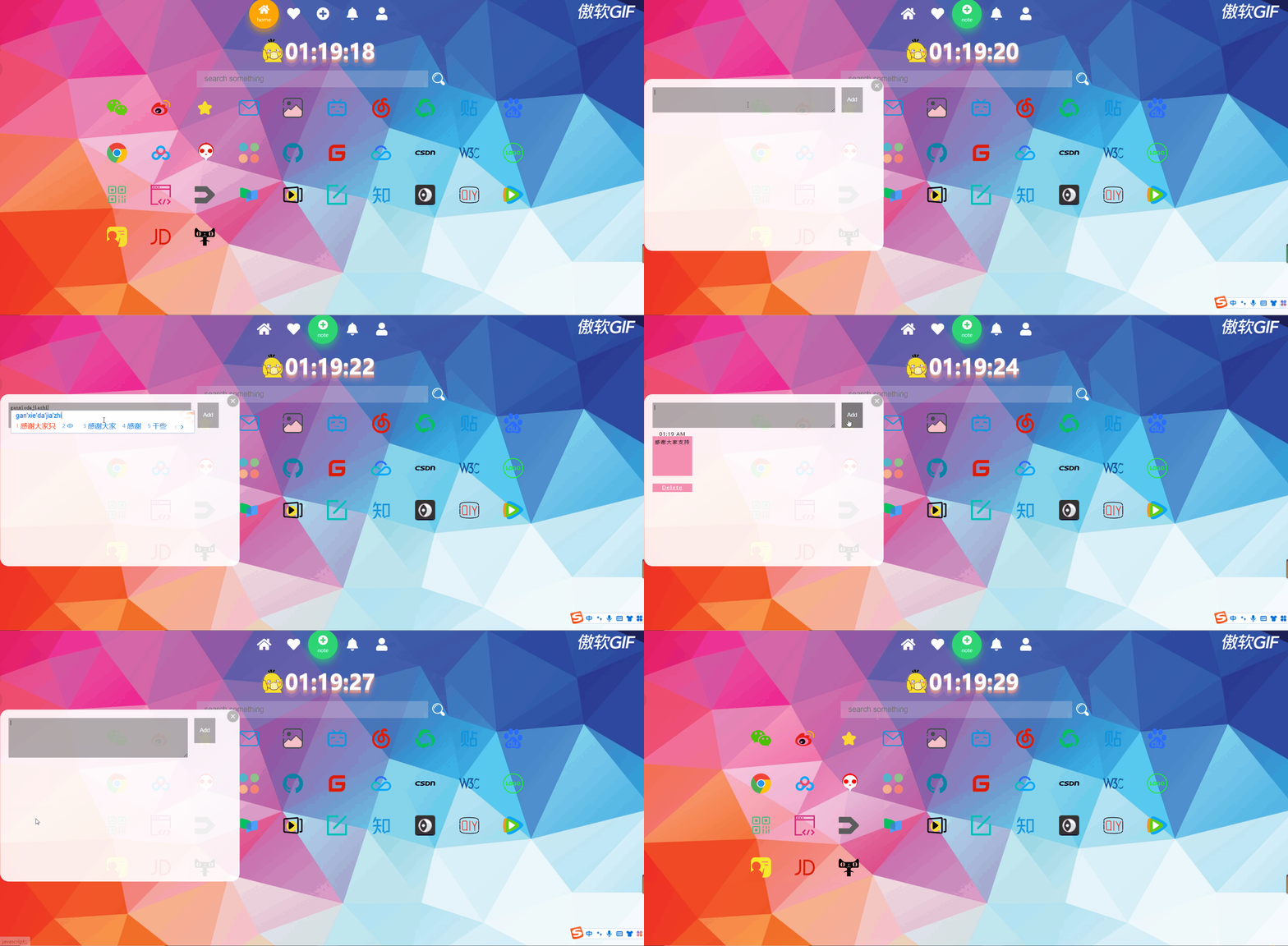
至此我们的便签部分也完成啦!
效果图如下:
七、全部代码
1. index.html
<!doctype html>
<html lang="en">
<head>
    <meta charset="UTF-8">
    <meta name="Designer" content="LiSuyan">
    <meta name="Description" content="HomePage">
    <link rel="stylesheet" href="css/style.css" type="text/css">
    <link rel="stylesheet" href="https://cdnjs.cloudflare.com/ajax/libs/font-awesome/5.15.4/css/all.min.css">


    <title>HomePage</title>
</head>
<body id="bgid" onload="changeBg()">
<header>
    <div class="tabbar">
        <ul>
            <li class="item active">
                <a href="#">
                   <span class="icon">
                       <i class="fas fa-home" aria-hidden="true"></i>
                   </span>
                    <span class="text">home</span>
                </a>
            </li>
            <li class="item">
                <a onclick="changeBg()" >
                   <span class="icon">
                       <i class="fas fa-heart" aria-hidden="true"></i>
                   </span>
                    <span class="text">background</span>
                </a>
            </li>
            <li class="item">
                <a onclick="addFocus()">
                   <span class="icon">
                       <i class="fas fa-plus-circle" aria-hidden="true"></i>
                   </span>
                    <span class="text">note</span>
                </a>
            </li>
            <li class="item">
                <a onclick="ballBtn()">

                   <span class="icon">
                       <i class="fas fa-bell" aria-hidden="true"></i>
                   </span>
                    <span class="text">ball</span>
                </a>
            </li>
            <li class="item">
                <a href="#">
                   <span class="icon">
                       <i class="fas fa-user" aria-hidden="true"></i>
                   </span>
                    <span class="text">about</span>
                </a>
            </li>
            <div class="active-bg"></div>
        </ul>
    </div>
    <div class="img">
        <img src="images/头像.png" >
        <div class="clock">
            <p id="1">0</p>
            <p id="2">0</p>
            <p id="3">:</p>
            <p id="4">0</p>
            <p id="5">0</p>
            <p id="6">:</p>
            <p id="7">0</p>
            <p id="8">0</p>
        </div>
    </div>
    <div class="midbox">
        <form action="http://www.baidu.com/s" method="get" target="_blank">
            <input type="search" name="wd" id="seaid" placeholder="search something" autofocus="autofocus" autocomplete="off">
            <input type="submit" id="subid" value="">
        </form>
    </div>
</header>
<div class="container">
    <ul>
        <li><a href="https://wx.qq.com/" target="_blank"><img src="images/微信.svg" alt=""></a></li>
        <li><a href="https://s.weibo.com/top/summary?Refer=top_hot&topnav=1&wvr=6" target="_blank"><img src="images/微博.svg" alt=""></a></li>
        <li><a href="#" target="_blank"><img src="images/collect.svg" alt=""></a></li>
        <li><a href="https://email.163.com/" target="_blank"><img src="images/邮箱.svg" alt=""></a></li>
        <li><a href="#" target="_blank"><img src="images/相册.svg" alt=""></a></li>
        <li><a href="https://www.bilibili.com/" target="_blank"><img src="images/哔哩哔哩.svg" alt=""></a></li>
        <li><a href="https://music.163.com/" target="_blank"><img src="images/网易云.svg" alt=""></a></li>
        <li><a href="https://mp.weixin.qq.com" target="_blank"><img src="images/公众号.ico" alt=""></a></li>
        <li><a href="https://tieba.baidu.com" target="_blank"><img src="images/贴吧.svg" alt=""></a></li>
        <li><a href="http://www.baidu.com" target="_blank"><img src="images/百度.svg" alt=""></a></li>
        <li><a href="http://www.google.com" target="_blank"><img src="images/chrome.svg" alt=""></a></li>
        <li><a href="https://pan.baidu.com" target="_blank"><img src="images/百度网盘.svg" alt=""></a></li>
        <li><a href="https://www.iconfont.cn/" target="_blank"><img style="width:55px;height:55px;" src="images/iconfont.svg" alt=""></a></li>
        <li><a href="https://www.materialui.co/colors" target="_blank"><img src="images/颜色.svg" alt=""></a></li>
        <li><a href="https://github.com/" target="_blank"><img src="images/github.svg" alt=""></a></li>
        <li><a href="https://gitee.com/" target="_blank"><img src="images/码云.svg" alt=""></a></li>
        <li><a href="https://cloud.tencent.com" target="_blank"><img src="images/腾讯云.svg" alt=""></a></li>
        <li><a href="https://www.csdn.net/" target="_blank"><img src="images/csdn.svg" alt=""></a></li>
        <li><a href="https://www.w3school.com.cn/index.html" target="_blank"><img src="images/w3c.svg" alt=""></a></li>
        <li><a href="http://www.logofree.cn/" target="_blank"><img src="images/LOGO.svg" alt=""></a></li>
        <li><a href="https://cli.im/" target="_blank"><img src="images/草料.svg" alt=""></a></li>
        <li><a href="https://www.freecodecamp.org/" target="_blank"><img src="images/codecamp.svg" alt=""></a></li>
        <li><a href="https://www.v2ex.com/" target="_blank"><img src="images/v2ex.svg" alt=""></a></li>
        <li><a href="https://www.icourse163.org/" target="_blank"><img src="images/慕课.svg" alt=""></a></li>
        <li><a href="https://open.163.com/" target="_blank"><img src="images/公开课.svg" alt=""></a></li>
        <li><a href="https://www.canva.cn/" target="_blank"><img src="images/canvas.svg" alt=""></a></li>
        <li><a href="https://www.zhihu.com/hot" target="_blank"><img src="images/知乎.svg" alt=""></a></li>
        <li><a href="https://icomoon.io/" target="_blank"><img src="images/iconmoon.ico" alt=""></a></li>
        <li><a href="https://www.iqiyi.com/home2020" target="_blank"><img src="images/爱奇艺.svg" alt=""></a></li>
        <li><a href="https://v.qq.com/" target="_blank"><img src="images/腾讯视频.svg" alt=""></a></li>
        <li><a href="https://www.runoob.com/" target="_blank"><img src="images/菜鸟.svg" alt=""></a></li>
        <li><a href="https://www.jd.com" target="_blank"><img src="images/京东.svg" alt=""></a></li>
        <li><a href="https://www.tmall.com" target="_blank"><img src="images/天猫.svg" alt=""></a></li>
    </ul>
</div>
<footer>
    <ul>
        <li><a href="https://mp.weixin.qq.com" target="_blank"><img src="images/公众号.ico" alt=""></a></li>
        <li><a href="https://www.bilibili.com/" target="_blank"><img src="images/哔哩哔哩.svg" alt=""></a></li>
        <li><a href="https://github.com/" target="_blank"><img src="images/github.svg" alt=""></a></li>
        <li><a href="https://pan.baidu.com" target="_blank"><img src="images/百度网盘.svg" alt=""></a></li>
        <li><a href="https://www.iconfont.cn/" target="_blank"><img src="images/iconfont.svg" alt=""></a></li>
        <li><a href="https://www.materialui.co/colors" target="_blank"><img src="images/颜色.svg" alt=""></a></li>
        <li><a href="https://github.com/" target="_blank"><img src="images/github.svg" alt=""></a></li>
        <li><a href="https://gitee.com/" target="_blank"><img src="images/码云.svg" alt=""></a></li>
        <li><a href="https://cloud.tencent.com" target="_blank"><img src="images/腾讯云.svg" ></a></li>
    </ul>
</footer>

<div id="" class="btm">
    <textarea id="txt" type="text" maxlength="10"></textarea>
    <input type="button" id="add" value="Add">
    <input type="button" id="closeBox" onclick="addFocus()" value="">
    <ul class= "notes"></ul>
</div>

<div class="ballbox"></div>
<div class="ballBtns" id="btns">
    <input type="button" onclick="autoBtn()" class="auto_btn " value="Start">
    <input type="button" onclick="clearBalls()" class="clear_btn" value="Clear">
</div>

<script src="js/index.js"></script>
</body>
</html>
2. style.css
/*重置浏览器样式*/
*{

    margin: 0;
    padding: 0;
}


html, body {

    height:100%;
    overflow:auto; /*使内容如果溢出,浏览器会显示滚动条以便查看其余的内容。*/
}

body{

    /*no-repeat:不平铺 center:使图片居中于body的中心部分 fixed:设置背景图像为固定(不滚动)*/
    background: no-repeat center fixed;
    /*保持图像的纵横比并将图像缩放成将完全覆盖背景定位区域的最小大小。*/
    -webkit-background-size:cover;
    background-size:cover;
    /*1s完成更换背景图片效果*/
    transition:background-image 1s;
    font-family: Sans-serif;
}

/*导航栏样式*/
.tabbar{

    height: 100vh;
    /* 弹性布局 水平+垂直居中 */
    display: flex;
    justify-content: center;
    align-items: center;
    /* 相对定位 */
    position: relative;
    width: 350px;
    height: 70px;
    margin: 0 auto;
}

.tabbar ul{

    /* 让li横向排列 */
    display: flex;
}
.tabbar ul li{

    list-style: none;
    width: 70px;
    height: 70px;
    position: relative;
    z-index: 1;
}
.tabbar ul li a{

    /* 弹性布局 居中 */
    display: flex;
    justify-content: center;
    align-items: center;
    /* 垂直排列 */
    flex-direction: column;
    color: #fff;
    text-align: center;
}
.tabbar ul li a .icon{

    line-height: 70px;
    font-size: 30px;
    /* 设置过渡 */
    transition: 0.5s;
}
.tabbar ul li a .text{

    /* 绝对定位 */
    position: absolute;
    font-size: 12px;
    bottom: 13px;
    /* 设置过渡 */
    transition: 0.5s;
    /* 默认隐藏 */
    transform: scale(0);
}
.tabbar ul li.active a .icon{

    font-size: 23px;
    /* 图标上移 */
    transform: translateY(-10px);
}
.tabbar ul li.active a .text{

    /* 选中,文字显示 */
    transform: scale(1);
}
.active-bg{

    position: absolute;
    left: 0;
    top: 0;
    width: 70px;
    height: 70px;
    border-radius: 50%;
    /* --c,--cc为CSS中的自定义属性,通过var函数可对其调用 */
    background-color: var(--c);
    box-shadow: 0 10px 15px var(--cc);
    transition: 0.5s;
}
/* 分别为每一个.active-bg设置颜色,阴影,位移 */
.tabbar ul li:nth-child(1).active ~ .active-bg{

    --c:#ffa502;
    --cc:#ffa50299;
    left: 0;
}
.tabbar ul li:nth-child(2).active ~ .active-bg{

    --c:#ff6348;
    --cc:#ff634899;
    left: calc(1 * 70px);
}
.tabbar ul li:nth-child(3).active ~ .active-bg{

    --c:#2ed573;
    --cc:#2ed57399;
    left: calc(2 * 70px);
}
.tabbar ul li:nth-child(4).active ~ .active-bg{

    --c:#1e90ff;
    --cc:#1e90ff99;
    left: calc(3 * 70px);
}
.tabbar ul li:nth-child(5).active ~ .active-bg{

    --c:#ff6b81;
    --cc:#ff6b8199;
    left: calc(4 * 70px);
}

.img{

    width:1200px;
    height:100px;
    position: relative;
    margin: 0 auto;
}

.img img{

    width:60px;
    height:60px;
    position: absolute;
    top:50%;
    left:40%;
    margin-top:-30px ;
    margin-left:-30px ;
}

.img .clock{

    width:60px;
    height:60px;
    position: absolute;
    top:50%;
    left:45%;
    margin-top:-30px ;
    margin-left:-30px ;
}

.clock{

    display: flex;
}
.clock p{

    /*width: 1000px;*/
    font-size: 50px;
    color: #fff;
    text-align: center;
    /* 设置字体 */
    font-family: "Kanit";
    font-weight: 900;
    /* 文字阴影 实现3D效果 */
    text-shadow: 0 1px 0 #deafaf,
    0 2px 0 #bda8a8,
    0 3px 0 #d8a1a1,
    0 4px 0 #d59999,
    0 5px 0 #d29292,
    0 6px 0 #cf8b8b,
    0 7px 0 #cc8484,
    0 8px 0 #c97d7d,
    0 0 5px rgba(231,156,156,0.05),
    0 -1px 3px rgba(231,156,156,0.2),
    0 9px 9px rgba(231,156,156,0.3),
    0 12px 12px rgba(231,156,156,0.3),
    0 15px 15px rgba(231,156,156,0.3);
}

.midbox{

    float: left;
    display: inline-block;
    background:transparent;
    width: 100%;
    height: 40px;
}
.midbox form{

    width: 600px;
    height:40px;
    margin:0 auto;
}
#seaid{

    float:left;
    width: 550px;
    height: 40px;
    outline: none;
    border:none;
    font-size: 18px;
    text-indent: 1em;
    background:rgba(255,255,255,.2);
}
#subid{

    float:left;
    width: 50px;
    height: 36px;
    outline: none;
    background:transparent;
    border:0;
    font-size: 18px;
    background: url("../images/search.svg") no-repeat center;
    background-position-y: 4px;
    cursor:pointer;

}
li{

    list-style: none;
    display: inline-block;
}
.container{

    width: 1080px;
    margin: 0 auto;
    margin-top:40px;

}
.container ul {

    width: 100%;
    height: 100%;
}
.container ul li{

    margin:20px;
    width: 60px;
    height: 60px;
    background-color: rgba(0,0,0,0);
    border-radius: 5px;

    text-align: center;
}
.container ul li:hover{

    transform:translateY(-3px);
    transition:all 0.2s;
}
.container ul li a img{

    margin:5px;
    width: 48px;
    height: 48px;
    opacity: 1;
}

footer{

    position:fixed;
    width: 100%;
    height: 100px;
    bottom: -90px;
    text-align: center;
    z-index:98;
}
footer ul{

    position:absolute;
    height: 60px;
    width: 950px;
    top: -60px;
    left: 225px;
    list-style: none;
    background-color: rgba(0,0,0,.3);
    border-radius:30px;
    transform:translateY(70px);
    transition:all .3s;

}
footer:hover ul{

    transform:translateY(0px);
    transition:all .3s;
}
footer ul li{

    float: left;
    width: 60px;
    height: 60px;
    margin-top: 2px;
    margin-left: 40px;
    border-radius:50%;
    cursor:pointer;

}
footer ul li img{

    width: 45px;
    height: 45px;
    margin:5px;

}
footer ul li:hover{

    transform:scale(1.6);
    transform-origin:50% 100%;
    transition:all .1s;
}

.ballbox{

    position:absolute;
    width:1180px;
    height:500px;
    top:60px;
    left:65px;
    z-index:-100;
    transition:all .3s;
}
.ballBtns{

    position:absolute;
    width: 65px;
    height: 100px;
    top: 80px;
    left: -65px;
    z-index:9999;
    transition:all .3s;
}
.ball{

    position:absolute;
    border-radius:50%;
    opacity:.8;

}
.clear_btn,.auto_btn{

    position:absolute;
    width:65px;
    height:35px;
    top:60px;
    left:0px;
    border-radius: 24px;
    color: #fff;
    font-family: "Kanit";
    font-weight: 900;
    /* 文字阴影 实现3D效果 */
    text-shadow: 0 1px 0 #deafaf;
    border:none;
    box-shadow: 0 10px 10px rgba(0,0,0,.3);
    outline:none;
    cursor: pointer;
}

.auto_btn{

    top:0px;
    background-image: linear-gradient(to right, #f441a0, #09a8f4, #ffeb3b,#03a9f4);
    /* 背景渐变色大小 */
    background-size: 400%;
}
.clear_btn{

    background-image: linear-gradient(to right, #09a8f4, #ffeb3b, #f441a0,#03a9f4);
    /* 背景渐变色大小 */
    background-size: 400%;
}

.btm{

    border-radius: 20px;
    position: absolute;
    width:570px;
    height: 410px;
    top:90px;
    left:-570px;
    margin-top: 100px;
    background-color: rgba(255,255,255,.9);
    transition:all .3s;
    z-index:99;
}
#txt{

    float: left;
    width: 425px;
    height: 50px;
    padding: 5px;
    border:0;
    margin:20px;
    margin-bottom: 0px;
    color:black;
    font-size: 6px;
    background-color:#ccc;
    outline: none;
    background-color: rgba(0,0,0,.3);
}
#txt::-webkit-input-placeholder, #txt textarea::-webkit-input-placeholder {

    color: black;
    font-size: 10px;
}
.btm #add{

    float: left;
    width: 50px;
    height: 60px;
    margin-top: 20px;
    margin-left: -5px;
    outline: none;
    border:0;
    color:#fff;
    cursor: pointer;
    background-color: rgba(0,0,0,.3);
}

#closeBox{

    float: right;
    width: 32px;
    height: 32px;
    margin-top: 0;
    margin-right: 0;
    outline: none;
    border:0;
    color:#fff;
    cursor: pointer;
    background:url('../images/close.png') no-repeat;
    background-color: rgba(0,0,0,0);
    border-radius:50%;
}
.notes li{

    position: relative;
    float: left;
    width: 85px;
    height: 85px;
    border:0;
    margin:20px;
    margin-bottom: 25px;
    padding: 5px;
    color:#000;
    font-size:10px;
    line-height: 18px;
    text-align: center;
    letter-spacing:2px;
    background-color:#ccc;
    outline: none;
    background-color: rgba(0,0,0,.3);
}
.notes li a{

    position: absolute;
    width: 95px;
    height: 20px;
    top:113px;
    left:0;
    outline: none;
    border:0;
    color:#fff;
    text-align: center;
    cursor: pointer;
    background-color: rgba(0,0,0,.3);

}
.notes li a:hover{

    color:red!important;
}
.notes li p{

    position: absolute;
    width: 95px;
    height: 20px;
    left: 0;
    top:-14px;
    text-align: center;
    font-size:6px;
    letter-spacing:1px;

}

.btm #add:hover,.notes li a:hover{

    background-color: rgba(0,0,0,.5)!important;
}
3. index.js
//创建数组存放背景url
var bgs = new Array('url("images/bg01.jpg")','url("images/bg02.jpg")','url("images/bg04.jpg")','url("images/bg05.jpg")','url("images/bg08.jpg")','url("images/bg25.jpg")','url("images/bg09.jpg")','url("images/bg10.jpg")','url("images/bg12.jpg")','url("images/bg13.jpg")','url("images/bg25.jpg")','url("images/bg15.jpg")','url("images/bg17.jpg")','url("images/bg19.jpg")','url("images/bg20.jpg")','url("images/bg21.jpg")','url("images/bg22.jpg")','url("images/bg23.jpg")','url("images/bg25.jpg")');


//设置导航栏图标的点击时间
//点击更改背景
function changeBg(){

    document.getElementById('bgid').style.backgroundImage = bgs[Math.round(Math.random()* (bgs.length-1))];
}
// 获取所有.item元素
let items=document.querySelectorAll(".item");
// 设置当前选中项样式的方法
function setActive(){

    // 遍历所有.item元素,移除active样式
    items.forEach((item)=>{

        item.classList.remove("active");
    })
    // 为当前选中项添加active样式
    this.classList.add("active");
}
// 遍历所有.item元素,分别为其设置点击事件
items.forEach((item)=>{

    item.addEventListener("click",setActive);
})

function myTime(){

    let time=new Date();
    let hh=time.getHours();  //时
    let mm=time.getMinutes();  //分
    let ss=time.getSeconds();  //秒
    // Math.floor() 向下取整
    document.getElementById("1").innerText=Math.floor(hh/10);
    document.getElementById("2").innerText=hh%10;
    document.getElementById("4").innerText=Math.floor(mm/10);
    document.getElementById("5").innerText=mm%10;
    document.getElementById("7").innerText=Math.floor(ss/10);
    document.getElementById("8").innerText=ss%10;
}
// 一秒执行一次
setInterval(myTime,1000);


//获取元素
var ballbox =document.querySelector('.ballbox');
var clearBtn =document.querySelector('.clear_btn');
var auto =document.querySelector('.auto_btn');
var colors=['#ef9a9a','#F48FB1','#CE93D8','#B39DDB','#9FA8DA','#90CAF9','#81D4FA','#80DEEA','#80CBC4','#A5D6A7','#C5E1A5','#FFCC80','#FFAB91','#BCAAA4','#B0BEC5'];
var flag = true;
var balls = null;
var count = 0;
//自动添加 停止添加
function autoBtn(){

    if(flag){

        timer = setInterval(addBall,150);
        auto.value ='Stop';
        auto.style.backgroundColor ='red';
        flag = false;

    }else{

        clearInterval(timer);
        auto.style.backgroundColor ='#00ACC1';
        auto.value ='Start';
        flag = true;
    }
}
//创建新的
function addBall(){

    var ball = document.createElement('div');
    ball.setAttribute('class','ball');
    ball.style.background= "radial-gradient(circle at 75px 75px, "+colors[parseInt(Math.random()*colors.length)]+",#fff)";
    ballbox.appendChild(ball);
    count += 1;

    //控制球移动
    var top = parseInt(Math.random()*400);
    var left =  parseInt(Math.random()*900);
    ball.style.width = parseInt(Math.random()*50+50) +'px';
    ball.style.height = ball.style.width;
    ball.style.top = top +'px';
    ball.style.left = left +'px';
    var x = 5;
    var y = 8;

    running = setInterval(function clearBalls(){

        top += y ;
        left += x;
        if(top < 0  || top> (ballbox.offsetHeight - ball.offsetHeight)){

            y = -y ;
        }
        if(left< 0 || left> (ballbox.offsetWidth - ball.offsetWidth)){

            x = -x;
        }

        ball.style.top = top +'px';
        ball.style.left = left +'px';
    },100)

}
//清除球
// clearBtn.onclick =
function clearBalls(){

    var balls = document.getElementsByClassName('ball');
    clearInterval(timer);
    auto.style.backgroundColor ='#00ACC1';
    auto.value ='Start';
    flag = true;
    while(balls.length != 0){

        balls.length-- ;
        ballbox.removeChild(ballbox.children[0]);
    }
}

//弹出操作按钮
var btns =document.getElementById('btns');
var flag2 = true;
function ballBtn(){

    if(!flag2){

        btns.style.transform = 'translateX(0px)';
        flag2 = true;

    }else{

        btns.style.transform = 'translateX(65px)';

        flag2 = false;
    }
}
//创建计时器
function Note(){

    var time = new Date();
    y = time.getFullYear();
    mon = time.getMonth()+1;
    d = time.getDate();
    var  h = time.getHours();
    var ampm = h < 12 ? 'AM' : 'PM';
    if(h < 10){

        h = '0' + h;
    }
    else if(h >= 12 && h < 22){

        h = '0' + (h % 12)
    }else if(h >= 22){

        h = h % 12;
    }
    else{

        h = h;
    }

    var  m = time.getMinutes();
    m = m < 10 ? '0'+ m : m;

    var s = time.getUTCSeconds();
    s = s < 10 ? '0'+ s : s;


    var wArr = ["Sunday","Monday","Tuesday","Wednesday","Thursday","Friday","Saturday"];
    w = wArr[time.getDay()];

    //获取元素
    var txt = document.querySelector('#txt');
    var btn = document.querySelector('#add');
    var ul = document.querySelector('.notes');
    var colors =['#ef9a9a','#F48FB1','#CE93D8','#B39DDB','#9FA8DA','#90CAF9','#81D4FA','#80DEEA','#80CBC4','#A5D6A7','#C5E1A5','#FFCC80','#FFAB91','#BCAAA4','#B0BEC5'];
    //注册事件
    btn.onclick = function(){

        txt.focus();
        if(ul.children.length < 8 && txt.value !='' ){


            //创建元素
            var li = document.createElement('li');

            li.style.backgroundColor = colors[parseInt(Math.random()*(colors.length-1))];
            //添加元素
            ul.appendChild(li);
            li.innerHTML = txt.value + "<p>"+h +":"+ m +" "+ampm+"</p>" + "<a href='javascript:;' style='background:"+ li.style.backgroundColor +"' >Delete</a>";
            txt.value = '';
            txt.focus();
            //删除元素
            var as = document.querySelectorAll('a');
            for(var i = 0; i < as.length; i++){

                as[i].onclick = function (){

                    ul.removeChild(this.parentNode);
                    txt.focus();
                }
            }

        }else if(ul.children.length == 8){

            txt.value ='';
            txt.setAttribute('placeholder','只能添加8个便签哦!');
            txt.focus();

        }
        else if(txt.value ==''){

            txt.setAttribute('placeholder','请输入内容...');
            txt.focus();
        }
    }
}
//递归调用 每秒调用一次
setInterval("Note()",1000);

var btnn = document.querySelector('#note');
var div = document.querySelector('.btm');
var flag1 = true;
function addFocus(){

    if(!flag1){

        div.style.transform = 'translateX(0px)';
        flag1 = true;
        txt.blur();
    }else{

        div.style.transform = 'translateX(570px)';
        txt.focus();
        flag1 = false;
    }
}
btnn.onclick = function() {

    addFocus();
}
八、总结
非常感谢大家的支持!第一次上了综合热榜!未来还会给大家带来更多精美的小案例的!
发布者:全栈程序员-站长,转载请注明出处:https://javaforall.net/163172.html原文链接:https://javaforall.net




