
简述
QLineEdit是一个单行文本输入框。
QLineEdit允许用户输入和编辑单行纯文本,提供了很多有用的编辑功能,包括:撤消和重做、剪切和粘贴、以及拖放(见setDragEnabled())。
通过改变输入框的echoMode(),同时也可以设置为一个“只写”字段,用于输入密码等。
文本的长度可以被限制为maxLength(),可以使用一个validator()或inputMask()来任意限制文本。当在同一个输入框中切换验证器和输入掩码的时候,最好是清除验证器或输入掩码,防止不确定的行为。
| 版权声明:一去、二三里,未经博主允许不得转载。
内容
详细介绍
与其相关的一个类是QTextEdit – 允许多行、富文本编辑。
可以使用setText()或insert()来改变文本,通过text()来获取文本;显示的文本(可能不同,详见:EchoMode)通过displayText()来获取。文本可以使用setSelection()或selectAll()来选中,选中的文本可以被cut()、copy()和paste(),使用setAlignment()来设置文本的对齐方式。
当文本改变时,会发射textChanged()信号。当使用setText()改变文本时,textEdited()信号也会发射。光标位置发生变化时,会发射cursorPositionChanged()信号,当Return或Enter键被按下时,发射returnPressed()信号。
当编辑完成,或者是因为输入框失去焦点,或Return/Enter键被按下时,发出的editingFinished()信号。
注意:如果输入框有一个验证器,returnPressed()/editingFinished()信号只有在验证期返回QValidator::Acceptable的时候才会被发射。
默认情况下,QLineEdit具有由平台风格指南规定的边框,可以通过setFrame(false)将其关闭。
默认键被绑定描述如下。输入框还提供了一些编辑选项的上下文菜单(通常通过单击鼠标右键调用)。
| 按键 | 动作 |
|---|---|
| Left Arrow | 光标左移一个字符 |
| Shift+Left Arrow | 光标左移并选择一个字符 |
| Right Arrow | 光标右移一个字符 |
| Shift+Right Arrow | 光标右移并选择一个字符 |
| Home | 将光标移动到行的开头 |
| End | 将光标移动到行的末尾 |
| Backspace | 删除光标左侧字符 |
| Ctrl+Backspace | 删除光标左侧的单词 |
| Delete | 删除光标右侧字符 |
| Ctrl+Delete | 删除光标右侧的单词 |
| Ctrl+A | 全选 |
| Ctrl+C | 复制选中的文本复制到剪贴板 |
| Ctrl+Insert | 复制选中的文本复制到剪贴板 |
| Ctrl+K | 删除此处至末尾所有内容 |
| Ctrl+V | 粘贴剪贴板的文本到输入框中 |
| Shift+Insert | 粘贴剪贴板的文本到输入框中 |
| Ctrl+X | 剪切选中的文本到剪贴板 |
| Shift+Delete | 剪切选中的文本到剪贴板 |
| Ctrl+Z | 撤销上一次操作 |
| Ctrl+Y | 重做上一次操作 |
共有类型
- 枚举:QLineEdit::ActionPosition
描述如何显示加入到输入框中的action部件。
| 常量 | 值 | 描述 |
|---|---|---|
| QLineEdit::LeadingPosition | 0 | 当使用布局方向Qt::LeftToRight时,部件显示在文本左侧;使用Qt::RightToLeft时,则显示在右侧。 |
| QLineEdit::TrailingPosition | 1 | 当使用布局方向Qt::LeftToRight时,部件显示在文本右侧;使用Qt::RightToLeft时,则显示在左侧。 |
- 枚举:QLineEdit::EchoMode
描述输入框如何显示其内容。
| 常量 | 值 | 描述 |
|---|---|---|
| QLineEdit::Normal | 0 | 正常显示输入的字符,默认选项。 |
| QLineEdit::NoEcho | 1 | 不显示任何输入,常用于密码类型,其密码长度都需要保密的时候。 |
| QLineEdit::Password | 2 | 显示平台相关的密码掩码字符,而不是实际的字符输入。 |
| QLineEdit::PasswordEchoOnEdit | 3 | 在编辑的时候显示字符,负责显示密码类型。 |
常用接口
这里列举了一些常用接口,但并非全部的,要获得更多信息请参考助手。
- QString text() const
返回输入框的当前文本。 - void addAction(QAction * action, ActionPosition position)
- QAction * addAction(const QIcon & icon, ActionPosition position)
添加action至指定位置。 - Qt::Alignment alignment() const
- void setAlignment(Qt::Alignment flag)
- QCompleter* completer() const
- void setCompleter(QCompleter * c)
QCompleter后面详细讲解。 - void deselect()
取消选中任何已选中的文本。 - QString displayText() const
返回显示的文本。默认值为一个空字符串。
如果echoMode是Normal,和text()返回的一样;如果EchoMode是Password或PasswordEchoOnEdit,会返回平台相关的密码掩码字符,长度为text().length(),例如:"";如果EchoMode是NoEcho,返回一个空字符串""。 - QString selectedText() const
返回选中的的文本。如果没有选中,返回一个空字符串。默认为一个空字符串。 - int cursorPosition() const
- void setCursorPosition(int)
- EchoMode echoMode() const
- void setEchoMode(EchoMode)
- int maxLength() const
- void setMaxLength(int)
- QString placeholderText() const
- void setPlaceholderText(const QString &)
- bool isReadOnly() const
- void setReadOnly(bool)
- void setSelection(int start, int length)
从位置start选择文本为length个字符,允许负长度。 - void setValidator(const QValidator * v)
设置输入框的验证器,将限制任意可能输入的文本。如果v == 0,将会清除当前的输入验证器
如果v = = 0,setValidator()删除当前的输入验证器。初始设置是没有输入验证器(即:接受任何输入到maxLength())。 - const QValidator * validator() const
返回一个当前输入的验证器指针,如果没有设置验证器,返回0。 - QString inputMask() const
- void setInputMask(const QString & inputMask)
下表列出了可在一个输入掩码中使用的字符。空格字符,是一个空白的缺省字符,当一个字符是允许的,但不是必须的请胯下。
| 字符 | 含义 |
|---|---|
| A | ASCII字母字符是必须的,A-Z、a-z。 |
| a | ASCII字母字符是允许的,但不是必须的。 |
| N | ASCII字母字符是必须的,A-Z、a-z、0-9。 |
| n | ASCII字母字符是允许的,但不是必须的。 |
| X | 任何字符都是必须要的。 |
| x | 任何字符都是允许的,但不是必须要的。 |
| 9 | ASCII数字是必须要的,0-9。 |
| 0 | ASCII数字是允许的,但不是必须要的。 |
| D | ASCII数字是必须要的,1-9。 |
| d | ASCII数字是允许的,但不是必须要的 (1-9)。 |
| # | ASCII数字或加/减符号是允许的,但不是必须要的。 |
| H | 十六进制数据字符是必须要的,A-F、a-f、0-9。 |
| h | 十六进制数据字符是允许的,但不是必须要的。 |
| B | 二进制数据字符是必须要的,0-1。 |
| b | 二进制数据字符是允许的,但不是必须要的。 |
| > | 所有的字符字母都大写 |
| < | 所有的字符字母都小写 |
| ! | 关闭大小写转换 |
| \ | 使用 \ 去转义上述列出的字符。 |
掩码由掩码字符和分隔符字符串组成,后面可以跟一个分号和用于空白的字符,空白字符在编辑后总是从文本中删除。
示例:
| 掩码 | 注意事项 |
|---|---|
| 000.000.000.000;_ | IP地址,空白是_。 |
| HH:HH:HH:HH:HH:HH;_ | MAC地址。 |
| 0000-00-00 | ISO日期,空白是空格。 |
>AAAAA-AAAAA-AAAAA-AAAAA-AAAAA;# |
License号,空白是-和所有(字母)字符转换为大写。 |
信号
- void selectionChanged()
只要选择改变这个信号就会被发射。 - void cursorPositionChanged(int old, int new)
只要光标移动,这个信号就会发射。前面的位置old,新的位置是new。 - void editingFinished()
- void returnPressed()
- void textChanged(const QString & text)
- void textEdited(const QString & text)
参考:“详细描述”
共有槽
- void clear()
清除输入框内容 - void copy() const
如果echoMode()是Normal,将选中的文本复制到剪贴板。 - void cut()
如果echoMode()是Normal,将所选文本复制到剪贴板并删除它。
如果当前的验证不允许删除选定的文本,cut()将复制而不删除。 - void paste()
如果输入框不是只读的,插入剪贴板中的文本到光标所在位置,删除任何选定的文本。
如果最终的结果不被当前的验证器接受,将没有任何反应。 - void redo()
重做上次操作,如果redo可用(isRedoAvailable() )。 - void selectAll()
选中所有文本(即:高亮),并将光标移动到末尾。当一个默认值被插入时,这非常有用,因为如果用户在点击部件之前就输入,选中的文本将被删除。 - void setText(const QString &)
设置输入框显示的文本。 - void undo()
撤消上次操作,如果撤消可用( isUndoAvailable())。取消任何当前的选中,并更新选中到当前光标位置。
示例
QLineEdit::EchoMode效果
首先,来演示QLineEdit::EchoMode的效果。
效果

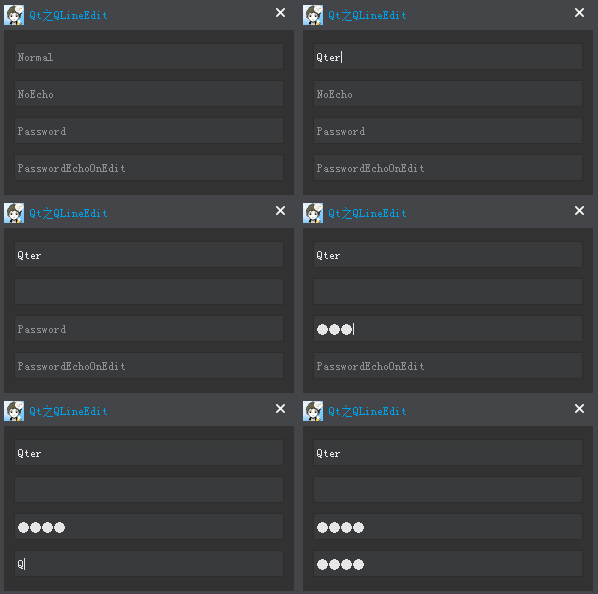
源码
QLineEdit *pNormalLineEdit = new QLineEdit(this); QLineEdit *pNoEchoLineEdit = new QLineEdit(this); QLineEdit *pPasswordLineEdit = new QLineEdit(this); QLineEdit *pPasswordEchoOnEditLineEdit = new QLineEdit(this); pNormalLineEdit->setPlaceholderText("Normal"); pNoEchoLineEdit->setPlaceholderText("NoEcho"); pPasswordLineEdit->setPlaceholderText("Password"); pPasswordEchoOnEditLineEdit->setPlaceholderText("PasswordEchoOnEdit"); // 设置显示效果 pNormalLineEdit->setEchoMode(QLineEdit::Normal); pNoEchoLineEdit->setEchoMode(QLineEdit::NoEcho); pPasswordLineEdit->setEchoMode(QLineEdit::Password); pPasswordEchoOnEditLineEdit->setEchoMode(QLineEdit::PasswordEchoOnEdit);自定义搜索框
关于搜索框,我们经常接触。例如:浏览器搜索、Windows资源管理器搜索等。
效果
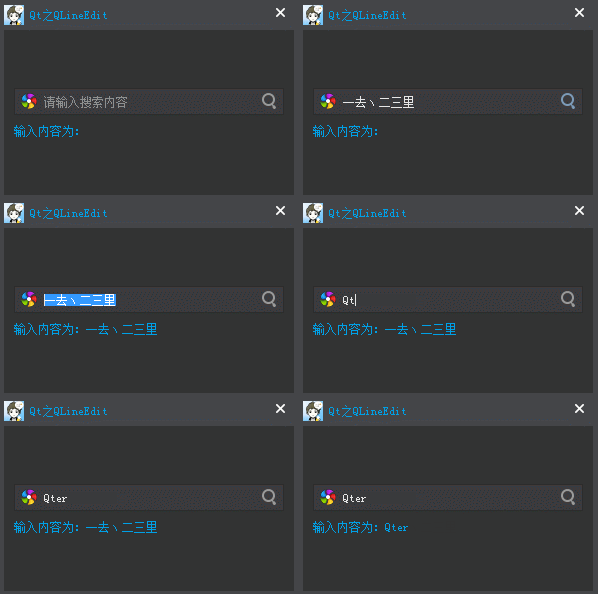
源码
通过QLineEdit的addAction()函数来加入action,这里我们使用了重载函数。
m_pLineEdit = new QLineEdit(this); m_pLabel = new QLabel(this); m_pLineEdit->setPlaceholderText(QString::fromLocal8Bit("请输入搜索内容")); // 添加action QAction *pLeadingAction = new QAction(this); pLeadingAction->setIcon(QIcon(":/Images/leading")); m_pLineEdit->addAction(pLeadingAction, QLineEdit::LeadingPosition); QAction *pTrailingAction = m_pLineEdit->addAction(QIcon(":/Images/trailing"), QLineEdit::TrailingPosition); // 连接信号和槽 connect(pTrailingAction, SIGNAL(triggered(bool)), this, SLOT(onSearch(bool)));槽函数,用于获取输入框中的内容,然后处理。
void MainWindow::onSearch(bool checked) { QString strText = m_pLineEdit->text(); m_pLabel->setText(QString::fromLocal8Bit("输入内容为:%1").arg(strText)); }验证器
通常情况下,我们会对用户的输入做一些限制,可以通过验证起来设置,常见的有:整形、浮点型及其它自定义验证器。
效果
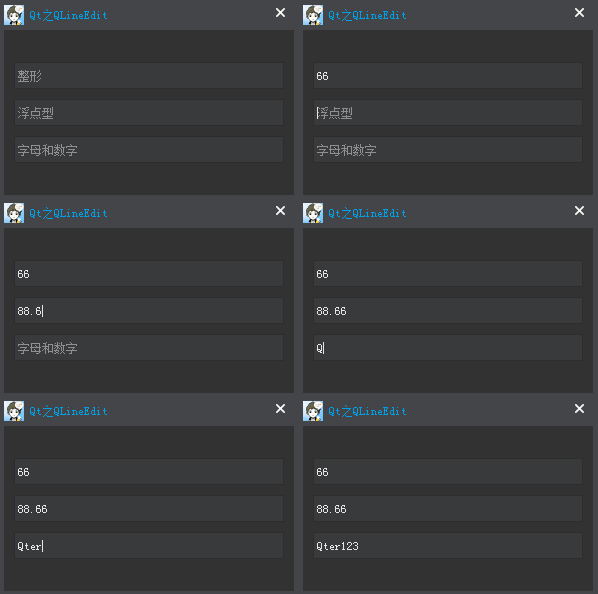
源码
QLineEdit *pIntLineEdit = new QLineEdit(this); QLineEdit *pDoubleLineEdit = new QLineEdit(this); QLineEdit *pValidatorLineEdit = new QLineEdit(this); pIntLineEdit->setPlaceholderText(QString::fromLocal8Bit("整形")); pDoubleLineEdit->setPlaceholderText(QString::fromLocal8Bit("浮点型")); pValidatorLineEdit->setPlaceholderText(QString::fromLocal8Bit("字母和数字")); // 整形 范围:[1, 99] QIntValidator *pIntValidator = new QIntValidator(this); pIntValidator->setRange(1, 99); // 浮点型 范围:[-360, 360] 精度:小数点后2位 QDoubleValidator *pDoubleValidator = new QDoubleValidator(this); pDoubleValidator->setRange(-360, 360); pDoubleValidator->setNotation(QDoubleValidator::StandardNotation); pDoubleValidator->setDecimals(2); // 字符和数字 QRegExp reg("[a-zA-Z0-9]+$"); QRegExpValidator *pValidator = new QRegExpValidator(this); pValidator->setRegExp(reg); pIntLineEdit->setValidator(pIntValidator); pDoubleLineEdit->setValidator(pDoubleValidator); pValidatorLineEdit->setValidator(pValidator);输入掩码
要限制用户输入,除了验证器,还可以使用输入掩码,常见的有IP、MAC地址、日期、License号等。
效果
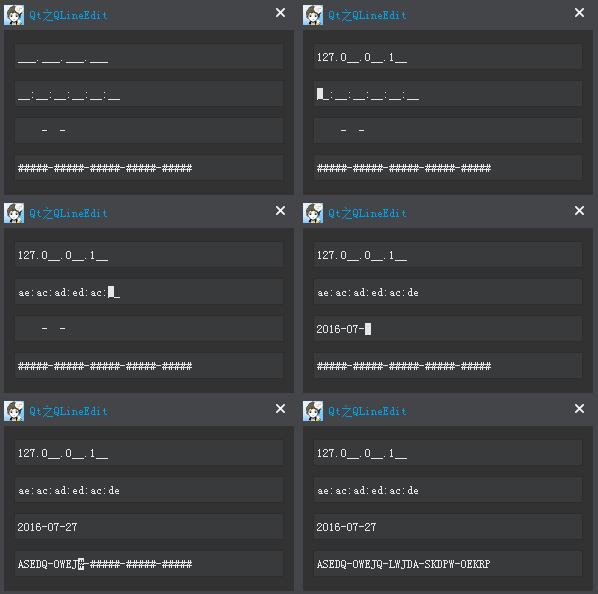
源码
QLineEdit *pIPLineEdit = new QLineEdit(this); QLineEdit *pMACLineEdit = new QLineEdit(this); QLineEdit *pDateLineEdit = new QLineEdit(this); QLineEdit *pLicenseLineEdit = new QLineEdit(this); pIPLineEdit->setInputMask("000.000.000.000;_"); pMACLineEdit->setInputMask("HH:HH:HH:HH:HH:HH;_"); pDateLineEdit->setInputMask("0000-00-00"); pLicenseLineEdit->setInputMask(">AAAAA-AAAAA-AAAAA-AAAAA-AAAAA;#");更多参考
- Qt之自定义搜索框
发布者:全栈程序员-站长,转载请注明出处:https://javaforall.net/198417.html原文链接:https://javaforall.net



