


If you send someone your PowerPoint presentation, but they don’t have the used fonts installed, the formatting and layout can get messed up. You can prevent this from happening by embedding the fonts in your presentation. Here’s how it works on Windows and Mac.
如果您将PowerPoint演示文稿发送给某人 ,但他们没有安装使用的字体,则格式和布局可能会混乱。 您可以通过将字体嵌入演示文稿中来防止这种情况的发生。 这是在Windows和Mac上的工作方式。
在Windows版PowerPoint中嵌入字体 (Embed Fonts in PowerPoint for Windows)
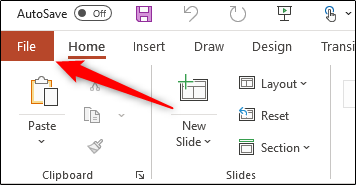
To embed the fonts used in your PowerPoint presentation, open the respective file and select the “File” tab.
要嵌入 PowerPoint演示文稿中使用的字体 ,请打开相应的文件,然后选择“文件”选项卡。
At the bottom of the left pane, select “Options.”
在左窗格的底部,选择“选项”。

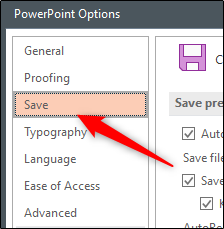
The “PowerPoint Options” window will appear. Here, select “Save” in the left pane.
将出现“ PowerPoint选项”窗口。 在这里,在左窗格中选择“保存”。
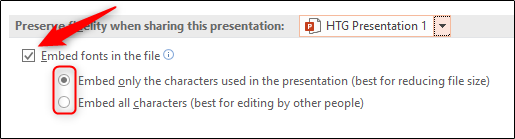
Next, find the “Preserve Fidelity When Sharing This Presentation” section at the bottom of the window and check the box next to “Embed Fonts in the File.” You’ll then need to decide between these two embedding options:
接下来,在窗口底部找到“共享此演示文稿时保留保真度”部分,并选中“在文件中嵌入字体”旁边的框。 然后,您需要在以下两个嵌入选项之间做出决定:
- Embed Only the Characters Used in the Presentation (Best for Reducing File Size).
仅嵌入演示文稿中使用的字符(最适合减小文件大小 )。
- Embed All Characters (Best for Editing by Other People).
嵌入所有字符(最适合其他人编辑)。
Select “OK” after you’re finished. The fonts will now be embedded in your presentation.
完成后选择“确定”。 现在,字体将嵌入到您的演示文稿中。
在PowerPoint 2019 / Office 365 for Mac中嵌入字体 (Embed Fonts in PowerPoint 2019/Office 365 for Mac)
Up until early 2020, Microsoft Office hadn’t provided the feature for embedding fonts in PowerPoint for Mac. Now you can, as long as you’re an Office 365 subscriber or are using PowerPoint 2019 v16.17 or later.
直到2020年初,Microsoft Office才提供在PowerPoint for Mac中嵌入字体的功能。 现在您可以,只要您是Office 365订阅者或正在使用PowerPoint 2019 v16.17或更高版本即可。
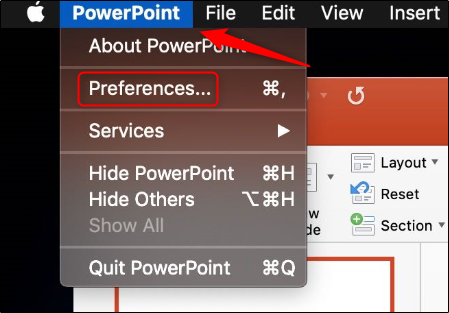
To embed fonts, open your PowerPoint presentation, click the “PowerPoint” menu option, and then select “Preferences.”
要嵌入字体,请打开PowerPoint演示文稿,单击“ PowerPoint”菜单选项,然后选择“首选项”。
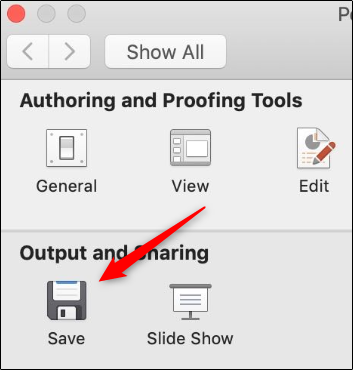
In the window that appears, select “Save” in the “Output and Sharing” group.
在出现的窗口中,在“输出和共享”组中选择“保存”。
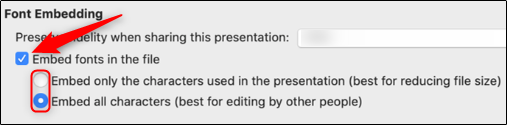
Now the steps are similar to PowerPoint for Windows. In the “Font Embedding” group, check the box next to “Embed Fonts in the File.” Decide between these two options:
现在,这些步骤类似于Windows版PowerPoint。 在“字体嵌入”组中,选中“在文件中嵌入字体”旁边的框。 在这两个选项之间做出选择:
- Embed Only the Characters Used in the Presentation (Best for Reducing File Size).
仅嵌入演示文稿中使用的字符(最适合减小文件大小 )。
- Embed All Characters (Best for Editing by Other People).
嵌入所有字符(最适合其他人编辑)。
That’s all there is to it. The fonts will now be embedded in your presentation.
这里的所有都是它的。 现在,字体将嵌入到您的演示文稿中。
翻译自: https://www.howtogeek.com//how-to-embed-fonts-in-powerpoint/
发布者:全栈程序员-站长,转载请注明出处:https://javaforall.net/205059.html原文链接:https://javaforall.net



