
转载请注明出处:https://blog.csdn.net/a/article/details/
前言
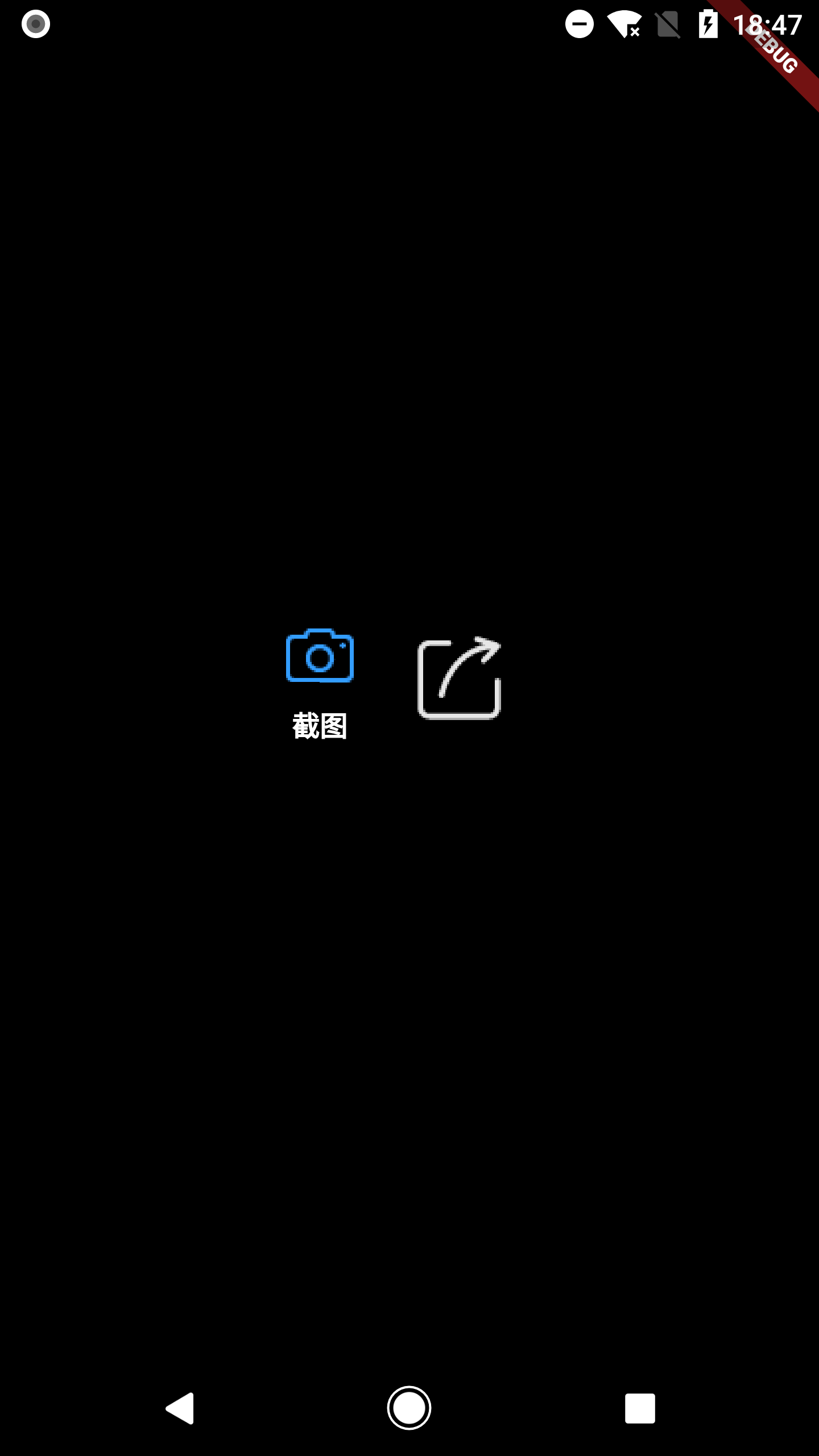
Flutter 自定义的简单 ImageButton。支持图片按钮下面添加标题。
截图

代码
import 'package:flutter/cupertino.dart'; import 'package:flutter/material.dart'; /* * 常用图片按钮 */ class SimpleImageButton extends StatefulWidget { final String normalImage; final String pressedImage; final Function onPressed; final double width; final String title; const SimpleImageButton({ Key key, @required this.normalImage, @required this.pressedImage, @required this.onPressed, @required this.width, this.title, }) : super(key: key); @override State

    createState() { // TODO: implement createState return _SimpleImageButtonState(); } } class _SimpleImageButtonState extends State

     { @override Widget build(BuildContext context) { // TODO: implement build return ImageButton( normalImage: Image( image: AssetImage(widget.normalImage), width: widget.width, height: widget.width, ), pressedImage: Image( image: AssetImage(widget.pressedImage), width: widget.width, height: widget.width, ), title: widget.title == null ? '' : widget.title, //文本是否为空 normalStyle: TextStyle( color: Colors.white, fontSize: 14, decoration: TextDecoration.none), pressedStyle: TextStyle( color: Colors.white, fontSize: 14, decoration: TextDecoration.none), onPressed: widget.onPressed, ); } } /* * 图片 按钮 */ class ImageButton extends StatefulWidget { //常规状态 final Image normalImage; //按下状态 final Image pressedImage; //按钮文本 final String title; //常规文本TextStyle final TextStyle normalStyle; //按下文本TextStyle final TextStyle pressedStyle; //按下回调 final Function onPressed; //文本与图片之间的距离 final double padding; ImageButton({ Key key, @required this.normalImage, @required this.pressedImage, @required this.onPressed, this.title, this.normalStyle, this.pressedStyle, this.padding, }) : super(key: key); @override _ImageButtonState createState() { // TODO: implement createState return _ImageButtonState(); } } class _ImageButtonState extends State

      { var isPressed = false; @override Widget build(BuildContext context) { // TODO: implement build double padding = widget.padding == null ? 5 : widget.padding; return GestureDetector( child: Column( mainAxisSize: MainAxisSize.min, children:

       [ isPressed ? widget.pressedImage : widget.normalImage, //不同状态显示不同的Image widget.title.isNotEmpty ? Padding(padding: EdgeInsets.fromLTRB(0, padding, 0, 0)) : Container(), widget.title.isNotEmpty //文本是否为空 ? Text( widget.title, style: isPressed ? widget.pressedStyle : widget.normalStyle, ) : Container(), ], ), onTap: widget.onPressed, onTapDown: (d) { //按下,更改状态 setState(() { isPressed = true; }); }, onTapCancel: () { //取消,更改状态 setState(() { isPressed = false; }); }, onTapUp: (d) { //抬起,更改按下状态 setState(() { isPressed = false; }); }, ); } }
调用
- 大部分情况下直接调用SimpleImageButton即可。参数也十分简单:
const SimpleImageButton({ Key key, @required this.normalImage, @required this.pressedImage, @required this.onPressed, @required this.width, this.title, }) : super(key: key); - ImageButton参数要稍微复杂:
ImageButton({ Key key, @required this.normalImage, @required this.pressedImage, @required this.onPressed, this.title, this.normalStyle, this.pressedStyle, this.padding, }) : super(key: key); 版权声明:本文内容由互联网用户自发贡献,该文观点仅代表作者本人。本站仅提供信息存储空间服务,不拥有所有权,不承担相关法律责任。如发现本站有涉嫌侵权/违法违规的内容, 请联系我们举报,一经查实,本站将立刻删除。
发布者:全栈程序员-站长,转载请注明出处:https://javaforall.net/211017.html原文链接:https://javaforall.net



