
文章目录
pip3 install matplotlib -i https://pypi.tuna.tsinghua.edu.cn/simple import matplotlib.pyplot as plt 显示中文
借助全局参数配置字典rcParams,只需要在代码开头,添加如下两行代码即可
plt.rcParams['font.sans-serif'] = ['SimHei'] plt.rcParams['axes.unicode_minus'] = False 同时还可以设置字体,常见字体:
font.family 字体的名称 sans-serif 西文字体(默认) SimHei 中文黑体 FangSong 中文仿宋`在这里插入代码片` YouYuan 中文幼圆 STSong 华文宋体 Kaiti 中文楷体 LiSu 中文隶书 字体风格
plt.rcParams["font.style"] = "italic" 矢量图设置
在默认设置的matplotlib中图片分辨率不是很高,可以通过设置矢量图的方式来提高图片显示质量
%matplotlib inline %config InlineBackend.figure_format = 'svg' 绘制子图
画图时,show()是个阻塞函数总是要放在最后,它阻止命令继续往下运行
- plt.subplot2grid()
plt.subplot2grid((3,3),(0,0),colspan=3) plt.subplot2grid((3,3),(1,0),colspan=2) plt.subplot2grid((3,3),(1,2),rowspan=2) plt.subplot2grid((3,3),(2,0)) plt.subplot2grid((3,3),(2,1)) plt.show() 

2. plt.subplot()
import numpy as np import pandas as pd import matplotlib.pyplot as plt # 画第1个图:折线图 x=np.arange(1,100) plt.subplot(221) plt.plot(x,x*x) # 画第2个图:散点图 plt.subplot(222) plt.scatter(np.arange(0,10), np.random.rand(10)) # 画第3个图:饼图 plt.subplot(223) plt.pie(x=[15,30,45,10],labels=list('ABCD'),autopct='%.0f',explode=[0,0.05,0,0]) # 画第4个图:条形图 plt.subplot(224) plt.bar([20,10,30,25,15],[25,15,35,30,20],color='b') plt.show() 
matplotlib绘图设置不显示边框、坐标轴
对于有些图形我们希望通过隐藏坐标轴来显得更加美观
plt.xticks([]) plt.yticks([]) ax = plt.subplot(2,5,1) # 去除黑框 ax.spines['top'].set_visible(False) ax.spines['right'].set_visible(False) ax.spines['bottom'].set_visible(False) ax.spines['left'].set_visible(False) 实例:
#author:https://beishan.blog.csdn.net/ import matplotlib.pyplot as plt for i in range(0,10): fig = plt.gcf() fig.set_size_inches(12,6) ax = plt.subplot(2,5,i+1) # 去除坐标轴 plt.xticks([]) plt.yticks([]) # 去除黑框 ax.spines['top'].set_visible(False) ax.spines['right'].set_visible(False) ax.spines['bottom'].set_visible(False) ax.spines['left'].set_visible(False) # 设置各个子图间间距 plt.subplots_adjust(left=0.10, top=0.88, right=0.65, bottom=0.08, wspace=0.02, hspace=0.02) ax.imshow(Xtrain[i],cmap="binary") 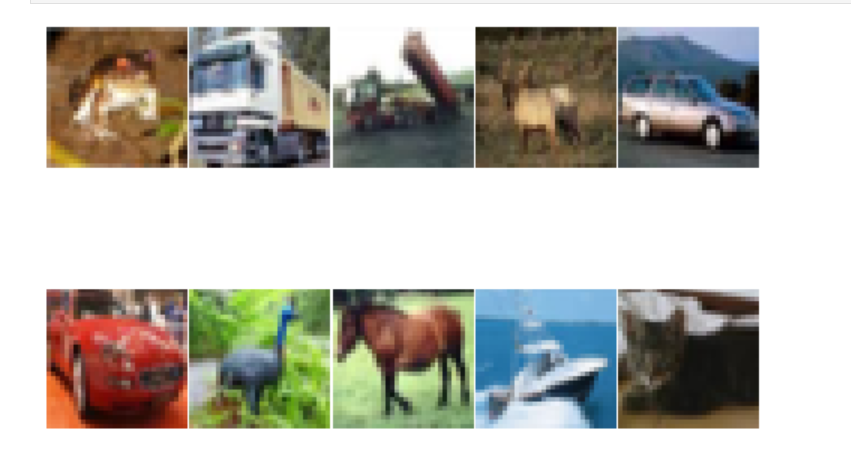
提高分辨率
如果感觉默认生成的图形分辨率不够高,可以尝试修改 dpi 来提高分辨率
plt.figure(figsize = (7,6),dpi =100) 设置绘图风格
有时我们会觉得matplotlib默认制作出来的图片太朴素了,不够高级,其实开发者也内置了几十种主题让我们自己选择,只要使用plt.style.use(‘主题名’)指定主题即可
plt.style.use('ggplot') 常用的样式有
Solarize_Light2 _classic_test_patch bmh classic dark_background fast fivethirtyeight ggplot grayscale seaborn seaborn-bright seaborn-colorblind seaborn-dark seaborn-dark-palette seaborn-darkgrid seaborn-deep seaborn-muted seaborn-notebook seaborn-paper seaborn-pastel seaborn-poster seaborn-talk seaborn-ticks seaborn-white seaborn-whitegrid tableau-colorblind10 添加标题
plt.title("2020-2021北山啦粉丝数增长图") 显示网格
plt.grid() plt.grid(color='g',linewidth='1',linestyle='-.') 图例设置
plt.legend(["2020","2021"],loc="best") 也可以给图例添加标题
plt.plot([1,3,5,7],[4,9,6,8],"ro--") plt.plot([1,2,3,4], [2,4,6,8],"gs-.") plt.legend(["2020","2021"],loc="best",title="标题") plt.title("2020-2021北山啦粉丝数增长图") 添加公式
有时我们在绘图时需要添加带有数学符号、公式的文字,
plt.text(11000,0.45,r'拟合曲线为$f(x) = x^2-4x+0.5$') 图形交互设置
jupyter中的魔法方法
%matplotlib notebook 弹出可交互的matplotlib窗口 %matplotlib qt5 弹出matplotlib控制台 %matplotlib inline 直接嵌入图表,不需要使用plt.show() 保存图片
plt.savefig("pic.png",dpi=100,bbox_inches="tight") 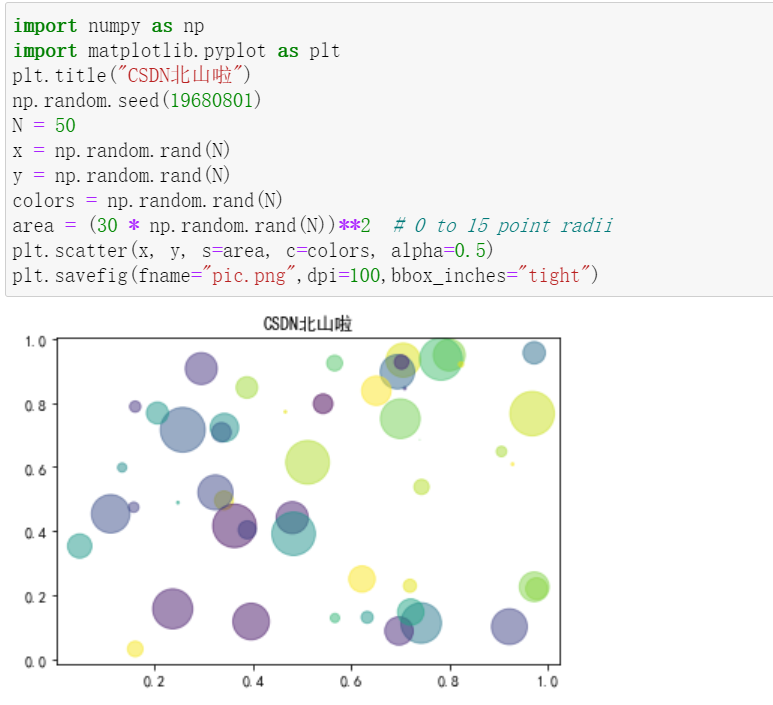
读取图片
- 方法一
from PIL import Image image = Image.open("./pic.png") image.show() 
- 方法二
import matplotlib.pyplot as plt X = plt.imread("./pic.png") plt.imshow(X) 
条形图
def f(t): return np.exp(-t) * np.cos(2*np.pi*t) a = np.arange(0,5,0.02) plt.subplot(211) plt.plot(a,f(a)) plt.subplot(212) plt.plot(a,np.cos(2*np.pi*a),'r--') plt.show() 
b = np.arange(0,2,0.02) plt.plot(b,np.sin(2*np.pi*b),'--',b,np.cos(2*np.pi*b),"*") 
散点图
import numpy as np import matplotlib.pyplot as plt # Fixing random state for reproducibility np.random.seed() N = 50 x = np.random.rand(N) y = np.random.rand(N) colors = np.random.rand(N) area = (30 * np.random.rand(N))2 # 0 to 15 point radii plt.scatter(x, y, s=area, c=colors, alpha=0.5) plt.show() 
带表格的图形
import numpy as np import matplotlib.pyplot as plt data = [[ 66386, , 75131, , 32015], [ 58230, , 78045, 99308, ], [ 89135, 80552, , , ], [ 78415, 81858, , , 69638], [, , , , 52269]] columns = ('Freeze', 'Wind', 'Flood', 'Quake', 'Hail') rows = ['%d year' % x for x in (100, 50, 20, 10, 5)] values = np.arange(0, 2500, 500) value_increment = 1000 # Get some pastel shades for the colors colors = plt.cm.BuPu(np.linspace(0, 0.5, len(rows))) n_rows = len(data) index = np.arange(len(columns)) + 0.3 bar_width = 0.4 # Initialize the vertical-offset for the stacked bar chart. y_offset = np.zeros(len(columns)) # Plot bars and create text labels for the table cell_text = [] for row in range(n_rows): plt.bar(index, data[row], bar_width, bottom=y_offset, color=colors[row]) y_offset = y_offset + data[row] cell_text.append(['%1.1f' % (x / 1000.0) for x in y_offset]) # Reverse colors and text labels to display the last value at the top. colors = colors[::-1] cell_text.reverse() # Add a table at the bottom of the axes the_table = plt.table(cellText=cell_text, rowLabels=rows, rowColours=colors, colLabels=columns, loc='bottom') # Adjust layout to make room for the table: plt.subplots_adjust(left=0.2, bottom=0.2) plt.ylabel("Loss in ${0}'s".format(value_increment)) plt.yticks(values * value_increment, ['%d' % val for val in values]) plt.xticks([]) plt.title('Loss by Disaster') plt.show() 
模板
from matplotlib import pyplot as plt import random from pylab import mpl # 设置中文显示 mpl.rcParams["font.sans-serif"] = ["SimHei"] mpl.rcParams["axes.unicode_minus"] = False x = range(60) y_shanghai = [random.uniform(15, 18) for i in x] y_beijing = [random.uniform(1, 3) for i in x] # 设置图像大小及清晰度 plt.figure(figsize=(20, 8), dpi=80) # 绘制图像 plt.plot(x, y_shanghai, label="上海") plt.plot(x, y_beijing, color="r", linestyle="--", label="北京") x_ticks_label = ["11点{}分".format(i) for i in x] y_ticks = range(40) x_ticks = x[::5] # 设置坐标轴刻度 plt.xticks(x_ticks, x_ticks_label[::5]) plt.yticks(y_ticks[::5]) # 设置网格 plt.grid(True, linestyle="--", alpha=1) # 设置坐标轴含义 plt.xlabel("时间") plt.ylabel("温度") plt.title("中午11点到12点某城市的温度变化图", fontsize=20) # 添加图例 plt.legend(loc="best") # 图像保存 plt.savefig("./test.png") # 展示图像 plt.show() 
到这里就结束了,如果对你有帮助,欢迎点赞关注,你的点赞对我很重要。作者:北山啦
版权声明:本文内容由互联网用户自发贡献,该文观点仅代表作者本人。本站仅提供信息存储空间服务,不拥有所有权,不承担相关法律责任。如发现本站有涉嫌侵权/违法违规的内容, 请联系我们举报,一经查实,本站将立刻删除。
发布者:全栈程序员-站长,转载请注明出处:https://javaforall.net/223939.html原文链接:https://javaforall.net



