
0、安装一些依赖
sudo apt-get install libprotobuf-dev libleveldb-dev libsnappy-dev libopencv-dev libhdf5-serial-dev protobuf-compiler sudo apt-get install –no-install-recommends libboost-all-dev sudo apt-get install libopenblas-dev liblapack-dev libatlas-base-dev sudo apt-get install libgflags-dev libgoogle-glog-dev liblmdb-dev 注意:要是上面的安装出现了一些问题,随时sudo apt-get update.
1、查看显卡信息
lspci | grep VGA
2、查看驱动信息
ubuntu-drivers devices
3、下载
4、Ubuntu desktop版本安装
接下来就是自己安装显卡驱动了,没错是自己安装,cuda的安装包里面也提供驱动的安装功能,但是,尽量自己安装。(显卡驱动和CUDA不是同一个概念啊,别搞混了)
1)首先卸载电脑中此刻有的nvidia的驱动:
对于桌面版系统而言,需要先用sudo service lightdm stop 关闭当前图形界面。
建议装驱动前都执行以下该指令,有益无害sudo apt-get --purge remove nvidia-*
该指令能卸载驱动并不保留配置文件。
for case1:original driver install apt-get:
sudo apt-get remove –purge nvidia*
for case2:original driver installed by runfile:
2)禁用nouveau:
创建blacklist.conf文件:
sudo vim /etc/modprobe.d/blacklist.conf
在最后一行添加:
blacklist nouveau options nouveau modeset=0 之后执行以下命令,重新生成kernel initramsf:
sudo update-initramfs -u
电脑重启
sudo reboot
之后执行
lsmod | grep nouveau
#没有输出,说明禁用成功
3)进入命令行界面:
ctrl+alt+f1
4)关闭图形界面:
sudo service lightdm stop
sudo apt install lightdm
安装完毕后跳出一个界面,选择lightdm,再
sudo service lightdm stop
5)更改安装包权限:
sudo chmod a+x NVIDIA~~~~.run
6)开始安装
sudo ./NVIDIA~~~.run -no-opengl-files
7)启动图像界面:
sudo service lightdm start
8)重启:
sudo reboot
9)测试驱动是否安装成功:
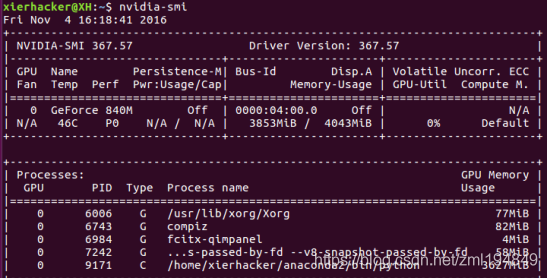
nvidia-smi
显示显卡信息说明显卡驱动安装成功,如图所示:

10)更新显卡驱动:
https://blog.csdn.net/u0/article/details//
5、Ubuntu server 版本安装
1)development tool安装
Ubuntu服务器版由于在安装系统时只装了OpenSSH server和standard system utilities,一些必备的development tool并没有安装,需要接下来手动安装。在安装驱动程序的过程中,会因为缺少gcc、g++、make等development tool而报错导致无法完成驱动程序安装(ERROR:Ubable to find the development tool ‘make’ in your path…),不用担心,手动安装这些开发包后再次执行安装指令即可。另外,安装过程中出现的弹框根据默认选项选择即可。手动安装development tool指令为:
sudo apt-get install gcc sudo apt-get install g++ sudo apt-get install make 安装指令如下:
sudo chmod a+x NVIDIA-Linux-x86_64-384.130.run sudo ./NVIDIA-Linux-x86_64-384.130.run -no-x-check -no-nouveau-check -no-opengl-files 报错解决:
The target kernel has CONFIG_MODULE_SIG set. which means that is supports cryptographic signature on kernel modules. On some system, the kernel may refuse to load modules without a valid signature from a trusted key. This system also has UEFI Secure Boot enabled; many distrubtions enforce module signature verification on UEFI systems when Secure Boot is enabled(2). Would you like sign the NVIDIA kernel module? (Answer: Install without signing) Kernel module load error: Required key not avaliable 对于桌面版系统而言,安装完后使用sudo service lightdm start 回到图形界面。
2)驱动安装选择选项如下:
The distribution-provided pre-install script failed! Are you sure you want to continue? 选择 yes 继续。
Would you like to register the kernel module souces with DKMS? This will allow DKMS to automatically build a new module, if you install a different kernel later?选择 No 继续。
Nvidia’s 32-bit compatibility libraries?选择 No 继续。
Would you like to run the nvidia-xconfigutility to automatically update your x configuration so that the NVIDIA x driver will be used when you restart x? Any pre-existing x confile will be backed up.选择 Yes 继续
3)验证驱动安装完成
nvidia-smi 发布者:全栈程序员-站长,转载请注明出处:https://javaforall.net/224254.html原文链接:https://javaforall.net



