
- QNAP NAS models that support Ubuntu Linux Station
- Ubuntu Linux Station
- Internet connection for downloading Ubuntu images and installation resources
OpenClaw (previously known as Clawdbot and Moltbot) is a third-party automation and productivity tool designed to run as a long-running “agent” that can execute tasks on your behalf (for example, managing messages, emails, calendars, and running local commands depending on configuration). The official project positioning emphasizes “an AI that actually does things,” typically by connecting chat channels to a local runtime that can interact with your system.
You want to deploy an Ubuntu desktop environment on a QNAP NAS to test or operate OpenClaw 24/7. This example uses Ubuntu 24.04, but other supported Ubuntu versions may also be used.
Screenshot: Ubuntu Linux Station desktop environment running on QNAP NAS
- Log in to QNAP QTS.
- Open App Center.
- Search and install Ubuntu Linux Station.
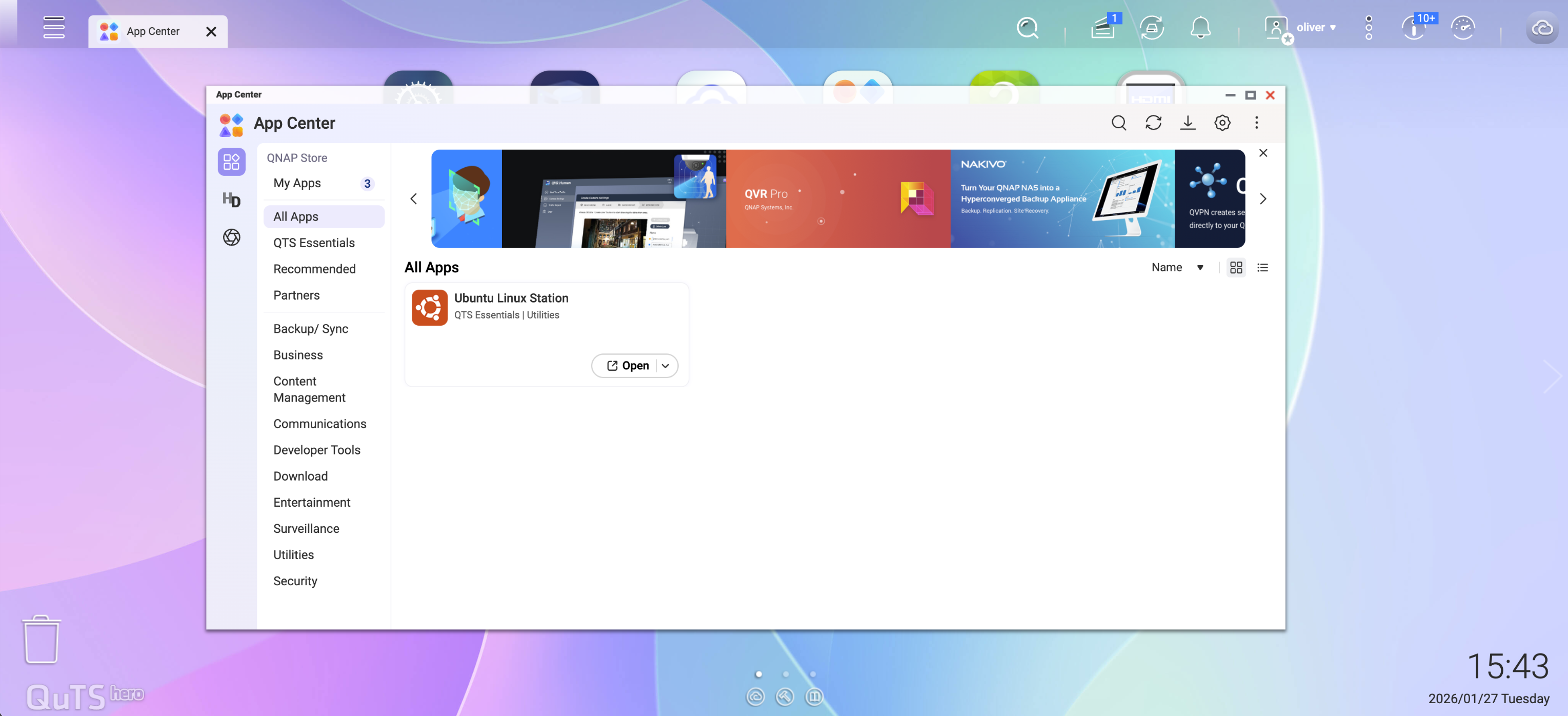

- Launch Ubuntu Linux Station.
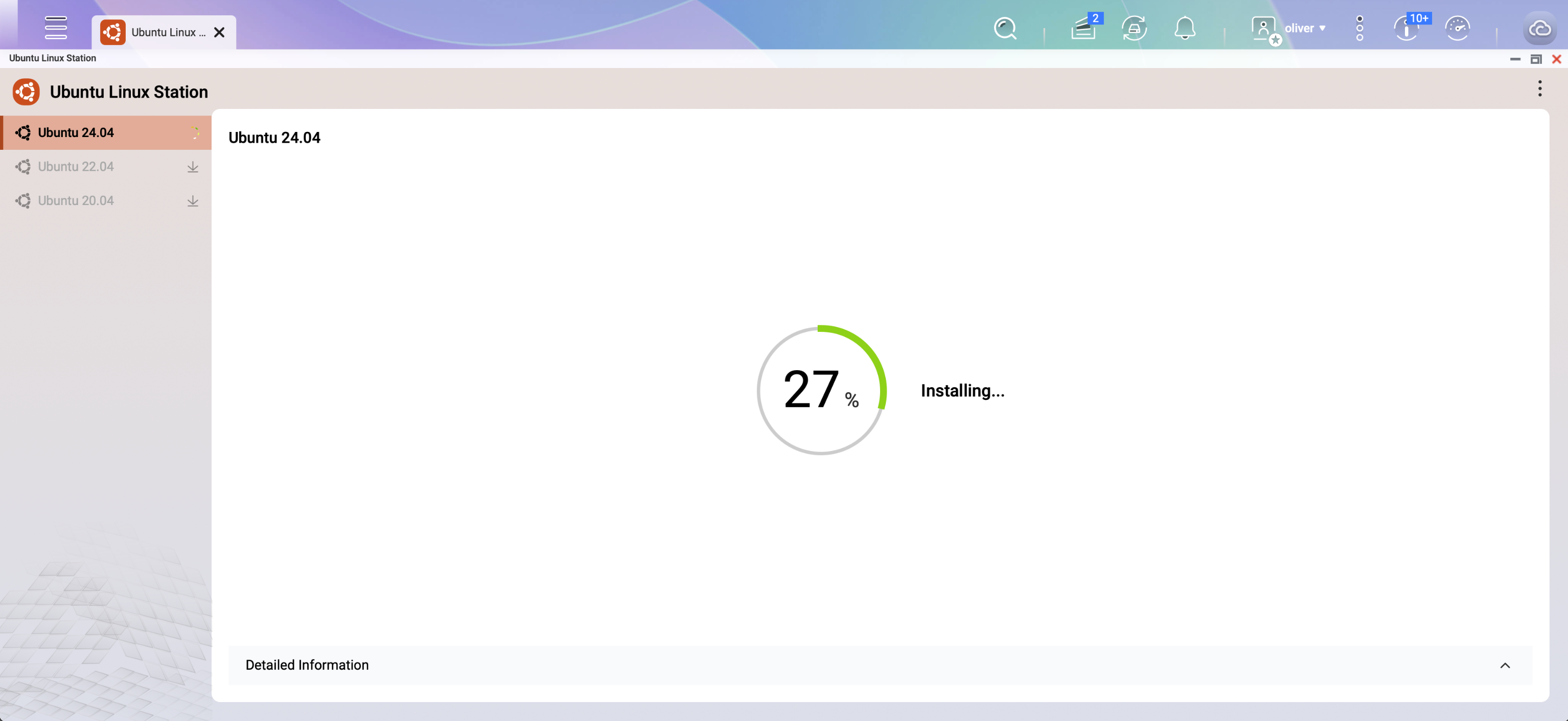
- Select the Ubuntu version to install.
- In this example, choose Ubuntu 24.04.
- Wait for the image download and installation to complete.
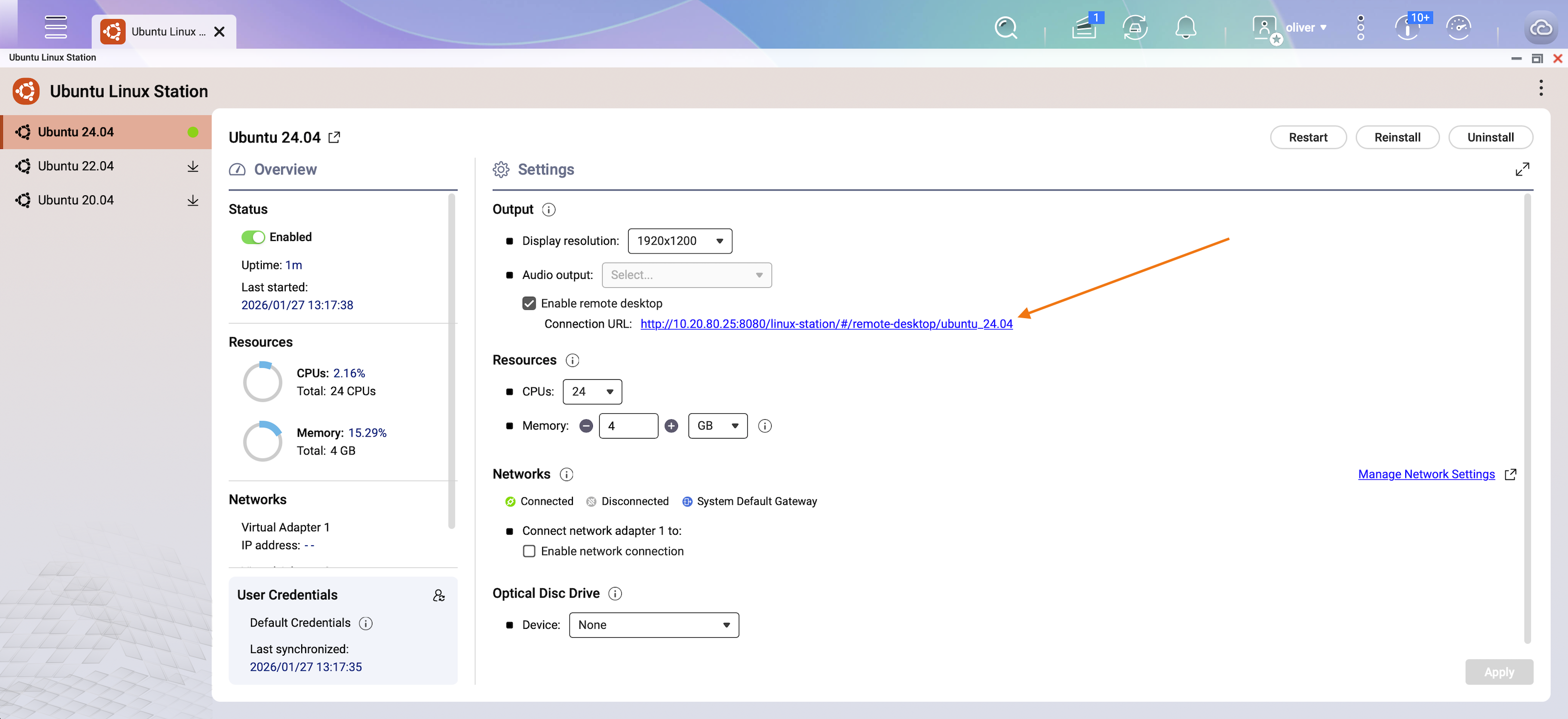
- After openclaw 安装 installation, a VNC remote access link will be displayed.
- Click the link to open the Ubuntu desktop.
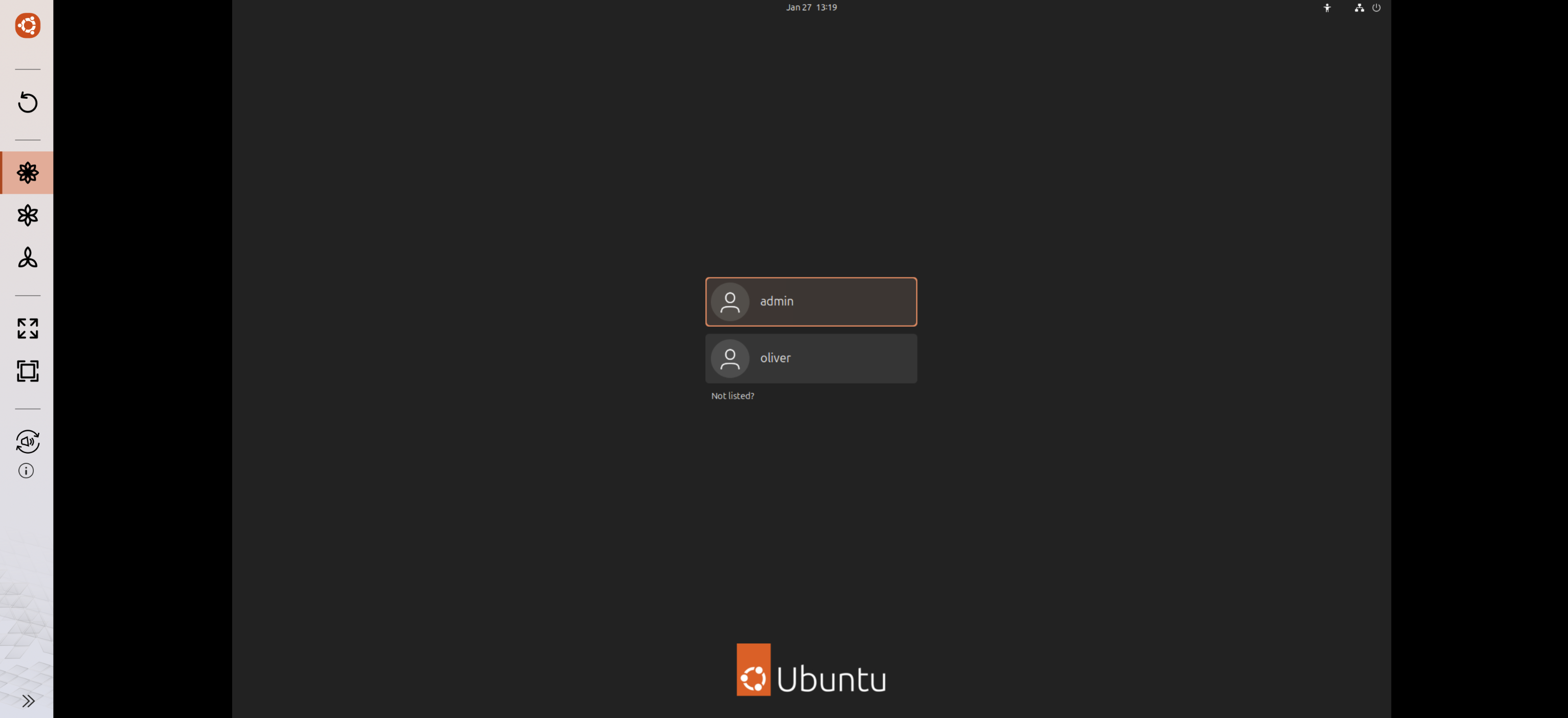
At the Ubuntu login screen, sign in using your NAS account credentials.
Once logged in to the Ubuntu desktop, open Terminal.
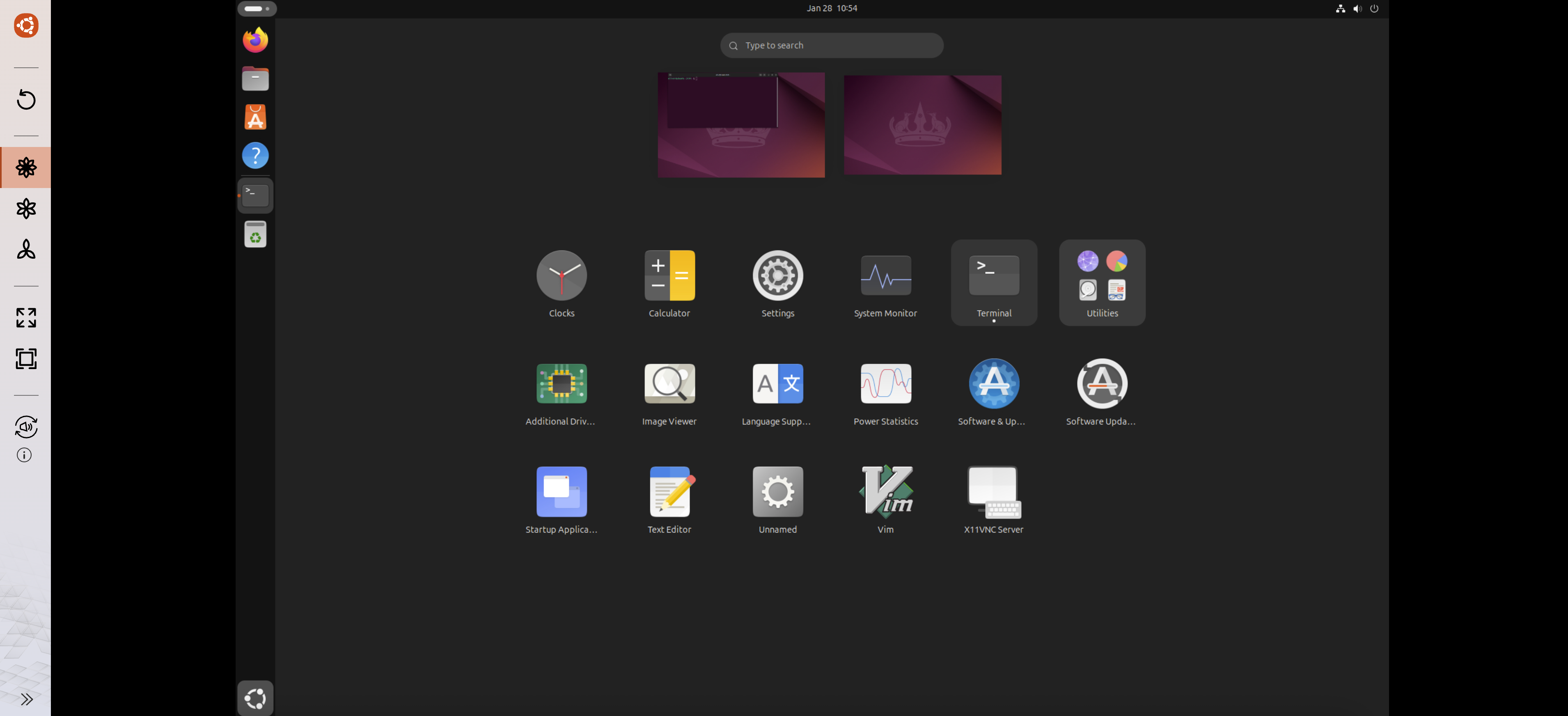
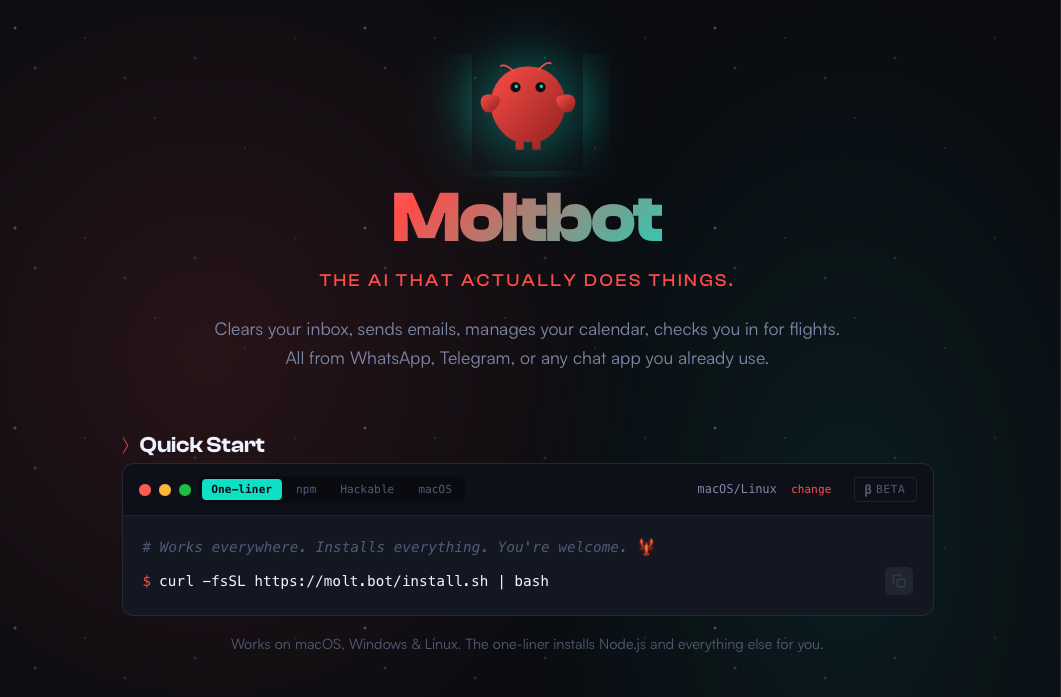
In the terminal, enter the installation command provided on the OpenClaw
website:
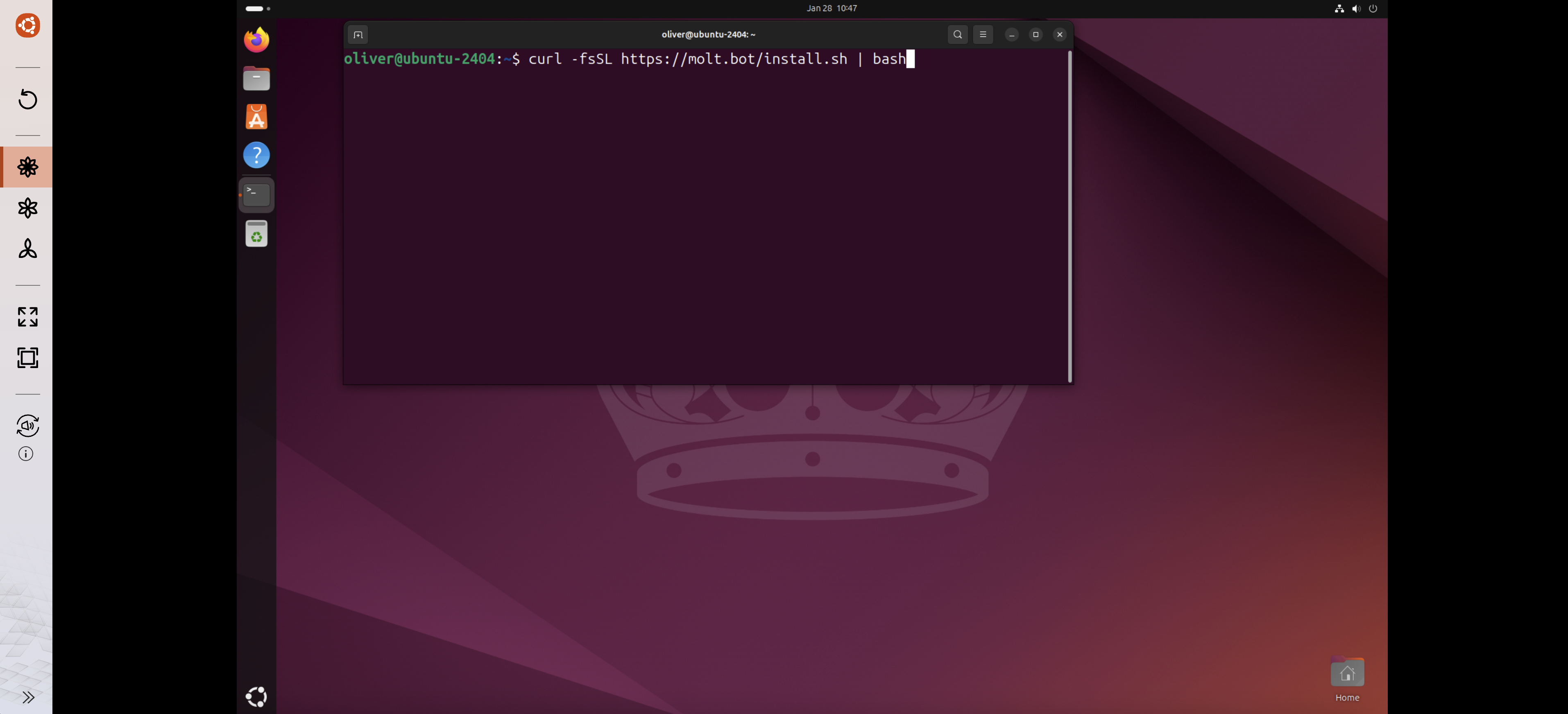
Follow the on-screen instructions provided by OpenClaw
to complete the configuration and installation.
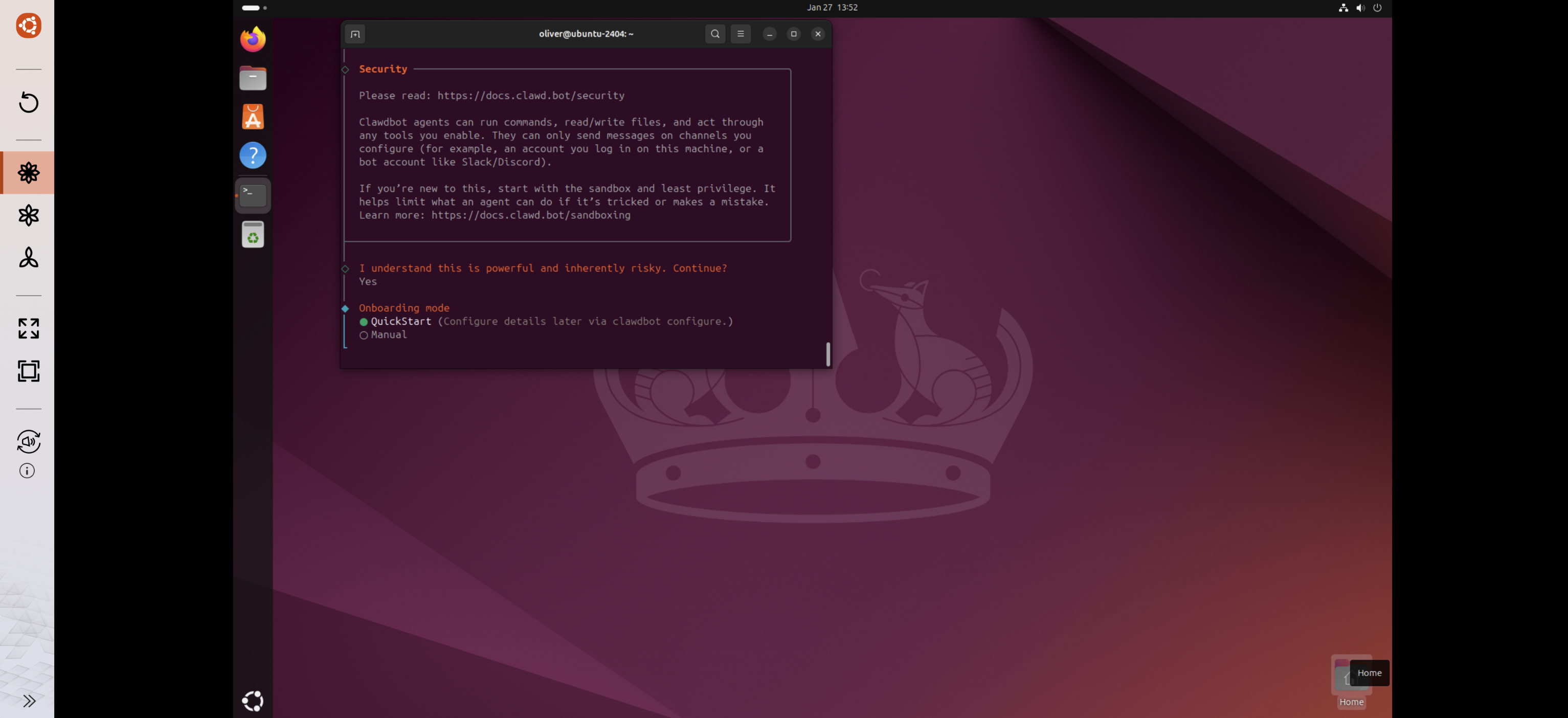
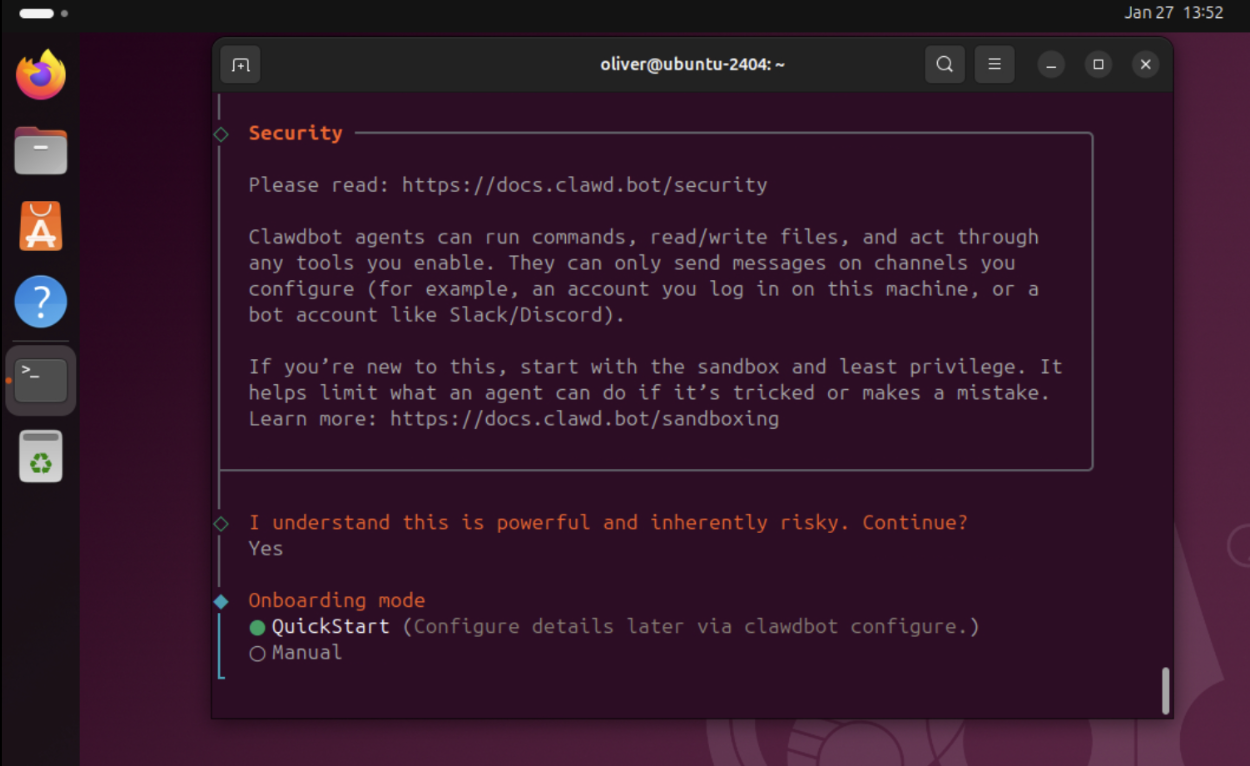
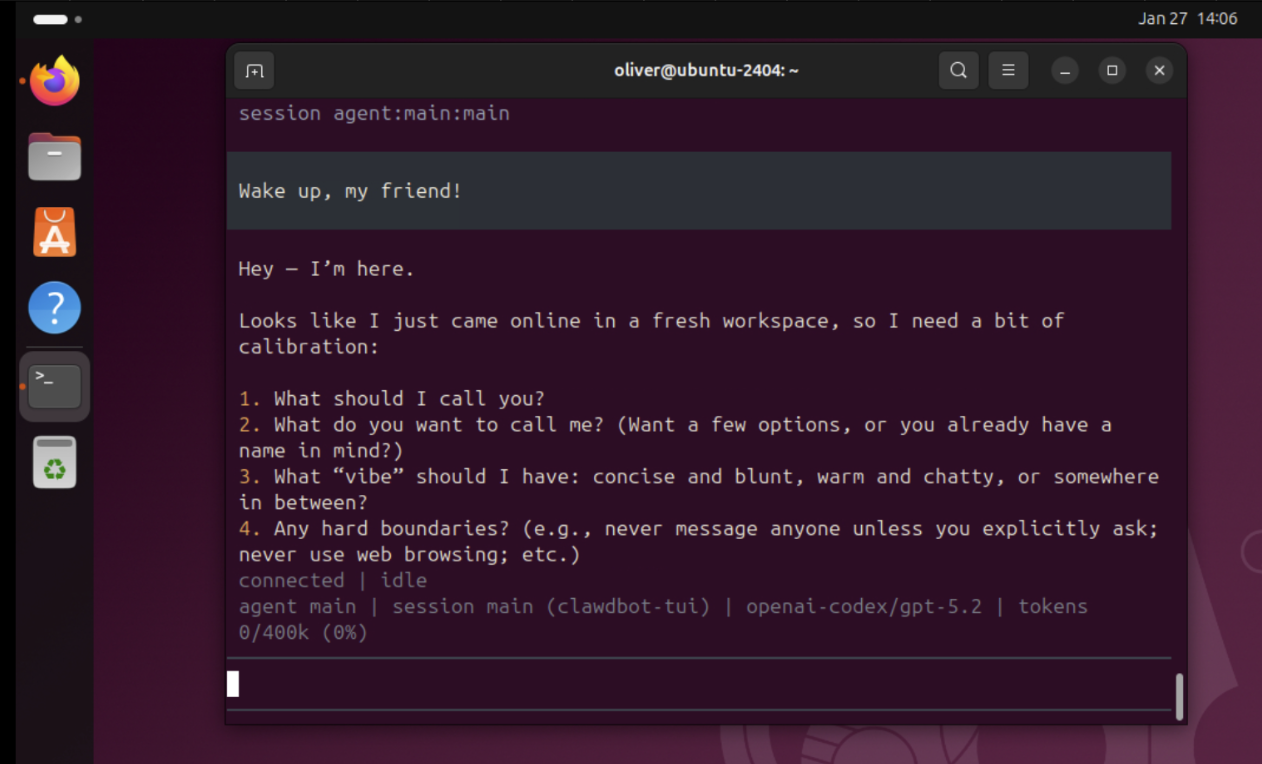
After completing the above steps, OpenClaw
should be successfully installed and running within the Ubuntu Linux Station environment on your QNAP NAS.
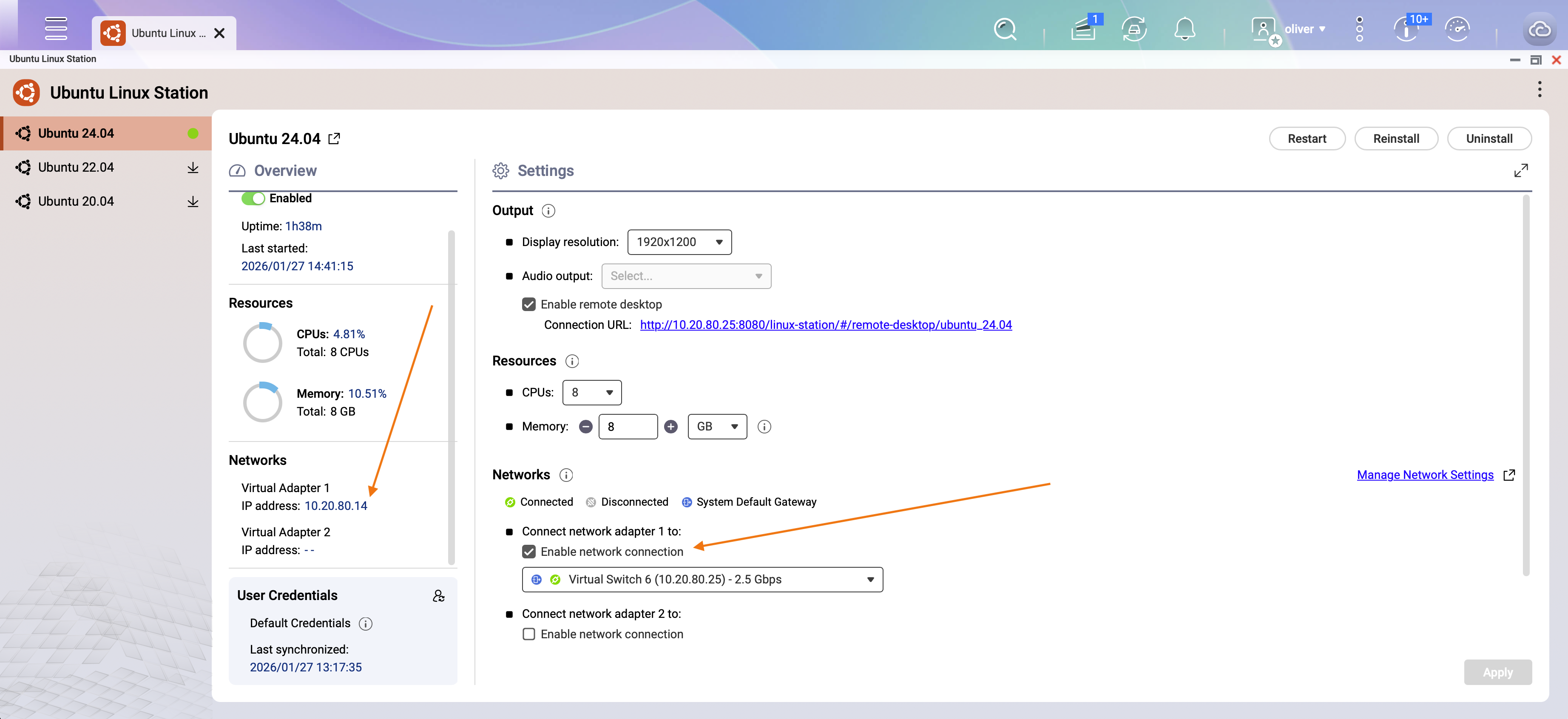
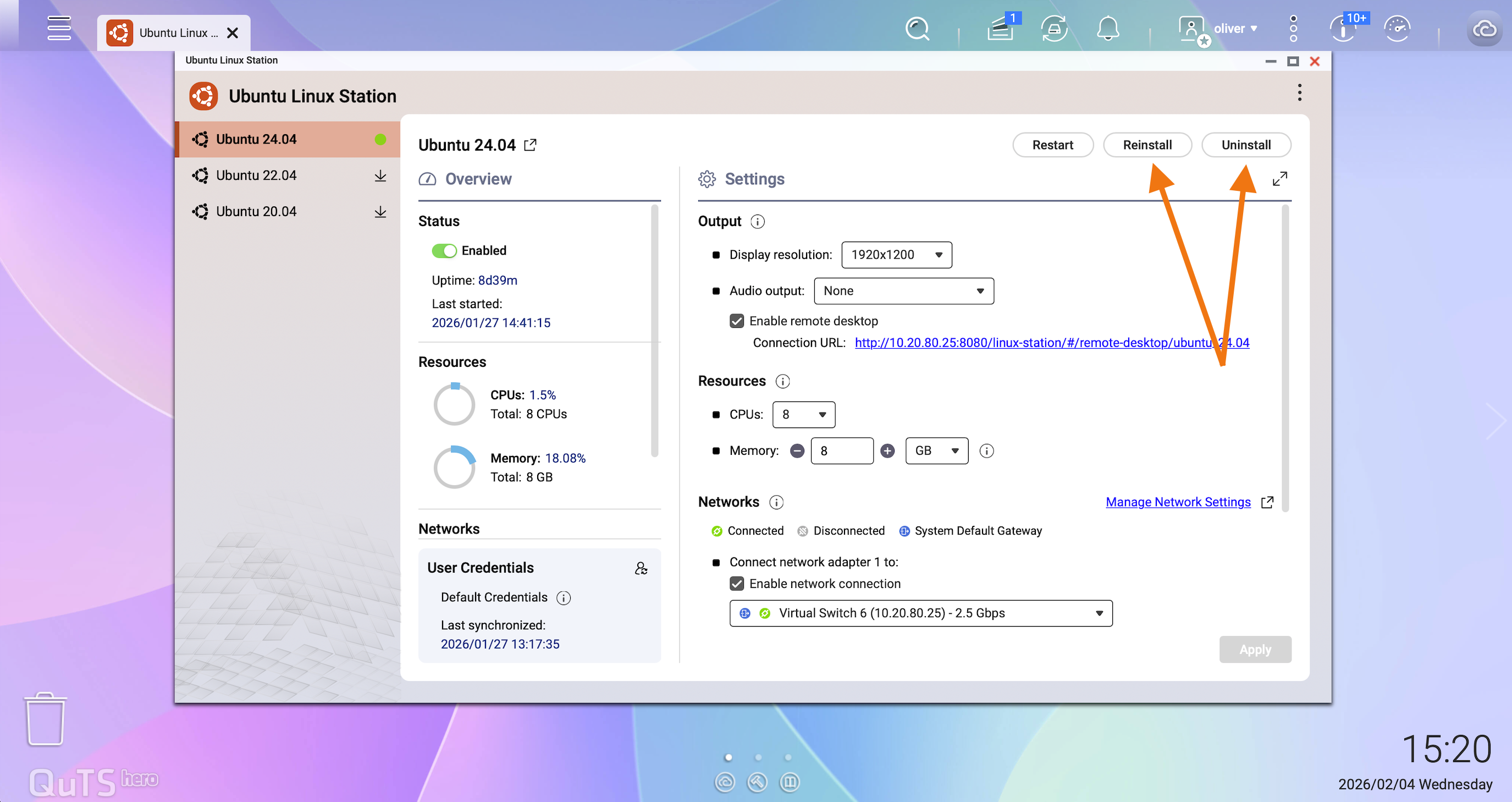
OpenClaw is installed and operated entirely within the Ubuntu environment provided by Ubuntu Linux Station. QNAP does not provide a separate uninstallation procedure for OpenClaw itself.
To completely remove OpenClaw and any related data or configuration, the recommended approach is to reinstall the Ubuntu operating system within Ubuntu Linux Station. Reinstalling the OS resets the Ubuntu environment to a clean state and ensures that all installed third-party applications, services, and credentials are removed.
Before reinstalling, make sure to back up any data in the Ubuntu environment that you want to keep.
How does QNAP enhance user data security in Ubuntu Linux Station?
发布者:Ai探索者,转载请注明出处:https://javaforall.net/252340.html原文链接:https://javaforall.net




