
大家好,又见面了,我是全栈君。
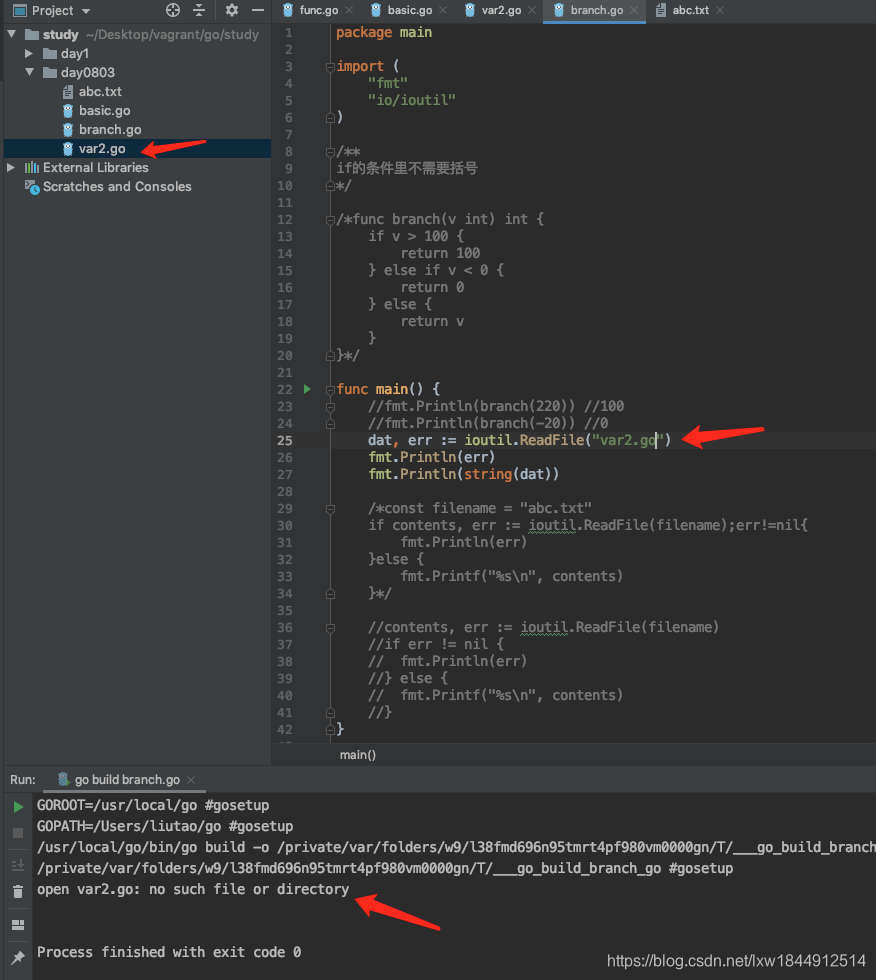

修改读取文件的路径即可,没有使用gopath或者go mod,所以虽然看起来在同一目录下,但是go不能识别,所以万能的绝对路径
const filename = "/Users/liutao/Desktop/vagrant/go/study/day0803/abc.txt"
	if contents, err := ioutil.ReadFile(filename);err!=nil{
		fmt.Println(err)
	}else {
		fmt.Printf("%s\n", contents)
	}
结果:
解决方法参考自:https://golangbot.com/read-files/
Welcome to tutorial no. 35 in Golang tutorial series.
File reading is one of the most common operations performed in any programming language. In this tutorial, we will learn about how files can be read using Go.
This tutorial has the following sections.
- Reading an entire file into memory
- Using an absolute file path
- Passing the file path as a command line flag
- Bundling the file inside the binary
- Reading a file in small chunks
- Reading a file line by line
Reading an entire file into memory
One of the most basic file operations is reading an entire file into memory. This is done with the help of the ReadFile function of the ioutil package.
Let’s read a file and print its contents.
I have created a folder filehandling inside my Documents directory by running mkdir ~/Documents/filehandling.
Create a Go module named filehandling by running the following command from the filehandling directory.
go mod init filehandling
I have a text file test.txt which will be read from our Go program filehandling.go. test.txt contains the following string
Hello World. Welcome to file handling in Go.
Here is my directory structure.
├── Documents
│   └── filehandling
│       ├── filehandling.go
|       ├── go.mod
│       └── test.txt
Let’s get to the code right away. Create a file filehandling.go with the following contents.
package main

import (
    "fmt"
    "io/ioutil"
)

func main() {
    data, err := ioutil.ReadFile("test.txt")
    if err != nil {
        fmt.Println("File reading error", err)
        return
    }
    fmt.Println("Contents of file:", string(data))
}
Please run this program from your local environment as it’s not possible to read files in the playground.
Line no. 9 of the program above reads the file and returns a byte slice which is stored in data. In line no. 14 we convert data to a string and display the contents of the file.
Please run this program from the location where test.txt is present.
If test.txt is located at ~/Documents/filehandling, then run this program using the following steps,
cd ~/Documents/filehandling/
go install
filehandling
If you are not aware of how to run a Go program, please visit https://golangbot.com/hello-world-gomod/ to know more. If you want to learn more about packages and Go modules, please visit https://golangbot.com/go-packages/
This program will print,
Contents of file: Hello World. Welcome to file handling in Go.
If this program is run from any other location, for instance, try running the program from ~/Documents/
cd ~/Documents/
filehandling
It will print the following error.
File reading error open test.txt: no such file or directory
The reason is Go is a compiled language. What go install does is, it creates a binary from the source code. The binary is independent of the source code and it can be run from any location. Since test.txt is not found in the location from which the binary is run, the program complains that it cannot find the file specified.
There are three ways to solve this problem,
- Using absolute file path
- Passing the file path as a command line flag
- Bundling the text file along with the binary
Let’s discuss them one by one.
Get the free Golang tools cheat sheet
1. Using absolute file path
The simplest way to solve this problem is to pass the absolute file path. I have modified the program and changed the path to an absolute one in line no. 9. Please change this path to the absolute location of your test.txt.
package main

import (
    "fmt"
    "io/ioutil"
)

func main() {
    data, err := ioutil.ReadFile("/home/naveen/Documents/filehandling/test.txt")
    if err != nil {
        fmt.Println("File reading error", err)
        return
    }
    fmt.Println("Contents of file:", string(data))
}
Now the program can be run from any location and it will print the contents of test.txt.
For example, it will work even when I run it from my home directory
cd ~/Documents/filehandling
go install
cd ~
filehandling
The program will print the contents of test.txt
This seems to be an easy way but comes with the pitfall that the file should be located in the path specified in the program else this method will fail.
2. Passing the file path as a command line flag
Another way to solve this problem is to pass the file path as a command line argument. Using the flag package, we can get the file path as input argument from the command line and then read its contents.
Let’s first understand how the flag package works. The flag package has a String function. This function accepts 3 arguments. The first is the name of the flag, second is the default value and the third is a short description of the flag.
Let’s write a small program to read the file name from the command line. Replace the contents of filehandling.go with the following,
package main
import (
    "flag"
    "fmt"
)

func main() {
    fptr := flag.String("fpath", "test.txt", "file path to read from")
    flag.Parse()
    fmt.Println("value of fpath is", *fptr)
}
Line no. 8 of the program above, creates a string flag named fpath with default value test.txt and description file path to read from using the String function. This function returns the address of the string variable that stores the value of the flag.
flag.Parse() should be called before any flag is accessed by the program.
We print the value of the flag in line no. 10
When this program is run using the command
filehandling -fpath=/path-of-file/test.txt
we pass /path-of-file/test.txt as the value of the flag fpath.
This program outputs
value of fpath is /path-of-file/test.txt
If the program is run using just filehandling without passing any fpath, it will print
value of fpath is test.txt
since test.txt is the default value of fpath.
Now that we know how to read the file path from the command line, let’s go ahead and finish our file reading program.
package main
import (
    "flag"
    "fmt"
    "io/ioutil"
)

func main() {
    fptr := flag.String("fpath", "test.txt", "file path to read from")
    flag.Parse()
    data, err := ioutil.ReadFile(*fptr)
    if err != nil {
        fmt.Println("File reading error", err)
        return
    }
    fmt.Println("Contents of file:", string(data))
}
The program above reads the content of the file path passed from the command line. Run this program using the command
filehandling -fpath=/path-of-file/test.txt
Please replace /path-of-file/ with the absolute path of test.txt. For example, in my case, I ran the command
filehandling --fpath=/home/naveen/Documents/filehandling/test.txt
and the program printed.
Contents of file: Hello World. Welcome to file handling in Go.
3. Bundling the text file along with the binary
The above option of getting the file path from the command line is good but there is an even better way to solve this problem. Wouldn’t it be awesome if we are able to bundle the text file along with our binary? This is what we are going to do next.
There are various packages that help us achieve this. We will be using packr v2 because it’s quite simple and I have been using it for my projects without any problems.
The first step is to install the packr.
Type the following command in the command prompt from the ~/Documents/filehandling/ directory to install the package
cd ~/Documents/filehandling/
go get -u github.com/gobuffalo/packr/v2/...
packr converts static files such as .txt to .go files which are then embedded directly into the binary. Packer is intelligent enough to fetch the static files from disk rather than from the binary during development. This prevents the need for re-compilation during development when only static files change.
A program will make us understand things better. Replace the contents of filehandling.go with the following,
package main

import (
    "fmt"

    "github.com/gobuffalo/packr/v2"
)

func main() {
        box :=  packr.New("fileBox", "../filehandling")
        data, err := box.FindString("test.txt")
        if err != nil {
            fmt.Println("File reading error", err)
                return
        }
        fmt.Println("Contents of file:", data)
}
In line no. 10 of the program above, we are creating a New Box named box. A box represents a folder whose contents will be embedded in the binary. In this case, I am specifying the filehandling folder which contains test.txt. In the next line, we read the contents of the file using the FindString method and print it.
Run the program using the following commands.
cd ~/Documents/filehandling
go install
filehandling
and the program will print the contents of test.txt.
Since we are in the development phase now, the file will be read from disk. Try changing the contents of test.txt and run filehandling again. You can see that the program prints the updated contents of test.txt without the need for any recompilation. Perfect :).
Packr is also capable of finding the absolute path of the box. Because of this, the program will work from any directory. It doesn’t need test.txt to be present in the current directory. Let’s cd to a different directory and try running the program again.
cd ~/Documents
filehandling
Running the above commands also will print the contents of test.txt.
Now let’s move to the next step and bundle test.txt to our binary. We use the packr2 command to do this.
Run the packr2 command from filehandling directory.
cd ~/Documents/filehandling/
packr2
This command will search the source code for new boxes and generate Go files that contain our test.txt text file converted to bytes and this can be bundled along with the Go binary. This command will generate a file main-packr.go and a package packrd. These two are needed to bundle the static file along with the binary.
After running the above command, compile and run the program again. The program will print the contents of test.txt.
go install
filehandling
When running go install you might get the following error.
build filehandling: cannot load Users/naveen/Documents/filehandling/packrd: malformed module path "Users/naveen/Documents/filehandling/packrd": missing dot in first path element
This might happen because packr2 doesn’t know that we are using Go Modules. If you get this error, try setting go modules to on explicitly by running the command export GO111MODULE=on. After setting Go modules to on, the generated files have to be cleaned and regenerated.
packr2 clean
packr2
go install
filehandling
Now the contents of test.txt will be printed and it is being read from the binary.
If you doubt whether the file is served from within the binary or from disk, I suggest that you delete test.txt and run the command filehandling again. You can see that test.txt‘s contents are printed. Awesome :D We have successfully embedded static files to our binary.
Get the free Golang tools cheat sheet
Reading a file in small chunks
In the last section, we learned how to load an entire file into memory. When the size of the file is extremely large it doesn’t make sense to read the entire file into memory especially if you are running low on RAM. A more optimal way is to read the file in small chunks. This can be done with the help of the bufio package.
Let’s write a program that reads our test.txt file in chunks of 3 bytes. Run packr2 clean to remove the files generated by packr in the previous section. You might also want to recreate test.txt in case you deleted it. Replace the contents of filehandling.go with the following,
package main

import (
    "bufio"
    "flag"
    "fmt"
    "log"
    "os"
)

func main() {
    fptr := flag.String("fpath", "test.txt", "file path to read from")
    flag.Parse()

    f, err := os.Open(*fptr)
    if err != nil {
        log.Fatal(err)
    }
    defer func() {
        if err = f.Close(); err != nil {
            log.Fatal(err)
        }
    }()
    r := bufio.NewReader(f)
    b := make([]byte, 3)
    for {
        n, err := r.Read(b)
        if err != nil {
            fmt.Println("Error reading file:", err)
            break
        }
        fmt.Println(string(b[0:n]))
    }
}
In line no. 15 of the program above, we open the file using the path passed from the command line flag.
In line no. 19, we defer the file closing.
Line no. 24 of the program above creates a new buffered reader. In the next line, we create a byte slice of length and capacity 3 into which the bytes of the file will be read.
The Read method in line no. 27 reads up to len(b) bytes i.e up to 3 bytes and returns the number of bytes read. We store the bytes returned in a variablen. In line no. 32, the slice is read from index 0 to n-1, i.e up to the number of bytes returned by the Read method and printed.
Once the end of the file is reached, it will return an EOF error. The rest of the program is straight forward.
If we run the program above using the commands,
cd ~/Documents/filehandling
go install
filehandling -fpath=/path-of-file/test.txt
the following will be output
Hel
lo
Wor
ld.
 We
lco
me
to
fil
e h
and
lin
g i
n G
o.
Error reading file: EOF
Reading a file line by line
In the section, we will discuss how to read a file line by line using Go. This can done using the bufio package.
Please replace the contents in test.txt with the following
Hello World. Welcome to file handling in Go.
This is the second line of the file.
We have reached the end of the file.
The following are the steps involved in reading a file line by line.
- Open the file
- Create a new scanner from the file
- Scan the file and read it line by line.
Replace the contents of filehandling.go with the following
package main

import (
    "bufio"
    "flag"
    "fmt"
    "log"
    "os"
)

func main() {
    fptr := flag.String("fpath", "test.txt", "file path to read from")
    flag.Parse()

    f, err := os.Open(*fptr)
    if err != nil {
        log.Fatal(err)
    }
    defer func() {
        if err = f.Close(); err != nil {
        log.Fatal(err)
    }
    }()
    s := bufio.NewScanner(f)
    for s.Scan() {
        fmt.Println(s.Text())
    }
    err = s.Err()
    if err != nil {
        log.Fatal(err)
    }
}
In line no. 15 of the program above, we open the file using the path passed from the command line flag. In line no. 24, we create a new scanner using the file. The scan() method in line no. 25 reads the next line of the file and the string that is read will be available through the text() method.
After Scan returns false, the Err() method will return any error that occurred during scanning. If the error is End of File, Err() will return nil.
If we run the program above using the commands,
cd ~/Documents/filehandling
go install
filehandling -fpath=/path-of-file/test.txt
the contents of the file will be printed line by line as shown below.
Hello World. Welcome to file handling in Go.
This is the second line of the file.
We have reached the end of the file.
This brings us to the end of this tutorial. Hope you enjoyed it. Please leave your comments.
Next tutorial – Writing Files
Like my tutorials? Please show your support by donating. Your donations will help me create more awesome tutorials.
Naveen Ramanathan is a software engineer with interests in Go, Docker, Kubernetes, Swift, Python, and Web Assembly. If you would like to hire him, please mail to naveen[at]golangbot[dot]com.
发布者:全栈程序员-站长,转载请注明出处:https://javaforall.net/111734.html原文链接:https://javaforall.net



