
大家好,又见面了,我是你们的朋友全栈君。
前些时间研究了WPF的一些框架,感觉基于Prism框架的MVVM模式对系统的UI与逻辑分离很好,所以就按照之前Winform的框架设计,用WPF做了一套,感觉比Winform要强很多。
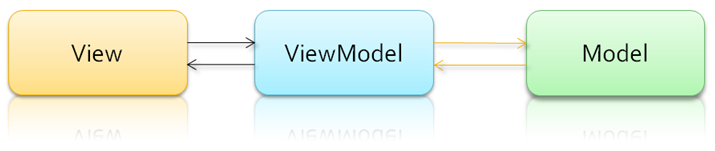
MVVM模式和MVC模式一样,主要目的是分离视图(View)和模型(Model),有几大优点
1. 低耦合。视图(View)可以独立于Model变化和修改,一个ViewModel可以绑定到不同的”View”上,当View变化的时候Model可以不变,当Model变化的时候View也可以不变。
2. 可重用性。你可以把一些视图逻辑放在一个ViewModel里面,让很多view重用这段视图逻辑。
3. 独立开发。开发人员可以专注于业务逻辑和数据的开发(ViewModel),设计人员可以专注于页面设计,使用Expression Blend可以很容易设计界面并生成xaml代码。
4. 可测试。界面素来是比较难于测试的,而现在测试可以针对ViewModel来写。
MVVM功能图:
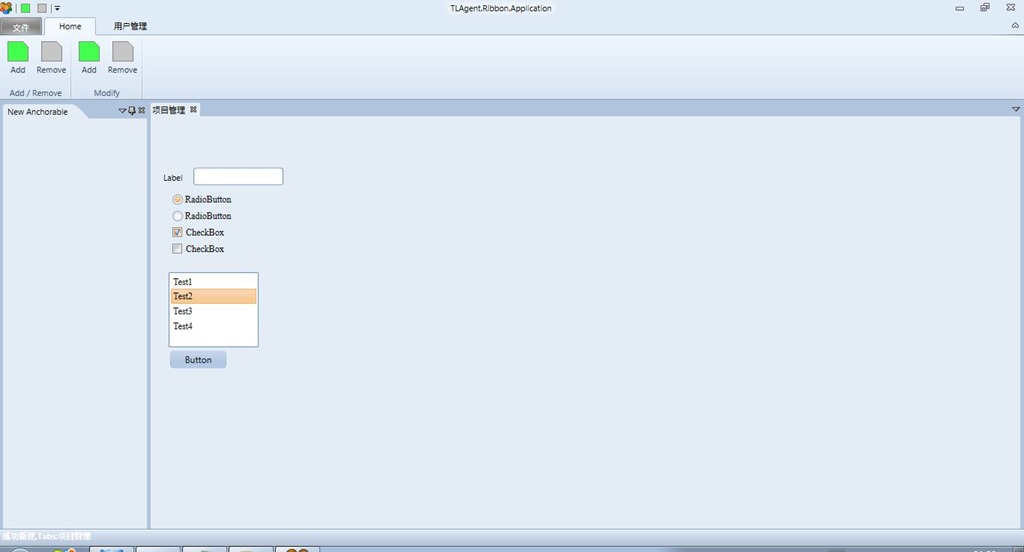
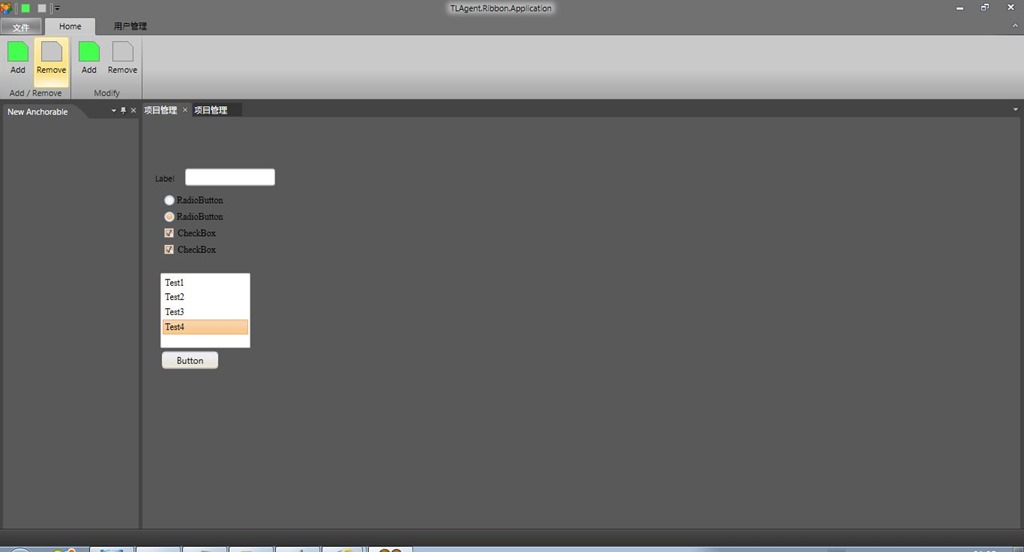
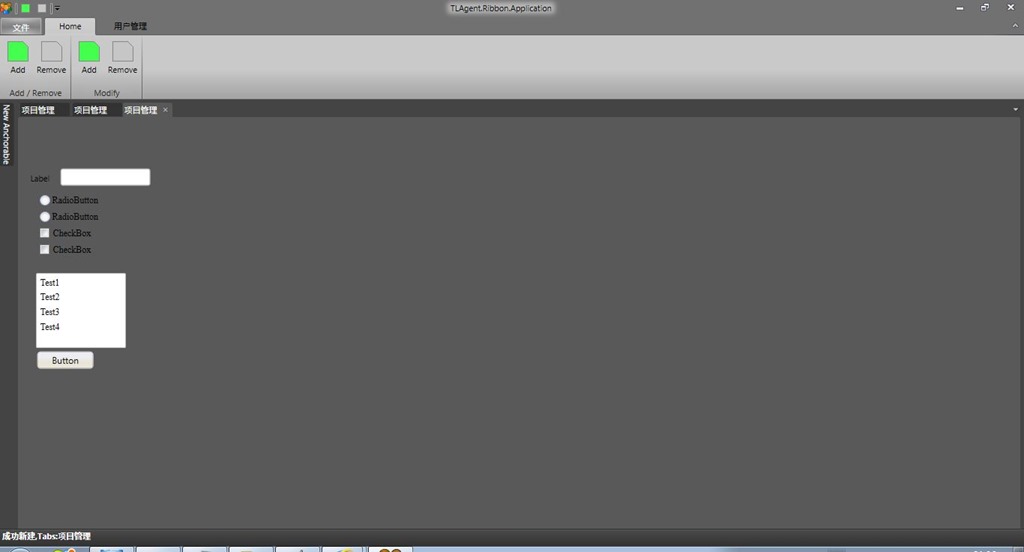
现在我做了个实例,整合模仿Office 2010的Ribbon效果:
(1)Blue:
(2)Silver

(3)Black
我把框架的View设计和框架设计简单介绍一下。
View的XAML源码:
<!--<Window x:Class="TLAgent.Ribbon.App.Demo.MainWindow"
        xmlns="http://schemas.microsoft.com/winfx/2006/xaml/presentation"
        xmlns:x="http://schemas.microsoft.com/winfx/2006/xaml"
        Title="MainWindow" Height="350" Width="525">
    <Grid>

    </Grid>
</Window>-->
<Fluent:RibbonWindow x:Class="TLAgent.Ribbon.App.Demo.MainWindow"
    xmlns="http://schemas.microsoft.com/winfx/2006/xaml/presentation"
    xmlns:x="http://schemas.microsoft.com/winfx/2006/xaml"
    xmlns:Fluent="clr-namespace:Fluent;assembly=Fluent"
    xmlns:ad="http://schemas.xceed.com/wpf/xaml/avalondock"
    xmlns:vm="clr-namespace:TLAgent.Ribbon.App.Demo"
    Title="TLAgent.Ribbon.Application" Width="500" Height="250" Background="#FFEBEDF0" x:Name="window" WindowState="Maximized" WindowStartupLocation="CenterScreen" Icon="/TLAgent.Ribbon.App.Demo;component/Images/usergroup.ico">

    <Grid x:Name="layoutRoot">
        <Grid.RowDefinitions>
            <RowDefinition Height="Auto"/>
            <RowDefinition Height="*"/>
        </Grid.RowDefinitions>
        <Fluent:Ribbon Grid.Row="0">
            <!--Add QuickAccess-->
            <Fluent:Ribbon.QuickAccessItems>
                <Fluent:QuickAccessMenuItem Target="{Binding ElementName=ButtonGreen}"/>
                <Fluent:QuickAccessMenuItem Target="{Binding ElementName=ButtonGray}"/>
            </Fluent:Ribbon.QuickAccessItems>
            <!--Add Tabs-->
            <Fluent:RibbonTabItem Header="Home" ReduceOrder="(P),(P),(P),(P),(P)">
                <Fluent:RibbonGroupBox Header="Add / Remove">
                    <Fluent:Button Header="Add" Command="{Binding AddFunctionCommand}" Icon="Images\Green.png" LargeIcon="Images\GreenLarge.png" Name="ButtonGreen" />
                    <Fluent:Button Header="Remove" Command="{Binding OpenCommand}" Icon="Images\Gray.png" LargeIcon="Images\GrayLarge.png" Name="ButtonGray" />
                </Fluent:RibbonGroupBox>
                <Fluent:RibbonGroupBox Header="Modify">
                    <Fluent:Button Header="Add" Command="{Binding AddFunctionCommand}" Icon="Images\Green.png" LargeIcon="Images\GreenLarge.png" Name="ButtonGreen1" />
                    <Fluent:Button Header="Remove" Command="{Binding OpenCommand}" Icon="Images\Gray.png" LargeIcon="Images\GrayLarge.png" Name="ButtonGray1" />
                </Fluent:RibbonGroupBox>
            </Fluent:RibbonTabItem>

            <Fluent:RibbonTabItem Header="用户管理" ReduceOrder="(P),(P),(P),(P),(P)">
                <Fluent:RibbonGroupBox Header="User Management">
                    <Fluent:Button Header="New User"  Icon="Images\Pink.png" LargeIcon="Images\PinkLarge.png" Name="ButtonAddUser" />
                    <Fluent:Button Header="Modify User" Icon="Images\Orange.png" LargeIcon="Images\OrangeLarge.png" Name="ButtonModiryUser" />
                </Fluent:RibbonGroupBox>
            </Fluent:RibbonTabItem>
            <!--Backstage Items-->
            <Fluent:Ribbon.Menu>
                <Fluent:Backstage Background="Gray">
                    <Fluent:BackstageTabControl>
                        <Fluent:Button Header="退出系统" Command="{Binding ExitSystemCommand}" Icon="Images\close.png"/>
                    </Fluent:BackstageTabControl>
                </Fluent:Backstage>
            </Fluent:Ribbon.Menu>

        </Fluent:Ribbon>

        <ad:DockingManager x:Name="dockManager" Grid.Row="1">
            <ad:DockingManager.Theme>
                <ad:ExpressionBlueTheme/>
            </ad:DockingManager.Theme>
            <ad:LayoutRoot>
                <ad:LayoutPanel Orientation="Vertical">
                    <ad:LayoutDocumentPane/>
                    <ad:LayoutAnchorablePane Name="ToolsPane" DockHeight="150">
                    </ad:LayoutAnchorablePane>
                </ad:LayoutPanel>
            </ad:LayoutRoot>
        </ad:DockingManager>
        <StatusBar VerticalAlignment="Bottom" Height="23" Grid.Row="2" >
            <StatusBarItem VerticalContentAlignment="Center">
                <TextBlock x:Name="TxtMessage" Foreground="{Binding ForeColor}" FontWeight="Bold" Text="{Binding ExecuteMessage}"/>
            </StatusBarItem>
        </StatusBar>
    </Grid>
    <!--<Window.DataContext>
        <vm:WorkspaceViewModel />
    </Window.DataContext>-->
</Fluent:RibbonWindow>
ViewModel源码:
/************************************************************************

   AvalonDock

   Copyright (C) 2007-2013 Xceed Software Inc.

   This program is provided to you under the terms of the New BSD
   License (BSD) as published at http://avalondock.codeplex.com/license

   For more features, controls, and fast professional support,
   pick up AvalonDock in Extended WPF Toolkit Plus at http://xceed.com/wpf_toolkit

   Stay informed: follow @datagrid on Twitter or Like facebook.com/datagrids

  **********************************************************************/

using System;
using System.ComponentModel;
using System.Linq;
using System.Windows.Media;
using Microsoft.Practices.Prism.Commands;
using Microsoft.Practices.Prism.ViewModel;
using System.Windows;
using TLAgent.WPF.Theme;
using Xceed.Wpf.AvalonDock;
using Xceed.Wpf.AvalonDock.Layout;

namespace TLAgent.Ribbon.App.Demo
{
    class WorkspaceViewModel : NotificationObject
    {
        public DelegateCommand AddFunctionCommand { get; set; }

        public DelegateCommand ExitSystemCommand { get; set; }

        public DelegateCommand OpenCommand { get; set; }

        private  DockingManager _dockingManager;

        public WorkspaceViewModel()
        {
           _dockingManager = MainWindow.DockingManager;

            AddFunctionCommand = new DelegateCommand(this.OnNew);

            ExitSystemCommand = new DelegateCommand(this.OnExit);

            OpenCommand = new DelegateCommand(this.OnOpen);

        }

        private void OnOpen()
        {
            //string frameworkPath = string.Format("/Fluent;component/Themes/Office2010/{0}.xaml", ThemeStyle.Silver);//主框架的样式文件
            //Application.Current.Resources.MergedDictionaries.Clear();
            //设置界面控件的样式
            //设置界面框架的样式
            //Application.Current.Resources.MergedDictionaries.Add((ResourceDictionary)(Application.LoadComponent(new Uri(frameworkPath, UriKind.RelativeOrAbsolute))));
        }

        private string _executeMessage;

        public string ExecuteMessage
        {
            get { return _executeMessage; }
            set { _executeMessage = value;
            this.RaisePropertyChanged("ExecuteMessage");
            }
        }

        private Brush _foreColor;

        public Brush ForeColor
        {
            get { return _foreColor; }
            set
            {
                _foreColor = value;
                this.RaisePropertyChanged("ForeColor");
            }
        }


        private void OnNew()
        {
            string functionName = "项目管理";
            CreateSystemTab(functionName);
            ForeColor = new SolidColorBrush(Colors.White);

            var leftAnchorGroup = _dockingManager.Layout.LeftSide.Children.FirstOrDefault();
            if (leftAnchorGroup == null)
            {
                leftAnchorGroup = new LayoutAnchorGroup();
                _dockingManager.Layout.LeftSide.Children.Add(leftAnchorGroup);
            }

            leftAnchorGroup.Children.Add(new LayoutAnchorable() { Title = "New Anchorable" });
            ExecuteMessage = "成功新建,Tabs:" + functionName;
        }

        private void CreateSystemTab(string tabName)
        {
            var firstDocumentPane =_dockingManager.Layout.Descendents().OfType<LayoutDocumentPane>().FirstOrDefault();
            if (firstDocumentPane != null)
            {

                LayoutDocument doc2 = new LayoutDocument();
                AddUserWindow control1 = new AddUserWindow();
                doc2.Title = tabName;
                doc2.Content = control1;
                doc2.IsActive = true;
                firstDocumentPane.Children.Add(doc2);

            }
        }

        private void OnExit()
        {
            MessageBoxResult result = MessageBox.Show("确定要退出系统吗?", "确认消息", MessageBoxButton.OKCancel, MessageBoxImage.Question);
            if (result == MessageBoxResult.OK)
            {
                Application.Current.Shutdown();
                var serializer = new Xceed.Wpf.AvalonDock.Layout.Serialization.XmlLayoutSerializer(_dockingManager);
                serializer.Serialize(@".\AvalonDock.config");
            }
        }
        public event PropertyChangedEventHandler PropertyChanged;
    }
}
更换主题:提供统一的接口就可以实现整合框架和控件主题更换。
/// <summary>
    /// Interaction logic for MainWindow.xaml
    /// </summary>
    public partial class MainWindow : RibbonWindow
    {
        public static DockingManager DockingManager;

        public MainWindow()
        {
            InitializeComponent();
            DockingManager = dockManager;
            ThemeManager.ChangeTheme(dockManager, ThemeStyle.Black);//更换主题接口
            this.DataContext = new WorkspaceViewModel();
            this.Loaded += new RoutedEventHandler(MainWindow_Loaded);
            this.Unloaded += new RoutedEventHandler(MainWindow_Unloaded);
        }
项目解决方案图:
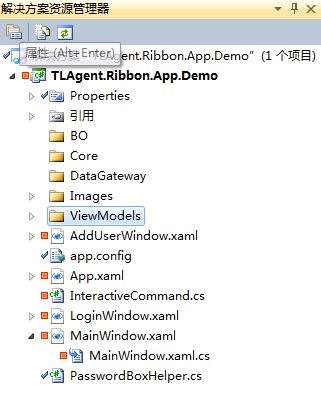
现在只稍微提一下,后续有时间再把更详细的设计方法说明。
转载于:https://www.cnblogs.com/happyyftk/p/6904325.html
发布者:全栈程序员-站长,转载请注明出处:https://javaforall.net/162130.html原文链接:https://javaforall.net


![Fork/Join框架阅读笔记[通俗易懂]](https://javaforall.net/wp-content/uploads/2020/11/2020110817443450-480x300.jpg)
