
今天早上想把网上看到的一些好文章转到自己日志中,发现很困难还要受网速的限制,刚好看到blog上边有个blog客户端推荐livewriter,于是下载了最新的live安装包,安装了除msn及插件外的一切东西,费了很长时间并且有很多是我不用的,既然这样了,就专心利用这个我想要的功能吧,livewriter,希望在它的帮助下我每天记日记总结的习惯能够延续下去。在csdn中一篇日志的指导下我修改下连接中的账号很容易的连接上了csdn的blog,之后客户端上就有了我上面的日志分类,下面我转载这篇日志作为第一次使用客户端的体验及尝试。
前言
基础问题
各种常用博客空间的Live Writer配置。
注:把sinojelly改为你的帐号。
(1) LiveSpace
最简单,选择Live Space服务类型就可以了。
其它几种博客,要选择“其它日志服务”。
(2) 51CTO
日志主页URL:http://sinojelly.blog.51cto.com
日志类型:Metaweblog API
远程发布URL: http://sinojelly.blog.51cto.com/xmlrpc.php
参考:http://51ctoblog.blog.51cto.com/26414/95155
(3) CSDN
日志主页URL:http://blog.csdn.net/sinojelly
日志类型:Metaweblog API
远程发布URL: http://blog.csdn.net/sinojelly/services/MetaBlogApi.aspx
参考:http://blog.csdn.net/blogdevteam/archive/2009/09/04/.aspx
(4) ChinaUnix
似乎不能用Live Writer.
http://blog.chinaunix.net/u3//
(5) LUPA
似乎不能用Live Writer.
(6) blogbus
日志主页URL:http://sinojelly.blogbus.com
日志类型:Atom Publishing Protocol
远程发布URL: http://sinojelly.blogbus.com/api
参考:http://riverbird.blogbus.com/logs/35937634.html
(7) 百度HI空间
似乎不能用Live Writer.
(8) 网易163博客
日志主页URL:http://sinojelly.blog.163.com
日志类型:无须选择
远程发布URL: 无须选择
用户名:sinojelly
参考:http://amigoce.blog.163.com/blog/static//
插件
Windows Live Writer 14.0.8089.726 版本本身已支持的功能:
字数统计
安装插件的过程中,不用关闭Windows Live Writer。
有些插件,把dll文件放到“C:/Program Files/Windows Live/Writer/Plugins”目录即可。
有些插件,提供的msi安装文件,双击安装即可。
如果发现新安装的插件没出现,就重启Live Writer。
LiveBlogTransfer
Current version:1.2.0 Last update: 2008-12-12
LiveBlogTransfer备份的是您个人博客的所有发布的页面和日志,您进行数据恢复的时候可以恢复到您Live Writer设置博客上的任意一个,因此如果您拥有多个博客,LiveBlogTransfer可能是您绝佳的博客搬家和同步工具。下载链接:
If you have only one blog space, you could use LiveBlogTransfer to backup and restore your blog entries, if you have multiple blog spaces, LiveBlogTransfer could let you exchange blog entires between these blog spaces. Download links:
For WLW 14.0.8089.726 (New!)
EzMultiPost
Current version:1.0.0 Last update: 2008-12-3
EzMultiPost is a tool for you to post your blog to multiple blog spaces.Download links:
For WLW 14.0.8089.726 (New!)
把ScreenCapturePlugin.dll放到Plugins目录,重启Live Writer即可。
添加 Digg This 按钮
插入代码样式
安装CodeSnippetSetup.msi,然后重启Live Writer即可。
如果代码外面的框框总是出现讨厌的滚动条,那么可以点击“Use Container”去掉容器。
1: int main()
2: {
3: int a = 1,b = 2;
4: int c = a+b;
5: return c;
6: }
Text Template
V1.2.3.3下载:http://gallery.live.com/liveItemDetail.aspx?li=9c8097b3-05f5-4e50-a968-dec6da6aea72&bt=9
网上的介绍:
这个插件对于那些在博文中使用重复的文本或者 html 的人,比如标语、签名或者给读者留言的邀请,这是必须的插件。使用 Text Template 你可以创建和保存包含文本和/或 html 的模板以后使用,然后快速简便的插入你的文章中。创建的模板可以放入分类,如果你保存了很多的话就可以比较容易的找到。
相关参考:
http://www.codeplex.com/wikipage?ProjectName=wlwTextTemplate
V1.2.4下载:
http://download.codeplex.com/Project/Download/FileDownload.aspx?ProjectName=wlwTextTemplate&DownloadId=3099&FileTime=128050080314630000&Build=15896
类似的,还有一个:
Dynamic Template Plugin for Windows Live Writer
http://www.joecheng.com/code/DynamicTemplate/
Insert File Plugin
不错,能够把文档插入博客文章的任何位置。
酷表情
安装CNCoolEmotion.msi即可。
非常不错。

拷贝VS.NET的代码(强烈推荐)
把VSPaste.dll拷贝到C:/Program Files/Windows Live/Writer/Plugins即可。
效果如下: 
插入标签
参见下图,无须另外安装插件。 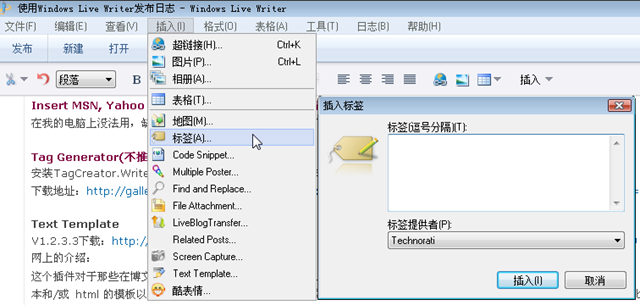
可以自己再添加tag提供商,
我添加了Windows Live:
http://windows.live.com/connect/tag/{tag-encoded}” rel=”tag”>{tag}
参见:
http://malkside.spaces.live.com/blog/cns!BE2C70F6E8FD6095!467.entry
http://windowslive.com/Connect/Post/2cd5986f-4c18-436e-a94d-7c6079ffb842
注:
Windows Live标签不是很好用,点击标签能搜索出带有该标签的文章,但没看到我的文章。
Technorati 标签则链接打不开,它被墙了,如果打开了的话,它能搜索带有某种标签的文章。不过暂时我也没看到我的文章。
不怎么好或者暂时未使用的插件
Clipboard Capture(暂时未使用)
把剪贴板的图片粘贴到博客文章中,可以给图片命名。(它能支持选择jpg还是png,不过我更希望能设置jpg的质量。)
参考:
http://gallery.live.com/liveItemDetail.aspx?li=665e9d1b-ab5c-4772-80de-ac4e69d66dae&bt=9&pl=8
xPollinate – Cross Post Plugin(未使用)
比Multiple Poster功能多些,但还是不能发送到51CTO博客,它提示没有选择原创类型。
下载次数:1207 发布时间:2009/3/31
免费
Sharper Photo (未使用)
直接在Writer中编辑图片非常方便,可能很有用。
Tag4Writer
这个插件没有找到可下载的地方,似乎3年前出现过,后来就不见了。
Related Posts
SyntaxHighlighter插件(建议不要用)
它在我的Vista电脑上运行时异常。
1: System.NullReferenceException: 未将对象引用设置到对象的实例。
2: 在 Katamari.WriterPlugin.PropertiesPanelEditor.PropertiesPanelEditor_Load(Object sender, EventArgs e)
3: 在 System.Windows.Forms.UserControl.OnLoad(EventArgs e)
4: 在 System.Windows.Forms.UserControl.OnCreateControl()
5: 在 WindowsLive.Writer.Api.SmartContentEditor.OnCreateControl()
6: 在 System.Windows.Forms.Control.CreateControl(Boolean fIgnoreVisible)
7: 在 System.Windows.Forms.Control.CreateControl()
8: 在 System.Windows.Forms.Control.ControlCollection.Add(Control value)
9: 在 WindowsLive.Writer.PostEditor.PostHtmlEditing.Sidebar.ContentSourceSidebarControl.UpdateView(Object htmlSelection, Boolean force)
10: 在 WindowsLive.Writer.PostEditor.PostHtmlEditing.Sidebar.HtmlEditorSidebarHost.UpdateSidebarState(Boolean force)
11: 在 WindowsLive.Writer.PostEditor.PostHtmlEditing.Sidebar.HtmlEditorSidebarHost._editorContext_SelectionChanged(Object sender, EventArgs e)
12: 在 System.EventHandler.Invoke(Object sender, EventArgs e)
13: 在 WindowsLive.Writer.HtmlEditor.HtmlEditorControl.OnSelectionChanged(EventArgs e, IHtmlEditorSelection newSelection)
14: 在 WindowsLive.Writer.HtmlEditor.HtmlEditorControl.FireSelectionChanged()
15: 在 WindowsLive.Writer.HtmlEditor.HtmlEditorControl.WindowsLive.Writer.HtmlEditor.IHtmlEditorComponentContext.EndSelectionChange()
16: 在 WindowsLive.Writer.PostEditor.PostHtmlEditing.SmartContentSelection.SelectElement(IHtmlEditorComponentContext editorComponentContext, IHTMLElement e, SmartContentState contentState)
17: 在 WindowsLive.Writer.PostEditor.PostHtmlEditing.SmartContentSelection.SelectIfSmartContentElement(IHtmlEditorComponentContext editorComponentContext, IHTMLElement e, SmartContentState contentState)
18: 在 WindowsLive.Writer.PostEditor.PostHtmlEditing.BlogPostHtmlEditorControl.OnInsertHtml(MarkupRange newContentRange)
19: 在 WindowsLive.Writer.HtmlEditor.HtmlEditorControl.InsertHtml(String html, Boolean moveSelectionRight)
20: 在 WindowsLive.Writer.PostEditor.PostHtmlEditing.BlogPostHtmlEditor.InsertHtml(String content, Boolean moveSelectionRight)
21: 在 WindowsLive.Writer.PostEditor.PostHtmlEditing.BlogPostHtmlEditor.InsertContentBlock(String contentSourceId, String content, IExtensionData extensionData)
22: 在 WindowsLive.Writer.PostEditor.PostHtmlEditing.BlogPostHtmlEditor.WindowsLive.Writer.PostEditor.ContentSources.IContentSourceSite.InsertContent(String contentSourceId, String content, IExtensionData extensionData)
23: 在 WindowsLive.Writer.PostEditor.ContentSources.ContentSourceManager.PerformInsertion(IContentSourceSite sourceSite, ContentSourceInfo contentSource)
它显示的代码格式如下:
int main() { int a,b; int c = a+b; return c; }
Insert MSN, Yahoo and Custom Smileys(不推荐)
在我的电脑上没法用,缺少SmileyInfo.txt,但没地方可下载。
Tag Generator(不推荐)
安装TagCreator.WriterPlugin.msi,但我也遇到生成tag时Live Writer死掉。
下载地址:http://gallery.live.com/liveItemDetail.aspx?li=bbb14b2a-0250-4513-a942-cb99a3459ab9&bt=9&pl=8Ta
Amazon Book Lookup Plugin(不推荐)
使用时出现HTTP 503错误。
下载地址:http://gallery.live.com/liveItemDetail.aspx?li=41954338-69de-47d5-b15e-ca0d770146b6&bt=9&pl=8
还未尝试的插件:
Code Prettify for Windows Live Writer
需要链接Google Code Prettify才能使插入的代码高亮,不支持js的博客可能不好用。
参考:
http://gallery.live.com/liveItemDetail.aspx?li=c7ff63d8-d435-4349-a26e-d601f3151319&bt=9&pl=8
http://google-code-prettify.googlecode.com/svn/trunk/README.html
Attach File Plugin for Windows Live Writer
跟Insert File的功能差不多,没有具体尝试。
参考:
http://gallery.live.com/liveItemDetail.aspx?li=3554b280-8ea4-453a-ada7-d567348aab97&bt=9&pl=8
Contacts Plug-in
暂时没觉得它很有用,没尝试它。
参考:
http://gallery.live.com/liveItemDetail.aspx?li=6388f05f-b3d7-481a-ad55-924686598856&bt=9&pl=8
http://www.codeplex.com/Wikipage?ProjectName=Oomph
http://visitmix.com/lab/#oomph
Import and Export Wizard for Windows Live Writer
发布时间: 2009/10/31
备份/还原Live Writer的插件/配置/本地文件等信息,应该非常有用。
参考:
http://gallery.live.com/liveItemDetail.aspx?li=6f6a26f3-8797-41c9-9530-1a7c8baef154&bt=9&pl=8
Insert Links Smartly
为了插入链接方便,它可能比较有用。
Syntax Higlighter 2.0 for Windows Live Writer
博客聚合-cnblogs,wordpress,live writer,word2010 收藏
一、url地址:
cnblogs: http://BusyAnt.cnblogs.com/services/metaweblog.aspx
wordpress: http://blog.busyant.cn/xmlrpc.php
CSDN:http://blog.csdn.net/busyant/services/metablogapi.aspx
二、配置:
word2010:文件|共享|发布为博客文章|(博客园或CSDN需配置API:MetaWebBlog|wordpress中文版的可能需要修改wp-includes/class-IXR.php 文件,详见:使用Word2007写WordPress)
三、比较:
1. 在Live Writer或者word中写文章,可能比较符合日常的使用习惯,如可以使用Tab键,Ctrl+End等快捷键。
2. 在LiveWriter中写文章还可以随时显示文章时的样子,即预览。
3. 在word中编写可以使用word的功能,如插入图表、屏幕截图等。
4. 在Live Writer及word中不支持自定义文章连接、插入代码等。(注:在Live Writer自定义文章连接可以通过以下方式,查看|属性|数据域)
5. 在word2010中,插入的形状和屏幕截图(过大,则不能发布)是可以发布到wordpress,而在博客园不行。
6. 博客园和CSDN在Live writer中不支持属性面板,也无法添加类别,而wordpress可以。
Windows Live Writer常见问题总结
有一大批喜欢朋友喜欢使用Windows Live Writer来离线写博客,WordPress教程网在WordPress免费入门教程中做过专题介绍,这里总结了一些常见问题。
一:Windows Live Writer链接不上WordPress?
确保你在WordPress后台中开启了离线发布协议,方法:
WordPress后台——撰写——勾选Atom 发布协议和XML-RPC——确定
二:博客中多了一篇类似于XXXX检测日志?
首次配置Windows Live Writer时发现WordPress博客中多了一篇类似于XXX临时检测日志。这是Windows Live Writer 在下载您的博客主题时,会发布一篇临时文章。当你发布第一篇日志后,该临时检测日志会自动消失。
三:Windows Live Writer无法下载日志主题?
首次配置Windows Live Writer,在下载博客主题时,会发布一篇临时文章。这篇文章会自动归入您的默认分类。如果您的主题是排除或隐藏默认文章分类,则Windows Live Writer将无法检测到您的博客主题,也就无法下载了。
登陆控制板——设置——撰写,修改“默认文章分类目录”为非隐藏分类即可。如果还存在问题,请检查这些代码,进入外观——编辑,选择“index.php” 检查是否有这样的限制:
原因一:首页隐藏了默认文章分类。
if (is_home()) { query_posts(’cat=519,183,8′); }else{wp_reset_query();}
这意味着主页只显示519,183和8三个分类的文章。由于Windows Live Writer发布的临时文章不属于519,183和8三个分类类别,从而发生下载错误。修改该“If”逻辑语句,更新index.php文件。
原因二:Header 丢失XML-RPC Link
若上述方法不能解决问题,那么你可以尝试在header.php文件中添加以下代码:
“Failed to download template Framed: System.Exception: Unable to locate blog post elements using most recent post”
“Failed to download template Webpage: System.Exception: Unable to locate blog post elements using most recent post”
四:Windows Live Writer出现日志不支持图片上载?
在发布含有图片的日志时,提示错误“由于日志不支持图片发布,下列图片无法发布,可以配置Windows Live Writer来讲图片发布到FTP帐户。是否要立即配置FTP帐户来发布图片?”
方法一:首先确保图片命名中不含非法字符(名称中以下划线结尾的图片,注意,如果直接在WLW里设置图片替代文字是没有效果的,有兴趣的朋友可以试一下,以下划线结尾的图片发布时是否会出现上述情况)。
方法二:检测wp-content/uploads文件夹是否有可写权限,一般在WordPress搬家后容易出现此问题。把Uploads文件夹权限设置为755或777并设置为递归到子文件夹及文件;
方法三:修改WordPress博客图片上传路径
登录WordPress后台——杂项——设置图片上传路径
五:发布日志时,图片之间出现很长的空白列?
不少朋友遇到此问题,可能是你在插入图片时候设置了图片距左不小心敲了不少回车键却未能得到换行,解决方法:把日志切换到源代码模式,在代码中很清楚的看到常常的一列,直接删除即可。
六:Windows Live Writer保存草稿问题。
以Live Writer2009为例,默认的保存草稿是保存在服务器上,单击保存草稿右侧的小箭头可将草稿保存在本地。查找本地草稿直接单击文件——打开——草稿,查找Windows Live Writer本地草稿位置,搜索*.wpost
完成后试了下本地预览跟进入界面差不多异常强大,真兴奋!
发布者:全栈程序员-站长,转载请注明出处:https://javaforall.net/176830.html原文链接:https://javaforall.net




