
SIkuli使用
1简介
SikuliX通过定位图像和键盘鼠标来操作GUI(图形化用户界面),能很好的实现flash和桌面类应用的自动化,目前暂不支持移动端的使用
2sikuli实际用途
3下载地址
链接: link.
4安装步骤
5.11 type 在焦点处,输入指定的文字 s.type("text") 指定的图片,输入指定的文字 s.type(imgpath+"win.png","test") 5.12 paste 在焦点处,粘贴指定的文字 paste("text") 点击指定的图片,然后再粘贴指定的文字 paste(imgpath+"win.png","text") 5.13 region 创建屏幕匹配区域 Region region =new Region(1,3,224,199); //Region region =new Region(1,638,308,205); region.hover(imgapath+"fox.png"); 5.14 location 获取位置作为选择中心(获取的图像的中心坐标作为焦点(左上为起始坐标)) Location location = new Location(187,258); s.hover(location); 5.15 For 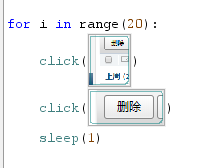

5.16 断言
if (s.exists(self.imgpath + “登录后截图.png”) != None):
print(“登录成功”)
5.17 根据按钮定位下移动到输入框输入文案
s.type((s.find(self.imgpath + “登录按钮.png”).above(108)), “xiaofen520”)
s.wait(self.imgpath + “登录按钮.png”)
s.click((s.find(self.imgpath + “登录按钮.png”)))
2 进入样式设置
3 移动十字标,查看底部偏移像素
public static void main(String[] args) throws FindFailed { Screen s = new Screen(); // String imgpath = "C://Users//Administrator//Desktop//photo//"; String imgpath = "photo//";//相对路径 s.click(imgpath+"win.png"); // s.click(s.find(imgpath+"win.png").right(40)); s.click(imgpath+"exe.png"); s.wait(1.0);//等待 s.type(s.find(imgpath+".png").left(90),"name"); s.type(imgpath+"pwd.png","password"); s.click(imgpath+"login.png"); s.wait(3.0); System.out.println(s.exists(imgpath+"yidenglu.png")); if (s.exists(imgpath+"yidenglu.png") != null){ //断言 System.out.print("登录成功"); } else{ System.out.print("登录失败"); }Java 版权声明:本文内容由互联网用户自发贡献,该文观点仅代表作者本人。本站仅提供信息存储空间服务,不拥有所有权,不承担相关法律责任。如发现本站有涉嫌侵权/违法违规的内容, 请联系我们举报,一经查实,本站将立刻删除。
发布者:全栈程序员-站长,转载请注明出处:https://javaforall.net/200264.html原文链接:https://javaforall.net




