
1.方法一
r=input('请输入圆半径:') s=3.14*int(r)2 print('圆面积为:{:.2f}'.format(s)) 2.方法二
r=input('请输入圆半径:') s=3.14*int(r)2 print('圆面积为:%.2f' %s) 3.方法三
r=input('请输入圆半径:') s=3.14*int(r)2 print('圆面积为:',round(s,2)) 4.方法四
r=int(input('请输入圆半径:')) s=3.14*pow(r,2) print('圆面积为:{:.2f}'.format(s)) 5.方法五
from decimal import Decimal r=input('请输入圆半径:') s=3.14*float(r)2 print('圆面积为:',Decimal(s).quantize(Decimal('0.00'))) 6.方法六
import numpy r=input('请输入圆半径:') print('圆面积为:{:.2f}'.format(3.14*(numpy.square(float(r))))) 7.方法七
import math pi=math.pi def circle_area(): r=float(input('请输入半径:')) s=pi*r*r print('圆面积为:{:.2f}'.format(s)) circle_area() 8.方法八
# 该方法适用于输入的半径是Int整数,不适用于Float浮点数(小数) while True: r=input('请输入圆半径:') if r.isdigit()==1: print('圆面积为:{:.2f}'.format(3.14*int(r)2)) break else: print('输入的不是数值,请重新输入:\n') continue 9.方法九
# 该方法适用于输入的半径是Int整数,不适用于Float浮点数(小数) while True: try: r=input('请输入圆半径:') r=float(r) print('圆面积为:{:.2f}'.format(3.14*int(r)2)) break except: print('输入的不是数值,请重新输入:\n') 10.方法十
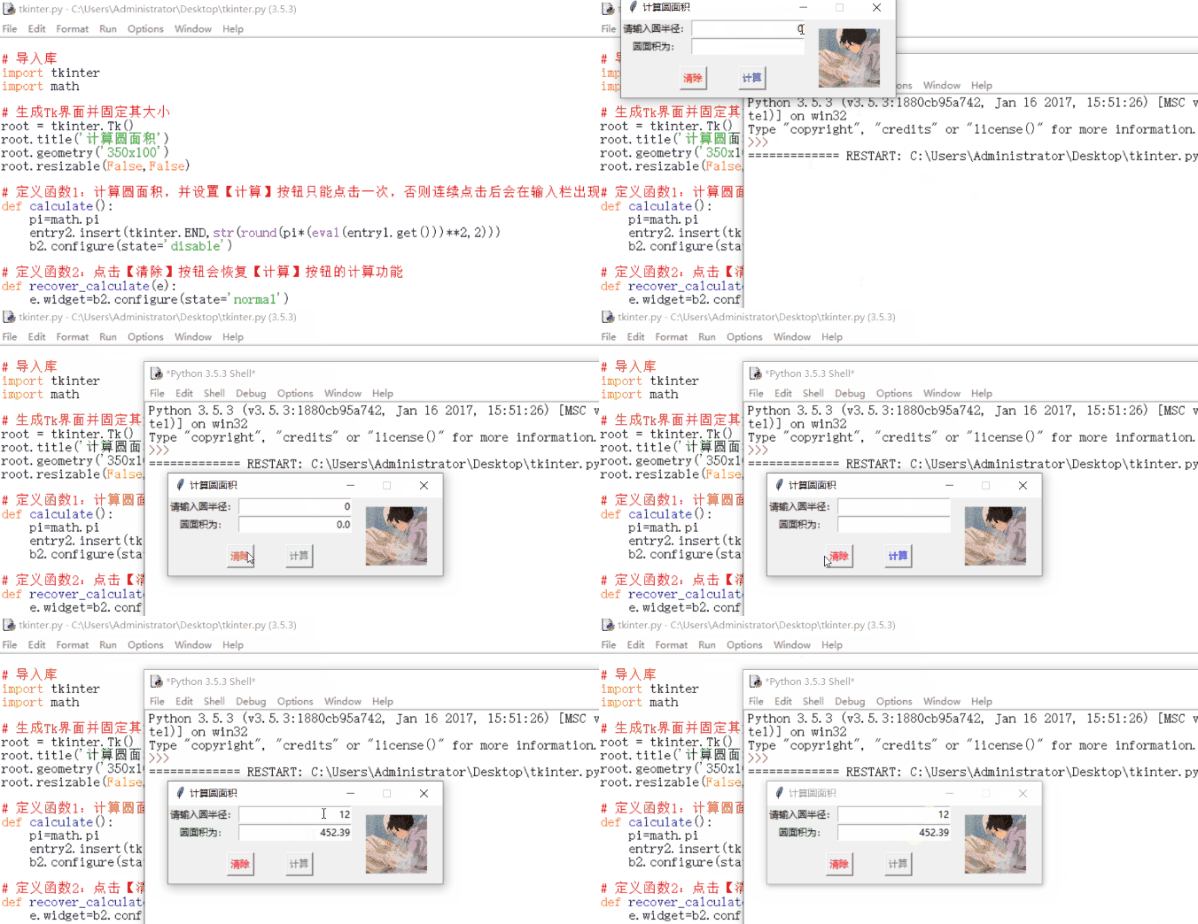
# 导入库 import tkinter import math # 生成Tk界面并固定其大小 root = tkinter.Tk() root.title('计算圆面积') root.geometry('350x100') root.resizable(False,False) # 定义函数1:计算圆面积,并设置【计算】按钮只能点击一次,否则连续点击后会在输入栏出现多个重复的结果 def calculate(): pi=math.pi entry2.insert(tkinter.END,str(round(pi*(eval(entry1.get()))2,2))) b2.configure(state='disable') # 定义函数2:点击【清除】按钮会恢复【计算】按钮的计算功能 def recover_calculate(e): e.widget=b2.configure(state='normal') # 定义函数3:鼠标经过提示信息的区域会改变提示信息的前景色,这里特指字体颜色 def change_color(event): event.widget['fg']='green' # 定义函数4:鼠标离开提示信息的区域会恢复提示信息的前景色,这里特指字体颜色  def back_color(event): event.widget['fg']='black' # 生成文本框并设置默认值 content1 = tkinter.StringVar() content2 = tkinter.StringVar() content1.set('0') label1 = tkinter.Label(root,text="请输入圆半径:") label1.grid(row = 0,column = 0) label1.bind('

     '
   ,change_color) label1.bind('

     '
   ,back_color) entry1 = tkinter.Entry(root,textvariable=content1,width=20,justify=tkinter.RIGHT,selectbackground='cyan',selectforeground='purple') entry1.grid(row = 0,column = 1) label2 = tkinter.Label(root,text="圆面积为:") label2.grid(row = 1,column = 0) label2.bind('

     '
   ,change_color) label2.bind('

     '
   ,back_color) entry2 = tkinter.Entry(root,textvariable=content2,width=20,justify=tkinter.RIGHT,selectbackground='yellow',selectforeground='red') entry2.grid(row = 1,column = 1) # 显示图片,纯粹为了美观 img=tkinter.PhotoImage(file='./图片.gif') tkinter.Label(root,image=img).place(x=250,y=10) # 设置【清除】和【计算】按钮 b1=tkinter.Button(root,text="清除",command = lambda *clear:(entry1.delete(0,tkinter.END),entry2.delete(0,tkinter.END)),fg='red') b1.place(x = 75,y = 60) b2=tkinter.Button(root,text="计算",command = calculate,fg='blue') b2.place(x = 150,y= 60) # 调用定义函数2,恢复【计算】按钮的功能 b1.bind('

     '
   ,recover_calculate) # 让Tk界面一直显示,停留在屏幕上 root.mainloop()
11.方法十的效果

版权声明:本文内容由互联网用户自发贡献,该文观点仅代表作者本人。本站仅提供信息存储空间服务,不拥有所有权,不承担相关法律责任。如发现本站有涉嫌侵权/违法违规的内容, 请联系我们举报,一经查实,本站将立刻删除。
发布者:全栈程序员-站长,转载请注明出处:https://javaforall.net/200383.html原文链接:https://javaforall.net



