
不啰嗦看效果
1. editor.md简介
- 1.1 说明
Editor.md 是一款开源的、可嵌入的 Markdown 在线编辑器(组件),基于 CodeMirror、jQuery 和 Marked 构建。
- 1.2 项目地址
github地址:https://github.com/pandao/editor.md
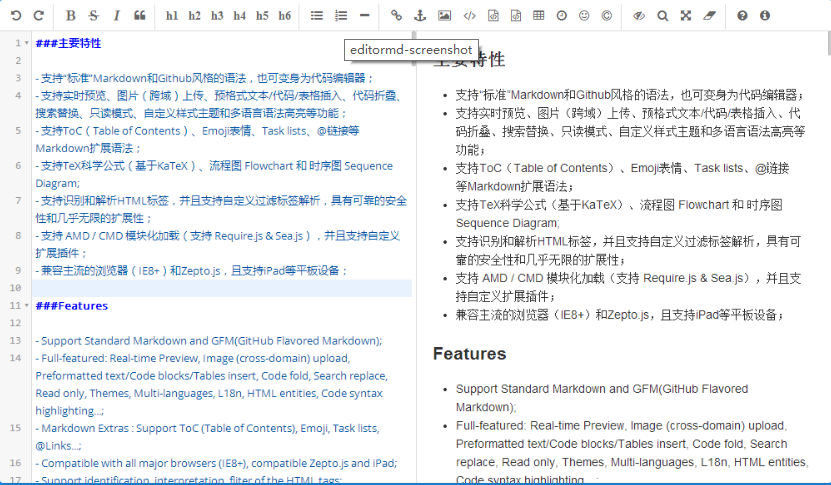
- 1.3 项目效果图

2. 项目整合
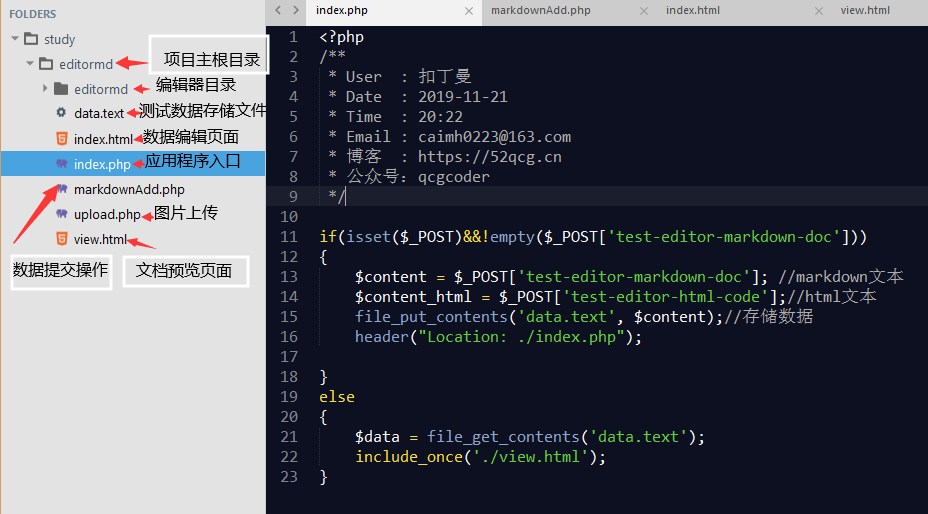
2.1 下载editormd至自己项目根目录
如下为我的项目目录:
2.2 项目部署
引入css样式文件和js文件
    <link rel="stylesheet" href="https://cdn.jsdelivr.net/npm/bootstrap@3.3.7/dist/css/bootstrap.min.css" >
    <link rel="stylesheet" href="./editormd/css/editormd.css" > <script src="https://cdn.staticfile.org/jquery/1.10.2/jquery.min.js">
     script>
     <script src="https://cdn.jsdelivr.net/npm/bootstrap@3.3.7/dist/js/bootstrap.min.js" >
      script> <script src="./editormd/editormd.js" >
       script>
注意:
务必引入 editormd/css/editormd.css 和 editormd/editormd.js两个文件。
页面
textarea结构
<div id="test-editor"> <textarea id="inp-content" style="display:none;">这是我首次使用
     textarea>
      div>
JS调用代码
<script> $(function() {
    var editor = editormd("test-editor", {
    height:'350px', syncScrolling : "single", emoji:true, //启动本地图片上传功能 imageUpload: true, watch:true, imageFormats : ["jpg", "jpeg", "gif", "png", "bmp", "webp","zip","rar"], path : "./editormd/lib/", imageUploadURL : "./upload.php", //文件提交请求路径 saveHTMLToTextarea : true, //注意3:这个配置,方便post提交表单 previewTheme : "dark",//预览主题样式 黑色 }); }) </script>
配置参数
{
mode : "gfm", // gfm or markdown name : "", // Form element name for post value : "", // value for CodeMirror, if mode not gfm/markdown theme : "", // Editor.md self themes, before v1.5.0 is CodeMirror theme, default empty editorTheme : "default", // Editor area, this is CodeMirror theme at v1.5.0 previewTheme : "", // Preview area theme, default empty markdown : "", // Markdown source code appendMarkdown : "", // if in init textarea value not empty, append markdown to textarea width : "100%", height : "100%", path : "./lib/", // Dependents module file directory pluginPath : "", // If this empty, default use settings.path + "../plugins/" delay : 300, // Delay parse markdown to html, Uint : ms autoLoadModules : true, // Automatic load dependent module files watch : true, placeholder : "Enjoy Markdown! coding now...", gotoLine : true, // Enable / disable goto a line codeFold : false, autoHeight : false, autoFocus : true, // Enable / disable auto focus editor left input area autoCloseTags : true, searchReplace : true, // Enable / disable (CodeMirror) search and replace function syncScrolling : true, // options: true | false | "single", default true readOnly : false, // Enable / disable readonly mode tabSize : 4, indentUnit : 4, lineNumbers : true, // Display editor line numbers lineWrapping : true, autoCloseBrackets : true, showTrailingSpace : true, matchBrackets : true, indentWithTabs : true, styleSelectedText : true, matchWordHighlight : true, // options: true, false, "onselected" styleActiveLine : true, // Highlight the current line dialogLockScreen : true, dialogShowMask : true, dialogDraggable : true, dialogMaskBgColor : "#fff", dialogMaskOpacity : 0.1, fontSize : "13px", saveHTMLToTextarea : false, // If enable, Editor will create a disabledKeyMaps : [], onload : function() {
}, onresize : function() {
}, onchange : function() {
}, onwatch : null, onunwatch : null, onpreviewing : function() {
}, onpreviewed : function() {
}, onfullscreen : function() {
}, onfullscreenExit : function() {
}, onscroll : function() {
}, onpreviewscroll : function() {
}, imageUpload : false, // Enable/disable upload imageFormats : ["jpg", "jpeg", "gif", "png", "bmp", "webp"], imageUploadURL : "", // Upload url crossDomainUpload : false, // Enable/disable Cross-domain upload uploadCallbackURL : "", // Cross-domain upload callback url toc : true, // Table of contents tocm : false, // Using [TOCM], auto create ToC dropdown menu tocTitle : "", // for ToC dropdown menu button tocDropdown : false, // Enable/disable Table Of Contents dropdown menu tocContainer : "", // Custom Table Of Contents Container Selector tocStartLevel : 1, // Said from H1 to create ToC
htmlDecode : false, // Open the HTML tag identification pageBreak : true, // Enable parse page break [========] atLink : true, // for @link emailLink : true, // for email address auto link taskList : false, // Enable Github Flavored Markdown task lists emoji : false, // :emoji: , Support Github emoji, Twitter Emoji (Twemoji); // Support FontAwesome icon emoji :fa-xxx: > Using fontAwesome icon web fonts; // Support Editor.md logo icon emoji :editormd-logo: :editormd-logo-1x: > 1~8x; tex : false, // TeX(LaTeX), based on KaTeX flowChart : false, // flowChart.js only support IE9+ sequenceDiagram : false, // sequenceDiagram.js only support IE9+ previewCodeHighlight : true, // Enable / disable code highlight of editor preview area toolbar : true, // show or hide toolbar toolbarAutoFixed : true, // on window scroll auto fixed position toolbarIcons : "full", // Toolbar icons mode, options: full, simple, mini, See `editormd.toolbarModes` property. toolbarTitles : {
}, toolbarHandlers : {
ucwords : function() {
return editormd.toolbarHandlers.ucwords; }, lowercase : function() {
return editormd.toolbarHandlers.lowercase; } }, toolbarCustomIcons : {
// using html tag create toolbar icon, unused default tag. lowercase : "a", "ucwords" : "Aa" }, toolbarIconTexts : {
}, lang : {
// Language data, you can custom your language. name : "zh-cn", description : "开源在线Markdown编辑器
Open source online Markdown editor.", tocTitle : "目录", toolbar : {
//... }, button: {
//... }, dialog : {
//... } //... } } 显示效果
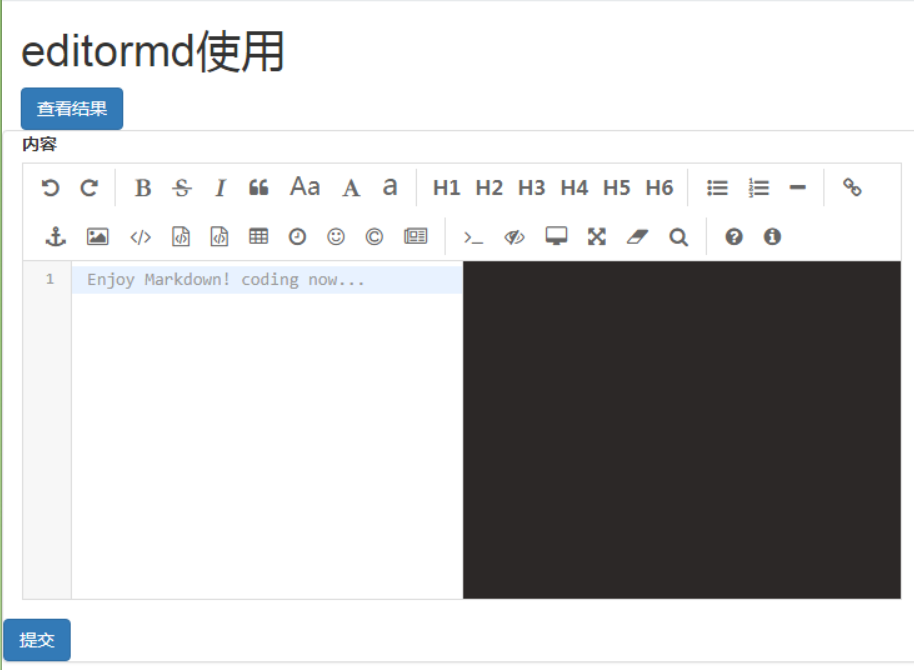
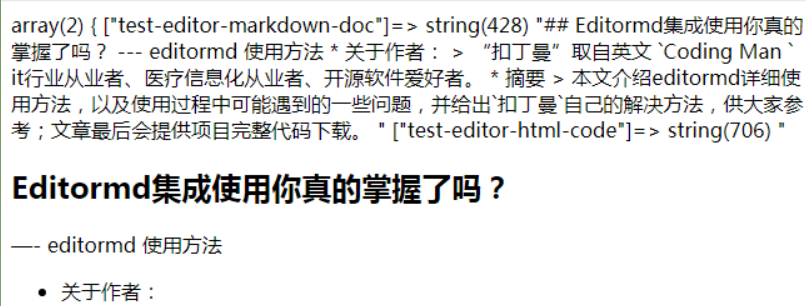
界面出来了已经完成很大一部分了。通过设置提交数据打印可以查看editormd提交数据的一个结构– 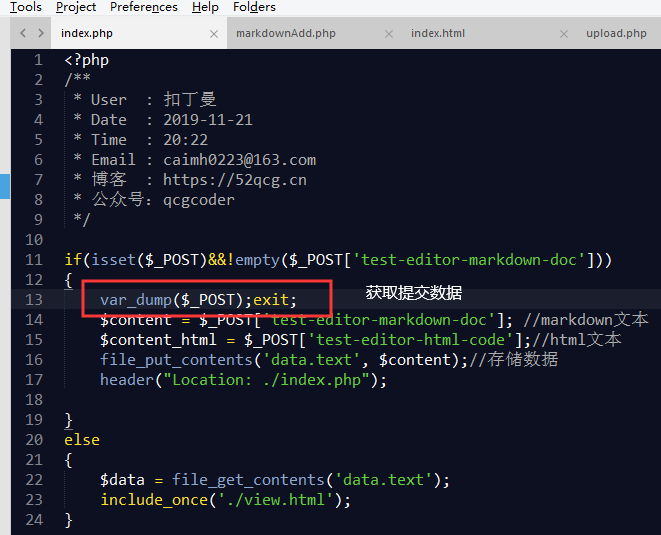
通过debug我们可有看到提交给后台的数据如下:
3. 图片上传处理
3.1 editormd的图片上传功能有很多坑,下面我们将依次填坑。
editormd图片上传功能需要设置,要在返回固定格式的json数据,即使在调试时候。
扣丁曼在初次使用editormd项目时在此处浪费了很多时间。开启图片上传参数
imageUpload : true、imageFormats : ["jpg", "jpeg", "gif", "png", "bmp", "webp"],、imageUploadURL : "./upload.php",
后台返回样式如下:
{
    success : 0 | 1, //0表示上传失败;1表示上传成功 message : "提示的信息", url : "图片地址" //上传成功时才返回 }
3.2 增加截图上传和拖拽上传图片功能
由于editormd的上传图片功能用户体验并不友好!每次上传图片很费事。
扣丁曼通过收集网上其他小伙伴提供的建议也实现了editormd的截图上传和拖拽上传功能。
- 新增JS插件代码
文件名
editoemd-image-past.js放置于editormd/plugins文件夹下<script> console.log('代码内容较多请通过下载方式查看!') </script> - 页面引入
<script src="./editormd/plugins/editormd-image-past.js"></script> - 项目中配置
path : "__PAGE__/global/plugins/editormd/lib/", imageUploadURL : "/uploadFile", //文件提交请求路径 onload : function() {
      initPasteDragImg(this); //配置图片粘贴上传 }, saveHTMLToTextarea : true, //注意3:这个配置,方便post提交表单
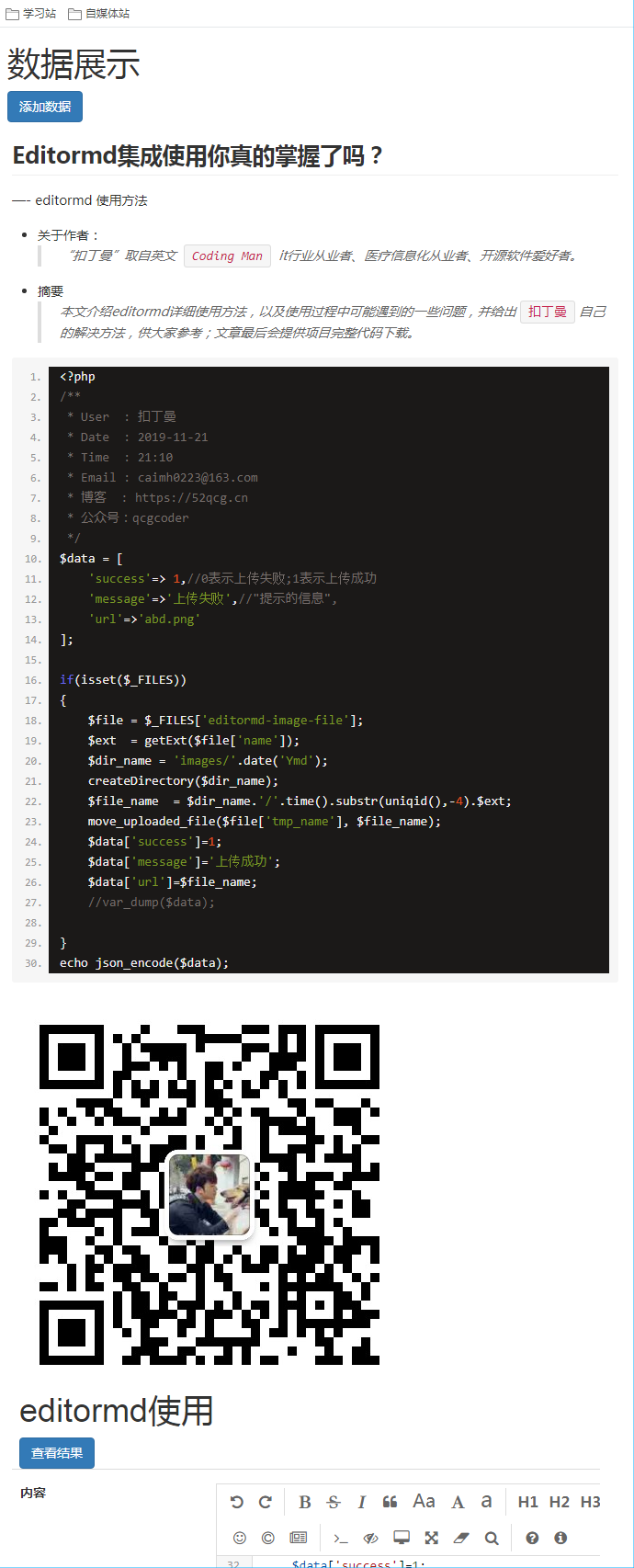
4. 前台展示editormd数据
- 在view页面引入css文件和js文件如下
<!-- 最新版本的 Bootstrap 核心 CSS 文件 --> <link rel="stylesheet" href="https://cdn.jsdelivr.net/npm/bootstrap@3.3.7/dist/css/bootstrap.min.css" > <!-- 引入editormd样式文件 --> <link rel="stylesheet" href="./editormd/css/editormd.css" > <link href="./editormd/css/sons-of-obsidian.css" rel="stylesheet" type="text/css" /> <script src="https://cdn.staticfile.org/jquery/1.10.2/jquery.min.js"></script> <!-- 最新的 Bootstrap 核心 JavaScript 文件 --> <script src="https://cdn.jsdelivr.net/npm/bootstrap@3.3.7/dist/js/bootstrap.min.js" ></script> - 页面展示区
<div id="test-editormd-view" style="width:700px;" class="blog-single-desc"> <textarea style="display:none;" id="test-editormd-markdown-doc"> textarea> div> - js处理
<script src="./editormd/lib/marked.min.js"></script> <!-- 第三方界面样式文件google --> <script src="./editormd/lib/google-code-prettify/prettify.js"></script> <script src="./editormd/lib/raphael.min.js"></script> <script src="./editormd/lib/underscore.min.js"></script> <script src="./editormd/lib/sequence-diagram.min.js"></script> <script src="./editormd/lib/flowchart.min.js"></script> <script src="./editormd/editormd.js"></script> <script> $(function() { editormd.markdownToHTML("test-editormd-view", { htmlDecode: "style,script,iframe", // you can filter tags decode emoji: true, taskList: true, tex: true, // 默认不解析 flowChart: false, // 默认不解析 sequenceDiagram: true, // 默认不解析 path: "./editormd/lib/", previewTheme: "dark" }); }); </script> - 效果图
5. 项目源码
- 关注公众号“扣丁曼” 回复editormd获取项目源码。
- 本项目采用php作为处理语言,其他语种小伙伴请各显神通。
6.联系我
- CSDN与我联系
- 通过公众号“扣丁曼”(号码:qcgcoder)直接与我联系。
- 通过我的博客获取最新资讯
博客网址:https://52qcg.cn
发布者:全栈程序员-站长,转载请注明出处:https://javaforall.net/204090.html原文链接:https://javaforall.net


![2014年辛星解读Javascript之DOM之冒泡和捕获[通俗易懂]](https://javaforall.net/wp-content/uploads/2020/11/2020110817443450-480x300.jpg)
