
博主声明:
转载请在开头附加本文链接及作者信息,并标记为转载。本文由博主 威威喵 原创,请多支持与指教。
本文首发于此 博主:威威喵 | 博客主页:https://blog.csdn.net/smile_running
首先简单的介绍一下 NestedScrollView 这个控件,它是继承自 FrameLayout 的一个可以滚动视图的控件,其位置是在我们的 support v4 包下面,其使用的方式也异常简单,但是它规定 NestedScrollView 内部只能包含一个 View,通常来说,我们都是包含着一个 LinearLayout 或者其他父容器,这样才能存放更多的子 View
介绍了一下 NestedScrollView 的相关知识点,它和 ScrollView 的使用方式一模一样。但是呢,我们在应用当中可能存在这样的需求,就是让我们的滚动视图富有一定的弹性动画效果,有点类似于 列表中那种弹性的效果,我们给 NestedScrollView 添加了一定的弹性动画之后,用户体验明显就增加了。
接下来,我们来看看要实现的一个 NestedScrollView 的弹性效果
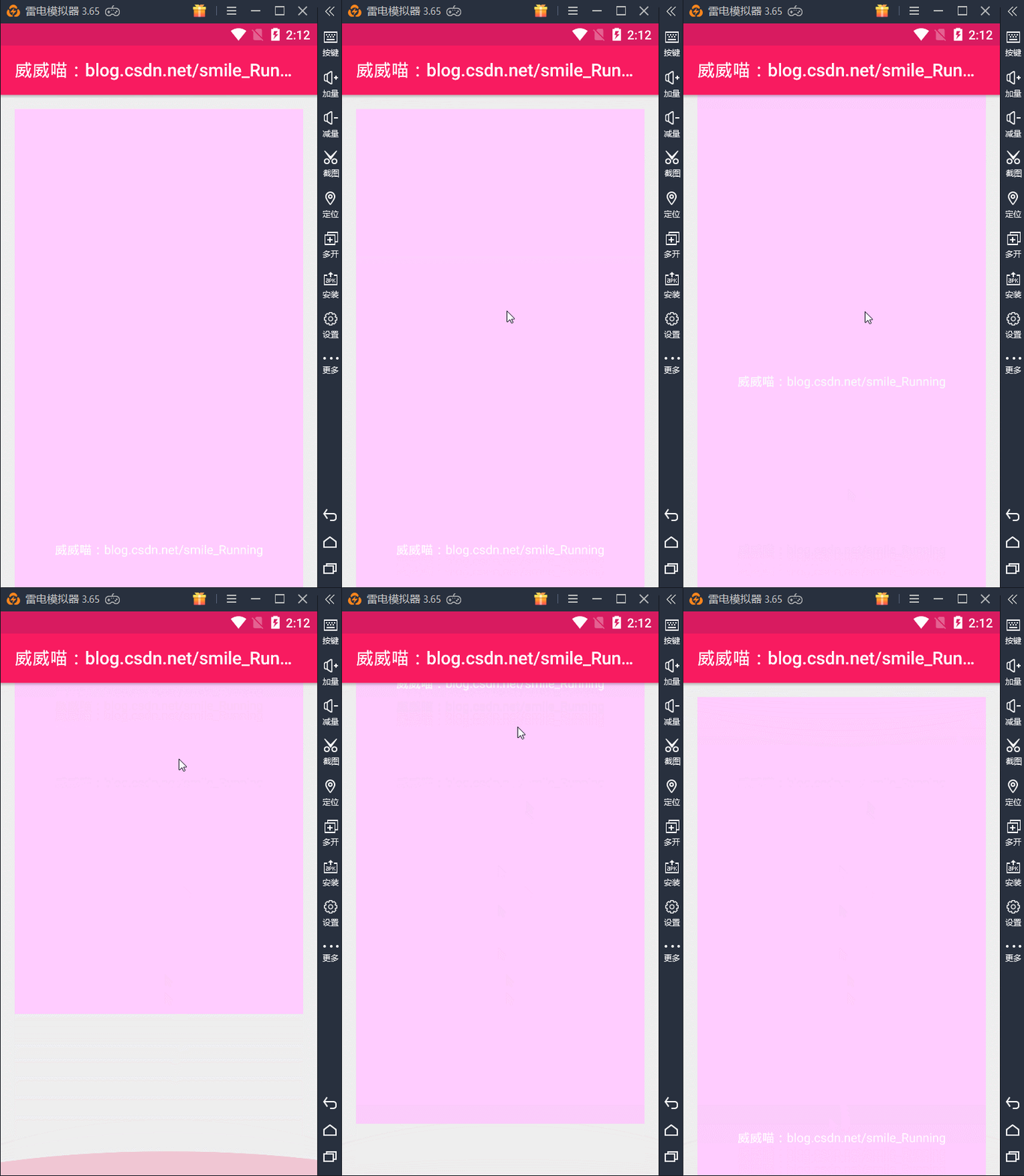

其最终效果就是这个样子了,其中那个粉红色的背景是 LinearLayout,内容存放着两个 TextView 用于测试,这部分代码没什么好介绍的,如下
接下来,我们看如何去实现它的动画效果。首先,我们的 View 是一个可以滚动的视图,直接继承现有的 NestedScrollView 即可,然后给它添加一下弹性的动画就好了。
因为 NestedScrollView 内部只能有一个直接的子 View,所以要想让里面的内容可以拖动的话,我们需要获取这个 View,代码如下:
@Override protected void onFinishInflate() { super.onFinishInflate(); //获取的就是 scrollview 的第一个子 View if (getChildCount() > 0) { mInnerView = getChildAt(0); } }接下来是一个滑动的监听情况,有两种可能。第一种是:NestedScrollView 移动到了顶部 top 处,这时候可以继续拖动,内容位置也会随着改变,当手指松开的刹那,我们拿到它原来的坐标和拖动的距离进行比较,将它还原回去即可,期间可以开启动画效果,设置一个插值器,效果更佳。
还有第二种可能,就是 NestedScrollView 移动到了底部 bottom 处,其处理方式与上面一致,我就不再重复了。当然,还有就是正常情况下,既不是顶部、也不是底部,那就不去处理,正常来就好了。
这里判断是否在 top 或 bottom 处,需要根据子 View( LinearLayout) 的宽度减去控件的宽度,如果有 margin 的话,还有减去 margin 的大小,代码如下:
@Override protected void onMeasure(int widthMeasureSpec, int heightMeasureSpec) { super.onMeasure(widthMeasureSpec, heightMeasureSpec); mWidth = MeasureSpec.getSize(widthMeasureSpec); mHeight = MeasureSpec.getSize(heightMeasureSpec); MarginLayoutParams lp = (MarginLayoutParams) mInnerView.getLayoutParams(); //减去 margin 的值 offset = mInnerView.getMeasuredHeight() - lp.topMargin - lp.bottomMargin - mHeight; }判断是否处于 top 或 bottom 代码
// 判断是否处于顶部或者底部 public boolean isNeedMove() { // 0是顶部,offset是底部 if (getScrollY() == 0 || getScrollY() >= offset) { return true; } return false; }最后,根据我们的触摸事件拿到的偏移量,开启动画即可
public void translateAnimator() { TranslateAnimation animation = new TranslateAnimation(0, 0, mInnerView.getTop(), mRect.top); animation.setDuration(500); animation.setInterpolator(new AnticipateInterpolator(3f)); mInnerView.startAnimation(animation); // 设置回到正常的布局位置 mInnerView.layout(mRect.left, mRect.top, mRect.right, mRect.bottom); mRect.setEmpty(); }下面是完整的代码,运行一下就会看到上面动态图的效果。
package nd.no.xww.messagedragview; import android.content.Context; import android.graphics.Rect; import android.support.annotation.NonNull; import android.support.annotation.Nullable; import android.support.v4.widget.NestedScrollView; import android.util.AttributeSet; import android.view.MotionEvent; import android.view.View; import android.view.animation.AnticipateInterpolator; import android.view.animation.TranslateAnimation; / * @author xww * @desciption : 一个具有弹性的 NestedScrollView * @date 2019/8/4 * @time 22:00 * 博主:威威喵 * 博客:https://blog.csdn.net/smile_Running */ public class ElasticScrollView extends NestedScrollView { private View mInnerView;// 孩子View private float mDownY;// 点击时y坐标 private Rect mRect = new Rect(); private int offset; private boolean isCount = false;// 是否开始计算 private int mWidth; private int mHeight; public ElasticScrollView(@NonNull Context context) { this(context, null); } public ElasticScrollView(@NonNull Context context, @Nullable AttributeSet attrs) { this(context, attrs, 0); } public ElasticScrollView(@NonNull Context context, @Nullable AttributeSet attrs, int defStyleAttr) { super(context, attrs, defStyleAttr); } @Override protected void onFinishInflate() { super.onFinishInflate(); //获取的就是 scrollview 的第一个子 View if (getChildCount() > 0) { mInnerView = getChildAt(0); } } @Override protected void onMeasure(int widthMeasureSpec, int heightMeasureSpec) { super.onMeasure(widthMeasureSpec, heightMeasureSpec); mWidth = MeasureSpec.getSize(widthMeasureSpec); mHeight = MeasureSpec.getSize(heightMeasureSpec); MarginLayoutParams lp = (MarginLayoutParams) mInnerView.getLayoutParams(); //减去 margin 的值 offset = mInnerView.getMeasuredHeight() - lp.topMargin - lp.bottomMargin - mHeight; } @Override public boolean onTouchEvent(MotionEvent e) { if (mInnerView != null) { commOnTouchEvent(e); } return super.onTouchEvent(e); } public void commOnTouchEvent(MotionEvent e) { switch (e.getAction()) { case MotionEvent.ACTION_DOWN: break; case MotionEvent.ACTION_MOVE: final float preY = mDownY;// 按下时的y坐标 float nowY = e.getY();// 时时y坐标 int deltaY = (int) (preY - nowY);// 滑动距离 //排除出第一次移动计算无法得知y坐标 if (!isCount) { deltaY = 0; } mDownY = nowY; // 当滚动到最上或者最下时就不会再滚动,这时移动布局 if (isNeedMove()) { if (mRect.isEmpty()) { // 保存正常的布局位置 mRect.set(mInnerView.getLeft(), mInnerView.getTop(), mInnerView.getRight(), mInnerView.getBottom()); } // 移动布局 mInnerView.layout(mInnerView.getLeft(), mInnerView.getTop() - deltaY / 2, mInnerView.getRight(), mInnerView.getBottom() - deltaY / 2); } isCount = true; break; case MotionEvent.ACTION_UP: if (isNeedAnimation()) { translateAnimator(); isCount = false; } break; } } public void translateAnimator() { TranslateAnimation animation = new TranslateAnimation(0, 0, mInnerView.getTop(), mRect.top); animation.setDuration(500); animation.setInterpolator(new AnticipateInterpolator(3f)); mInnerView.startAnimation(animation); // 设置回到正常的布局位置 mInnerView.layout(mRect.left, mRect.top, mRect.right, mRect.bottom); mRect.setEmpty(); } // 是否需要开启动画 public boolean isNeedAnimation() { return !mRect.isEmpty(); } // 判断是否处于顶部或者底部 public boolean isNeedMove() { // 0是顶部,offset是底部 if (getScrollY() == 0 || getScrollY() >= offset) { return true; } return false; } } 代码不难理解,我刚开始并没有注意这个 Margin 的值,导致的情况可能会在底部的时候,无法继续向上拉,也就是底部没有弹性效果,所以要在测量时把 margin 也处理一下就能解决问题了。
发布者:全栈程序员-站长,转载请注明出处:https://javaforall.net/207045.html原文链接:https://javaforall.net



