
步骤1:配置git
配置用户名与邮箱,这里--global表示为全局设置。
git config --global user.name "yourname" git config --global user.email 打开Pycharm,进入settings-Version Control-Git,路径为你的Git安装路径。
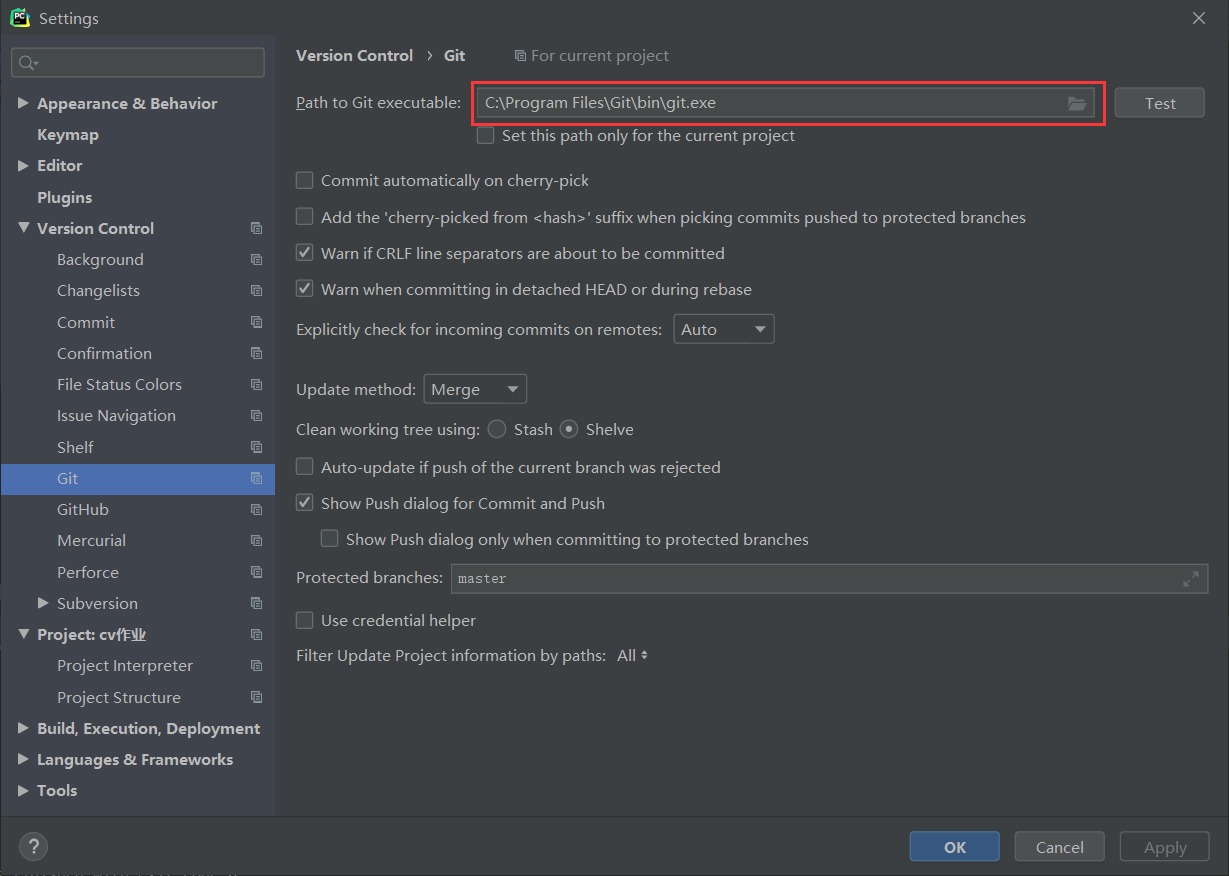

步骤2:利用Token连接Pycharm与Github账号
打开settings-Version Control-Github,添加账号
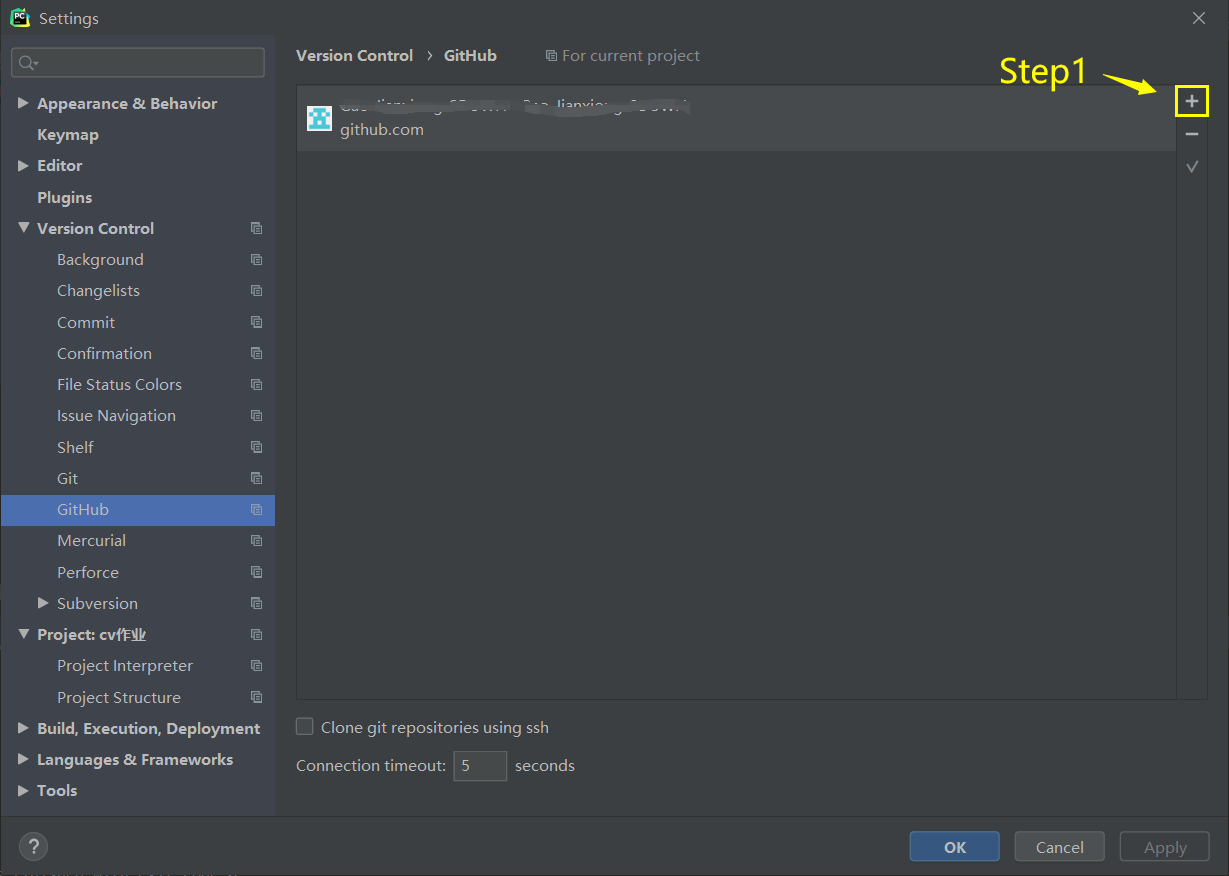
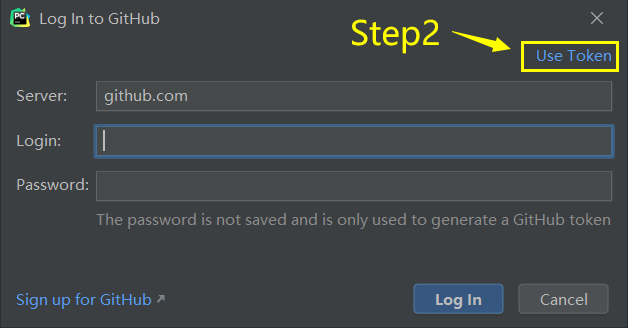
这里有账号密码与Token两种登陆方式,我选择了Token登录.
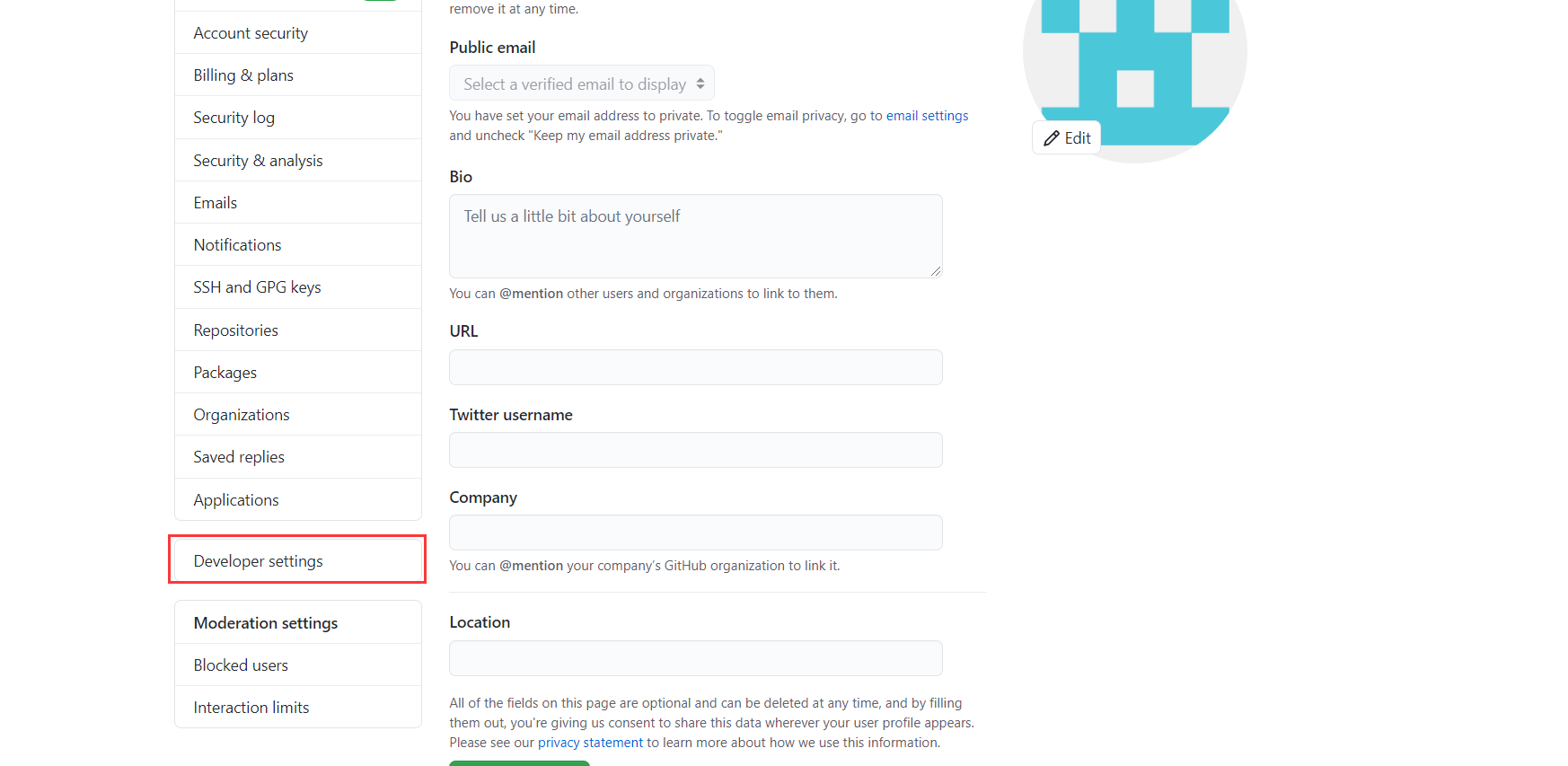
登录Github进入设置
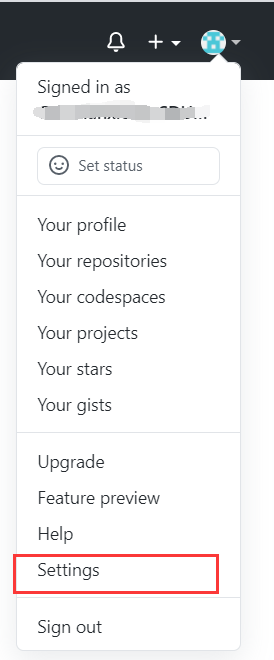
点击 Developer settings-Personal access,如果找不到传送门
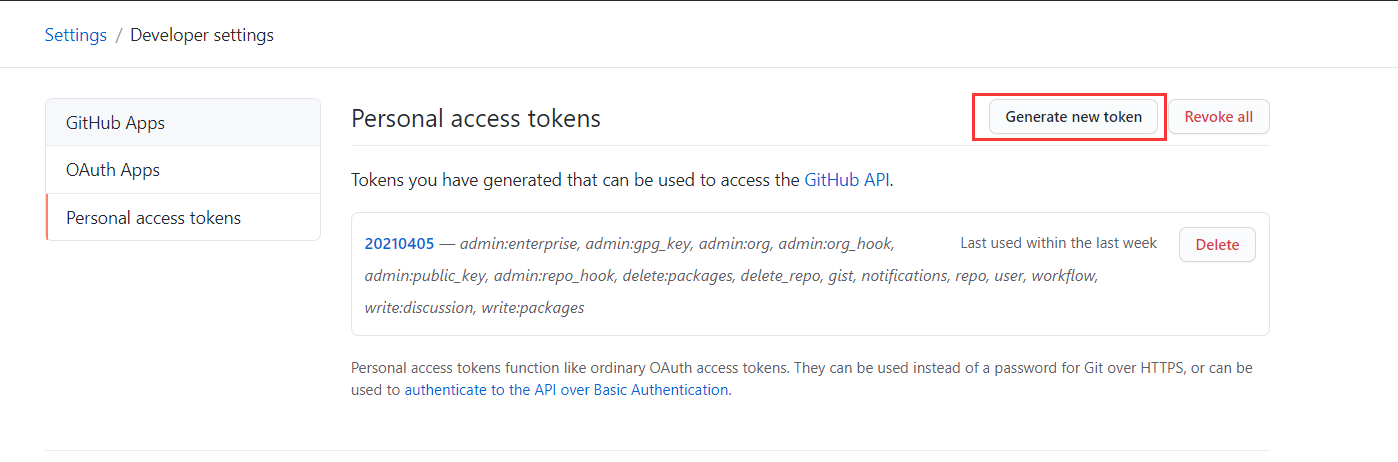
界面如下,如果已经配置过了点击Generate new token即可
步骤3:上传项目至Github
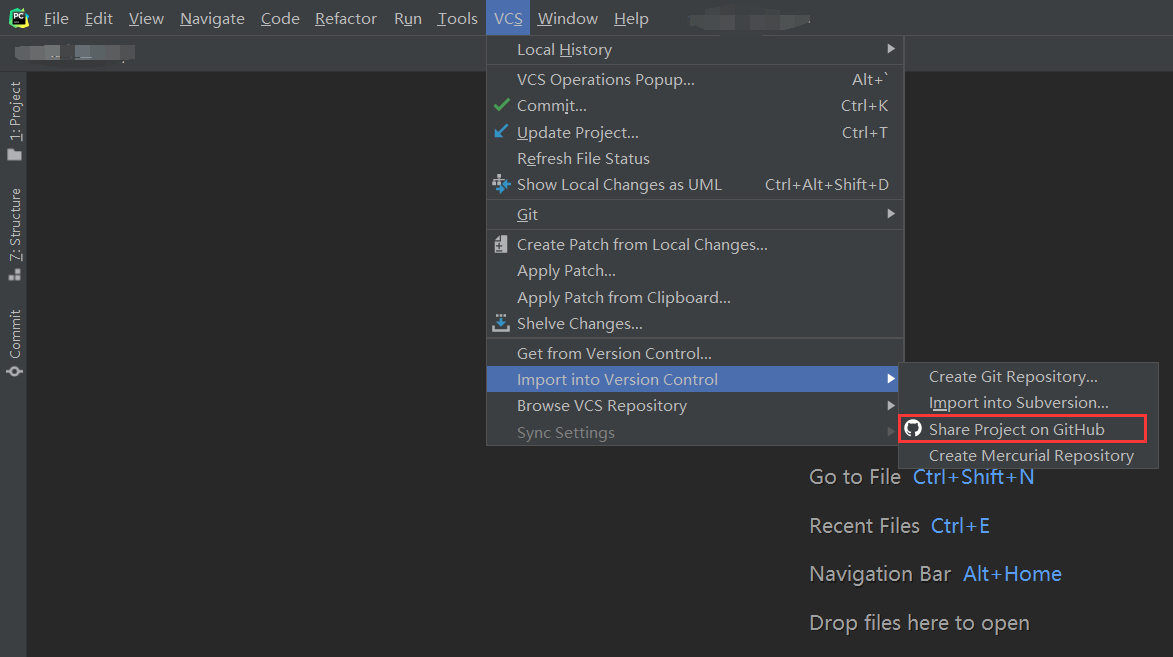
VCS-Import into Version Control-Share Project on GitHub创建仓库
命名创建的仓库,并设置是否为公开,可添加适当描述
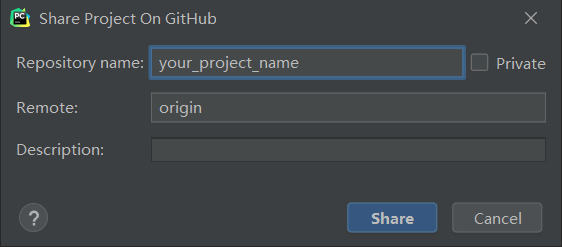
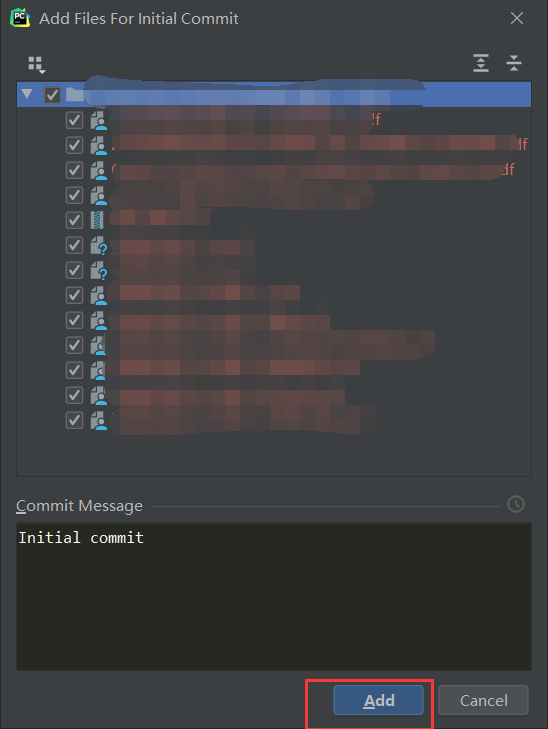
选择Add即可添加至本地仓库
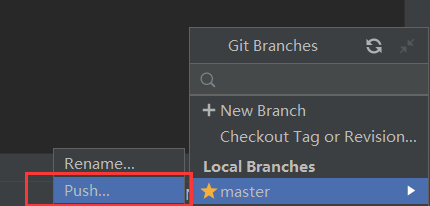
点击右下角的master,选择Push...即可推送至远程仓库。
报错处理
报错一:Failed to connect to github.com port 443: Timed out
Step1:打开ipaddress.com,查询如下两个域名,并分别记录下其对应的ip:
1、github.com
2、github.global.ssl.fastly.net
结果按照如下格式添加到C:\Windows\System32\drivers\etc\hosts末尾:
140.82.114.4 github.com 199.232.69.194 github.global.ssl.fastly.net Step2:打开Git,输入如下指令:
git config http.sslVerify "false" Step3:Win键+R,输入cmd,打开终端,输入:
ipconfig/flushdns 报错二:Connection was reset
选取其中一条报错如下:
Enumerating objects: 35, done. Delta compression using up to 8 threads Total 26 (delta 12), reused 0 (delta 0) the remote end hung up unexpectedly the remote end hung up unexpectedly RPC failed; curl 56 Recv failure: Connection was reset 打开Git输入如下两行指令:
设置http缓存为1000M(大小可以根据需要自行更改) git config --global http.postBuffer 设置https缓存为1000M git config --global https.postBuffer 版权声明:本文内容由互联网用户自发贡献,该文观点仅代表作者本人。本站仅提供信息存储空间服务,不拥有所有权,不承担相关法律责任。如发现本站有涉嫌侵权/违法违规的内容, 请联系我们举报,一经查实,本站将立刻删除。
发布者:全栈程序员-站长,转载请注明出处:https://javaforall.net/210581.html原文链接:https://javaforall.net



